
Hey there, fellow audio adventurers! Edward Cavitt here from headphonehorizon, your go-to spot for making sense of all things sound. If you’ve got a beloved pair of wired headphones that you wish had the freedom of wireless, you’re in the right place. These days, a simple wireless adapter can be your ticket to a tangle-free listening experience. No need to be a tech wizard; we’ll walk through everything you need to know to get your wired headphones broadcasting wirelessly, from the initial setup to enjoying your music, podcasts, or calls without being tethered to your device. Let’s dive in and unlock that wireless freedom!
What Exactly is a Wireless Adapter for Headphones?

Think of a wireless adapter for headphones as a tiny, portable bridge. On one end, it connects to your existing wired headphones, usually via a standard 3.5mm audio jack. On the other end, it communicates wirelessly with your audio source – like your smartphone, tablet, or computer – using Bluetooth technology. This little gadget takes the audio signal from your source and beams it to your headphones, all without a physical cable running between them. It’s a fantastic way to get the best of both worlds: the sound quality of your favorite headphones and the convenience of wireless listening.
Why Go Wireless with an Adapter? The Benefits

The allure of wireless audio is strong, and for good reason. Using a wireless adapter for your headphones opens up a world of convenience and improved listening experiences. Here are some of the key benefits:
- Freedom of Movement: This is the big one! No more getting caught on desk corners or having your phone yanked from your pocket. You can move around freely while still immersed in your audio.
- Reduced Cable Clutter: Let’s be honest, tangled cables are a headache. A wireless adapter drastically simplifies your setup, especially if you’re using headphones with a long cord.
- Universal Compatibility: Most wireless adapters use Bluetooth, the standard for wireless audio. This means they’ll work with virtually any modern smartphone, tablet, or computer that supports Bluetooth.
- Modernize Existing Gear: You don’t need to buy a whole new set of expensive wireless headphones. A relatively inexpensive adapter can give your current headphones wireless capabilities.
- Easier for Certain Activities: Whether at the gym, commuting, or just doing chores around the house, wireless listening is significantly more practical when you’re on the move or your hands are busy.
Types of Wireless Adapters to Consider

When you’re looking for a wireless adapter, you’ll mainly encounter a few different types, each suited for different scenarios:
Bluetooth Receivers (Most Common)
These are typically small, portable devices that plug into your headphones and pair with your audio source via Bluetooth. Some have built-in microphones for calls, while others focus purely on audio playback. They range from simple dongles to small clip-on units.
Bluetooth Transmitters
These devices connect to the audio output of your source (like a TV or PC without Bluetooth) and transmit the audio signal wirelessly to Bluetooth headphones or earbuds. You can also find combo transmitter/receiver units that can do both.
“All-in-One” Wireless Systems
Less common for simple headphone adapters, these might involve a base station and a dedicated headset, but for typical headphone use, the Bluetooth receiver is the standard. Stick with Bluetooth receivers if you want to make your existing wired headphones wireless.
Your Essential Setup Guide: Step-by-Step
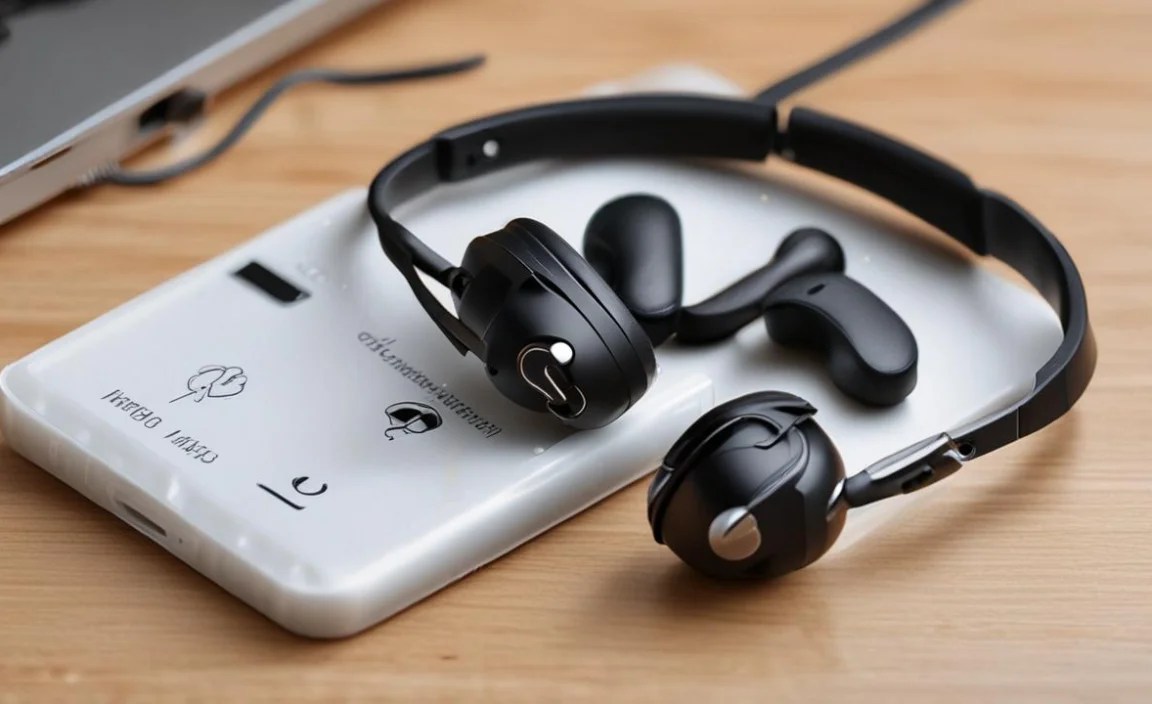
Setting up your wireless adapter for headphones is usually a straightforward process. Here’s how to get it done:
Step 1: Unbox and Charge Your Adapter
Once you’ve purchased your wireless adapter, the first thing to do is unbox it and check if it needs charging. Most adapters come with a USB charging cable. Plug it into a USB port on your computer, a wall adapter, or a power bank. A small LED indicator light will usually show you when it’s charging and when it’s fully charged.
Tip: Always refer to your adapter’s specific manual for charging instructions, as this can vary slightly between models.
Step 2: Connect Your Wired Headphones
Locate the audio output jack on your wireless adapter. It’s typically a 3.5mm female port. Firmly plug the male 3.5mm connector from your wired headphones into this port on the adapter. Ensure it’s seated properly for a good audio connection.
Step 3: Power On Your Wireless Adapter
Find the power button on your adapter. Press and hold it for a few seconds, as indicated in your manual. An LED light will typically start blinking, often in a specific color sequence (like blue and red flashing), indicating that it’s powered on and ready to pair.
Step 4: Put Your Adapter into Pairing Mode
This is a crucial step. While the adapter is powered on and the LED is blinking, you usually need to activate its pairing mode. This is often done by pressing and holding the power button again for a few extra seconds, or sometimes a separate “pairing” button. Again, consult your adapter’s manual for the exact method. The LED indicator will usually change its blinking pattern (e.g., flashing rapidly blue) to show it’s in discoverable mode.
Step 5: Enable Bluetooth on Your Audio Source
Now, turn to the device you want to listen from (your smartphone, tablet, laptop, etc.). Go into its Bluetooth settings.
- For Smartphones/Tablets (iOS & Android): Go to Settings > Bluetooth. Make sure the Bluetooth toggle is switched ON.
- For Computers (Windows & macOS): The process varies slightly, but generally, you’ll go to System Settings/Preferences > Bluetooth and ensure Bluetooth is enabled.
You can find detailed instructions on enabling Bluetooth for various operating systems on Microsoft’s support pages and Apple’s support website.
Step 6: Connect Your Adapter to Your Audio Source
Once Bluetooth is enabled on your source device, it will start scanning for nearby Bluetooth devices. You should see your wireless adapter appear in the list of available devices. It might be listed by its model name or a generic Bluetooth name. Tap or click on the adapter’s name to initiate the pairing process.
You might see prompts on both your device and the adapter (if it has an LED) confirming the connection. Once successfully paired, the LED on your adapter will typically change to a solid color or blink slowly, indicating it’s connected and ready.
Step 7: Test the Audio
Play some audio on your source device. The sound should now come through your headphones connected to the wireless adapter. If you don’t hear anything, double-check that:
- The adapter is powered on and connected to your source device.
- The volume on both your source device and the adapter (if it has physical controls) is turned up.
- Your headphones are properly plugged into the adapter.
- Your source device is set to output audio through the connected Bluetooth device.
Advanced Features and Considerations
Beyond basic pairing, some wireless adapters offer additional features that can enhance your experience. Understanding these can help you choose the best adapter for your needs.
Microphone Quality
If you plan to use your headphones for calls or gaming, check if the adapter has a built-in microphone and read reviews about its clarity. Some adapters have better mic performance than others.
Battery Life
Battery life is crucial for portability. Most adapters offer anywhere from 5 to 20+ hours of playback on a single charge. Consider how often you’ll need to recharge based on your listening habits.
Codec Support (AptX, AAC, SBC)
Bluetooth uses codecs to compress and transmit audio data.
- SBC (Subband Coding): This is the standard codec and is universally supported, but it offers the lowest audio quality.
- AAC (Advanced Audio Coding): Commonly used by Apple devices, offering better quality than SBC.
- aptX and aptX HD: These codecs, developed by Qualcomm, offer higher fidelity audio, closer to CD quality, and lower latency (delay). For the best wireless audio quality with your headphones, look for adapters that support aptX or aptX HD, and ensure your audio source device also supports them for the best results.
You can learn more about Bluetooth audio codecs and their impact on sound quality from resources like Qualcomm’s developer network.
Multipoint Pairing
Some adapters allow you to connect to two devices simultaneously. For example, you could be connected to your laptop for a video call and your phone for music. This is incredibly convenient for professionals and multitaskers.
Latency
Latency refers to the delay between when the audio is sent and when it’s heard. For general music listening or calls, a little latency might be unnoticeable. However, for watching videos or gaming, low latency is essential to keep audio and video in sync. Look for adapters that advertise low latency, especially those supporting aptX Low Latency.
Range
The Bluetooth range varies. Standard Bluetooth 4.x and 5.x typically offer a range of up to 33 feet (10 meters) in ideal conditions. Obstacles like walls can significantly reduce this range.
Troubleshooting Common Issues
Even with simple tech, occasional hiccups can occur. Here are some common issues and how to fix them:
Issue: Adapter won’t pair with my device.
Solutions:
- Ensure the adapter is fully charged and in pairing mode (check the LED indicators).
- Turn off Bluetooth on your audio source device and turn it back on before trying to scan again.
- If your device is connected to other Bluetooth devices, disconnect them first.
- Try “forgetting” the adapter in your Bluetooth device’s settings and then re-pairing from scratch.
- Restart both your adapter and your audio source device.
Issue: No sound through headphones.
Solutions:
- Confirm the adapter is successfully connected to your audio source device (check the LED and device’s Bluetooth settings).
- Ensure your headphones are securely plugged into the adapter.
- Check the volume levels on both your audio source device and the adapter itself (if it has volume controls).
- Verify that your audio source device is set to output audio via Bluetooth.
Issue: Sound is choppy or cuts out.
Solutions:
- Move your audio source device closer to the adapter.
- Minimize obstructions between your device and the adapter (e.g., walls, thick clothing).
- Disconnect other nearby Bluetooth devices that might be causing interference.
- Ensure your adapter and audio source device have sufficient battery charge.
Issue: Adapter doesn’t charge.
Solutions:
- Try a different USB cable and a different USB power source.
- Ensure the charging port on the adapter and the USB cable are clean and free of debris.
- Consult your adapter’s manual for any specific charging indicators or troubleshooting steps.
Choosing the Right Wireless Adapter: Quick Comparison
Here’s a table to help you quickly compare features when making your choice:
| Feature | Basic Adapter | Advanced Adapter |
|---|---|---|
| Primary Function | Bluetooth audio transmission to wired headphones. | Bluetooth audio transmission, often with added features. |
| Codec Support | SBC (Universal) | SBC, AAC, aptX, aptX HD, aptX Low Latency (varies) |
| Battery Life | 5-10 hours | 10-20+ hours |
| Microphone | Often basic or none | High-quality, sometimes with noise cancellation |
| Multipoint Pairing | Rarely supported | Commonly supported |
| Latency | Standard (may notice delay in video) | Low latency options available (better for video/gaming) |
| Price | $15 – $30 | $30 – $80+ |
Frequently Asked Questions (FAQ)
Q1: Can any wired headphones be made wireless with an adapter?
Yes, as long as your wired headphones have a standard 3.5mm audio jack, you can use a wireless adapter to make them Bluetooth-compatible. The adapter plugs into your headphones.
Q2: Will using a wireless adapter affect my headphone’s sound quality?
There might be a slight difference due to Bluetooth compression, but with modern codecs like aptX HD, many users find the sound quality to be excellent and very close to wired. Cheaper adapters or those only using SBC might result in a noticeable drop in fidelity.
Q3: How do I know if my audio source device supports advanced codecs like aptX?
You can usually find codec support information in your device’s specifications or user manual. Manufacturers often list supported Bluetooth codecs in their product details online. Both the adapter and your source device need to support the same advanced codec for it to work.
Q4: How long does the battery on a wireless adapter typically last?
Battery life varies significantly by model. Most offer between 5 and 20 hours of continuous playback on a single charge. Some higher-end models can even last longer. It’s important to check the manufacturer’s specifications.
Q5: Can I use a wireless adapter to connect my Bluetooth headphones to a TV that doesn’t have Bluetooth?
No, a wireless adapter for headphones usually acts as a receiver. To send audio from a TV to Bluetooth headphones, you’ll need a Bluetooth transmitter, or a combo transmitter/receiver unit.
Q6: Is it safe to charge my wireless adapter while I’m using it?
Generally, yes. Most modern electronic devices, including wireless adapters, are designed to be charged and used simultaneously. However, it’s always a good idea to check your device’s manual for any specific manufacturer recommendations.
Q7: What is Bluetooth Codec Latency, and why does it matter?
Codec latency is the delay in audio transmission. For listening to music or podcasts, a bit of latency is usually fine. However, if you’re watching videos or playing games, high latency can cause audio to be out of sync with the visuals, which can be very distracting. Look for adapters advertising “low latency” or specific codecs like “aptX Low Latency” if this is important for you.
Conclusion
Embarking on the wireless audio journey with your favorite wired headphones is a simple, rewarding upgrade. By understanding the basics of how wireless adapters work, following these straightforward setup steps, and considering features like battery life and codec support, you can easily transform your listening experience. Don’t let tech jargon intimidate you; this guide has equipped you with the knowledge to confidently choose, set up, and troubleshoot your wireless adapter. Enjoy the freedom, the clarity, and the pure convenience of untethered sound – your ears will thank you!
