
Quick Summary: A wireless Bluetooth transmitter lets you enjoy your wired headphones on devices without Bluetooth. This guide explains what it is, how it works, and how to choose and use one for a seamless audio experience. Perfect for beginners wanting to upgrade their listening setup affordably.
Wireless Bluetooth Transmitter: Your Essential Guide to Untethered Audio

Hello audio adventurers! Edward Cavitt here, your friendly guide from headphonehorizon. Are you tired of being tethered by cords? Do you have a favorite pair of wired headphones that you wish you could use with your modern media devices, like a new TV or laptop that lacks Bluetooth? You’re not alone! The good news is, there’s a simple and affordable solution: the wireless Bluetooth transmitter. This little gadget is a game-changer, bridging the gap between your beloved wired audio gear and the wireless world. Let’s dive in and discover how a Bluetooth transmitter can free your sound and enhance your listening experience without any of the fuss.
What Exactly is a Wireless Bluetooth Transmitter?
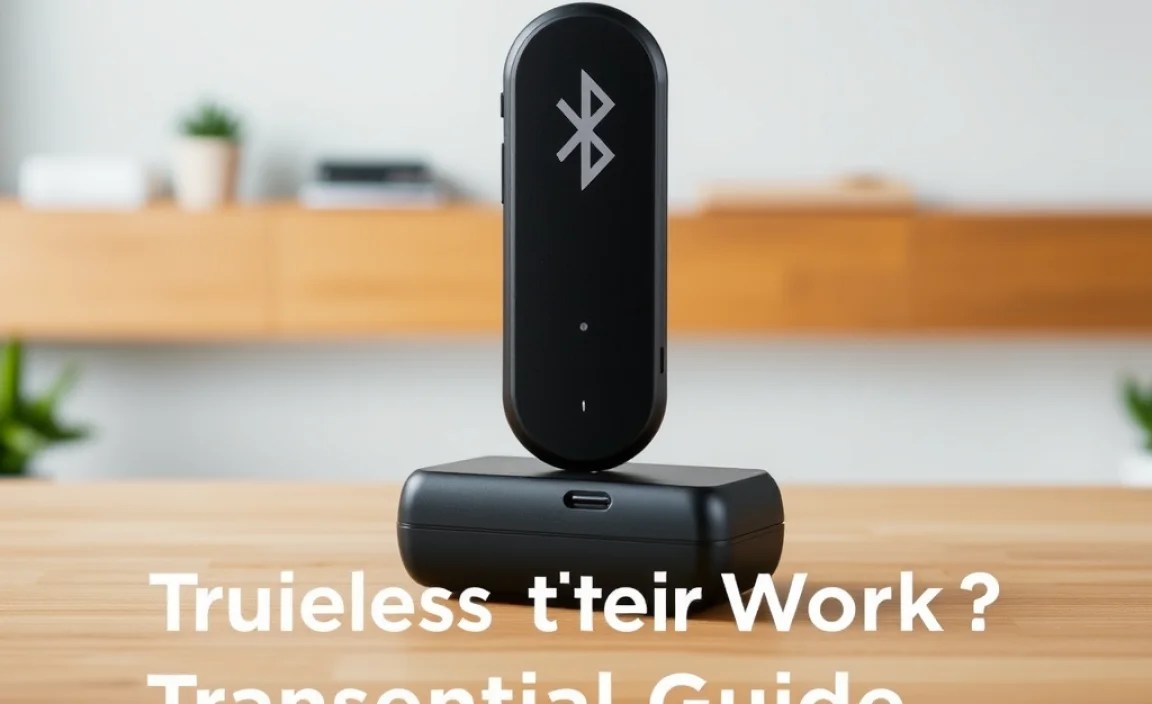
At its core, a wireless Bluetooth transmitter is a small device that takes an audio signal from a source that doesn’t have Bluetooth and converts it so it can be sent wirelessly via Bluetooth. Think of it like a translator for sound. Most modern devices like smartphones, tablets, and computers have built-in Bluetooth to send audio to wireless speakers or headphones. However, many older or specialized devices, such as non-smart TVs, gaming consoles, or even some car stereos, lack this capability.
A Bluetooth transmitter plugs into the audio output port of your non-Bluetooth device (usually a headphone jack, RCA, or optical audio port) and then broadcasts that audio signal. You can then pair your Bluetooth-enabled headphones or speaker with this transmitter, and voilà – you have wireless audio! It’s a fantastic way to extend the life of your existing wired headphones or to add wireless convenience to devices that weren’t designed for it.
How Does a Bluetooth Transmitter Work?

The magic behind a Bluetooth transmitter lies in its ability to capture analog or digital audio signals and encode them into a digital format that can be transmitted wirelessly over short distances using radio waves, specifically Bluetooth technology. Here’s a simplified breakdown:
- Audio Input: The transmitter receives an audio signal from your source device. This is typically done via a 3.5mm headphone jack, RCA audio cables (red and white plugs), or a TOSLINK optical cable.
- Signal Conversion: If the input is analog (like from a headphone jack), the transmitter converts it into a digital signal. If it’s already digital (like from an optical port), it’s prepared for transmission.
- Bluetooth Encoding: The digital audio data is then encoded using Bluetooth protocols. This involves compressing the audio to make the data stream efficient for wireless transmission.
- Broadcasting: The encoded audio signal is broadcast wirelessly.
- Pairing: Your Bluetooth headphones or speaker scan for and connect to (pair with) the transmitter, acting as the receiver.
- Decoding & Playback: The receiver (your headphones/speaker) decodes the Bluetooth signal back into an audio format that it can play.
The quality of the audio can depend on the codecs supported by both the transmitter and the receiver. Codecs are like languages for digital audio; some are more efficient and preserve better sound quality than others. We’ll touch on this more in the “Choosing the Right Transmitter” section.
Why You Might Need a Wireless Bluetooth Transmitter

There are several compelling reasons why a wireless Bluetooth transmitter can be an indispensable tool for any audio enthusiast:
- Upgrade Non-Bluetooth Devices: The most common reason is to make devices like older TVs, projectors, gaming consoles (like PS4 or Nintendo Switch), or even exercise machines Bluetooth-enabled so you can use your wireless headphones.
- Eliminate Wires for Certain Devices: Enjoying late-night TV without disturbing anyone is a major perk. With a transmitter, you can connect your comfortable wired headphones to your TV and watch or play games at any volume.
- Improve Audio Experience: Some devices have weak or unreliable Bluetooth audio. A dedicated transmitter can offer a more stable connection and potentially better audio quality.
- Connect Multiple Devices: More advanced transmitters can connect to two pairs of headphones simultaneously, allowing you and a partner to watch a movie or listen to music from the same source without disturbing others.
- Extended Range: While Bluetooth is designed for short-range communication, some transmitters offer a longer range than built-in Bluetooth on certain devices, giving you more freedom to move around.
Types of Bluetooth Transmitters
Bluetooth transmitters come in various forms, designed for different connection types and features. Understanding these will help you pick the perfect one:
1. Connection Type:
- 3.5mm (Aux) Transmitter: The most common and versatile type. They plug into the standard headphone jack on devices.
- RCA Transmitter: Connects to devices with red and white audio output ports, often found on older stereos and TVs.
- Optical (TOSLINK) Transmitter: Utilizes a digital optical cable for audio transmission. This typically offers the best audio quality as it’s a digital-to-digital transfer, reducing signal degradation.
- USB Transmitter: Some plug directly into a USB port and act as a sound card and Bluetooth transmitter simultaneously.
2. Functionality:
- Transmit-Only: These devices only send audio. They are your go-to if you only need to connect headphones to a non-Bluetooth source.
- Transmit & Receive (2-in-1): These are more flexible. They can act as a transmitter (e.g., sending TV audio to headphones) or as a receiver (e.g., receiving audio from your phone and sending it to a non-Bluetooth speaker or stereo system via an aux cable).
- Low Latency Transmitters: This is a crucial feature for watching videos or gaming. Standard Bluetooth can sometimes have a slight delay (latency) between the video and audio, which is noticeable and annoying. Low Latency (often using the aptX Low Latency codec) minimizes this delay, ensuring audio and video are synchronized. Look for mentions of “aptX LL” or “Low Latency” for this feature.
- Multi-Point Connection: Some transmitters can connect to two Bluetooth devices (like two pairs of headphones) at the same time.
Choosing the Right Wireless Bluetooth Transmitter
Now that you know the types, let’s get down to choosing the best transmitter for your needs. Think of this as a checklist to ensure you get the most bang for your buck and the best listening experience possible:
Key Features to Consider:
- Audio Input Compatibility: Ensure the transmitter’s input connection matches your source device’s audio output. If your TV has an optical out, an optical transmitter is ideal. If it’s just a headphone jack, a 3.5mm transmitter is perfect.
- Bluetooth Codec Support: This is important for audio quality and latency.
- SBC: The standard, basic codec. Ubiquitous but offers the lowest quality and highest latency.
- AAC: Better quality than SBC, commonly used by Apple devices.
- aptX: Offers improved audio quality over SBC.
- aptX HD: Delivers higher-fidelity audio than aptX.
- aptX Low Latency (aptX LL): Essential for watching videos or gaming. It drastically reduces audio delay. For this to work, both your transmitter and your headphones/speaker must support aptX LL.
To avoid lip-sync issues when watching videos, prioritize a transmitter supporting aptX Low Latency if your headphones also support it. For casual listening, AAC or aptX might be sufficient.
- Range: While Bluetooth is typically rated for around 33 feet (10 meters), real-world performance can vary. If you need to move further from your source device, look for transmitters that advertise a longer range (e.g., Class 1 Bluetooth devices).
- Power Source: Most transmitters are USB-powered, meaning they can be plugged into a USB port on your TV, a USB wall adapter, or even a portable power bank. Some might have built-in rechargeable batteries, offering more portability but requiring periodic charging.
- Simultaneous Connections: If you want to share your audio with a friend or family member, get a transmitter that supports connecting to two devices at once.
- Ease of Use: Look for devices with simple pairing buttons and clear indicator lights that show connection status and the codec being used.
Quick Comparison Table: Codecs and Their Impact
| Codec | Typical Use Case | Audio Quality | Latency | Compatibility |
|---|---|---|---|---|
| SBC | Standard audio streaming | Basic | Moderate to High | Universal (all Bluetooth devices) |
| AAC | Streaming on Apple devices, general mobile use | Good | Moderate | Common on iOS, Android, and some headphones |
| aptX | Higher-quality audio streaming | Very Good | Low | Requires support on both transmitter and receiver |
| aptX HD | High-resolution audio streaming | Excellent | Low | Requires support on both transmitter and receiver |
| aptX Low Latency (aptX LL) | Video, gaming, reducing audio delay | Good to Very Good | Very Low (typically <40ms) | Requires support on both transmitter and receiver |
It’s important to note that for the best performance (especially with aptX codecs), both the transmitter and your headphones or speaker need to support the same codec. If one device supports aptX LL, but the other only supports SBC, you’ll default to SBC, and you’ll experience latency.
How to Set Up and Use Your Wireless Bluetooth Transmitter (Step-by-Step)
Setting up a Bluetooth transmitter is generally straightforward. While the exact steps might vary slightly depending on the model, here’s a general guide that covers most scenarios.
Step 1: Connect the Transmitter to Your Audio Source
- Identify the correct audio output port on your source device (TV, computer, etc.). This will likely be a 3.5mm headphone jack, RCA audio out (red and white ports), or an optical audio out port.
- Connect one end of the appropriate audio cable (3.5mm, RCA, or optical) to the source device’s audio output.
- Connect the other end of the audio cable to the corresponding audio input port on your Bluetooth transmitter. Ensure it’s plugged into the “TX” or “Transmitter” port if your device has both transmit and receive functions.
Step 2: Power Up the Transmitter
- Most transmitters are powered via USB. Connect the included USB cable from the transmitter’s USB port to a powered USB source. This could be a USB port on your TV, a USB wall adapter, or a computer.
- Some transmitters have their own power adapter or a built-in battery. Follow the manufacturer’s instructions for powering it on.
- Wait for any indicator lights on the transmitter to show it’s powered on and ready.
Step 3: Put the Transmitter into Pairing Mode
- Nearly all transmitters have a pairing button. You’ll usually need to press and hold this button for a few seconds until an indicator light starts flashing rapidly, indicating it’s searching for a Bluetooth device.
- Consult your transmitter’s manual if you’re unsure about the exact pairing procedure or what the flashing lights mean.
Step 4: Prepare Your Bluetooth Headphones or Speaker for Pairing
- Turn on your Bluetooth headphones or speaker.
- Put your headphones or speaker into pairing mode. This typically involves pressing and holding a Bluetooth button or the power button until a light flashes or you hear an audio cue indicating it’s ready to pair.
- Ensure your headphones or speaker are not currently connected to another device (like your phone). You might need to “forget” the old connection on your phone first, or turn off Bluetooth on your phone temporarily.
Step 5: Pair the Transmitter and Your Device
- Keep the transmitter and your Bluetooth headphones/speaker close to each other (within a few feet) during the initial pairing process.
- The transmitter and your headphones/speaker should automatically detect each other and pair.
- Once paired, the flashing indicator lights on both the transmitter and your headphones/speaker will usually turn solid, or change to a slower blink, indicating a successful connection. You might also hear a confirmation sound or voice prompt.
- If your transmitter and headphones support multiple codecs (like aptX LL, aptX HD), check the indicator lights or your headphone’s app to confirm which codec is active.
Step 6: Listen to Your Audio!
- Once paired, any audio playing from your source device should now be transmitted wirelessly to your Bluetooth headphones or speaker.
- You might need to adjust the volume on your headphones separately from the source device’s volume.
- Important Note for TVs: If you’re connecting to a TV, you might need to go into your TV’s audio settings and select the correct audio output. For optical out, you might need to set the digital audio out format to PCM (rather than Dolby Digital or Bitstream), as some Bluetooth transmitters don’t support those compressed formats. Again, check your TV and transmitter manuals for specifics.
Troubleshooting Common Issues
Even with the best technology, sometimes things don’t go perfectly. Here are a few common hiccups and how to fix them:
- No Sound:
- Check all cable connections are secure.
- Ensure the transmitter is powered on.
- Verify the correct audio output is selected on your source device (e.g., “Headphone Out,” “Audio Out,” or “Optical Out”).
- Make sure the volume on both the source device and your headphones is turned up.
- Confirm the transmitter and headphones are successfully paired (check indicator lights).
- If using optical, try switching your TV’s digital audio output to PCM.
- Audio Lag (Lip Sync Issues):
- Ensure both your transmitter and headphones support aptX Low Latency (aptX LL).
- Make sure aptX LL is selected as the active codec (check indicator lights or headphone app).
- If only one device supports aptX LL, you might have to fall back to SBC or another codec and accept some latency.
- Try restarting both the transmitter and your headphones.
- Connection Dropping:
- Ensure the devices are within Bluetooth range.
- Minimize interference from other wireless devices (Wi-Fi routers, microwaves, other Bluetooth devices).
- Try re-pairing the devices.
- Make sure both devices have sufficient battery or power.
- Cannot Pair:
- Ensure both devices are in pairing mode simultaneously.
- Keep them close together during pairing.
- Turn off Bluetooth on any other nearby devices that might try to connect automatically.
- Restart both the transmitter and your headphones/speaker and try again.
- Check your transmitter’s manual for specific pairing instructions.
Advanced Features and Considerations
Beyond the basics, some transmitters offer features that can further enhance your audio experience:
- Firmware Updates: Some higher-end models can be updated via USB to improve performance or add new codec support.
- Companion Apps: Certain manufacturers provide smartphone apps that allow you to manage connections, check battery status, update firmware, or select audio codecs.
- Voice Assistant Integration: While less common for transmitters, some devices might offer simplified controls for certain functions.
When considering these advanced features, always check for compatibility with your existing devices. For example, a manufacturer’s app will only work with their specific brand of transmitter.
Real-World Use Cases
Let’s paint a picture of where a wireless Bluetooth transmitter truly shines:
- The Home Theater Hero: You have a new smart TV, but your favorite (and most comfortable) wired headphones are too short to reach the couch from the TV. Plug a transmitter into your TV’s headphone jack, pair your headphones, and enjoy the movie without disturbing your family or the neighbors.
- The Retro Revivalist: You have a vintage stereo system with excellent speakers but no way to stream music from your phone. Use a 2-in-1 transmitter/receiver. Connect the transmitter in “receive” mode to your stereo’s AUX input, pair your phone, and stream your Spotify playlist through your old-school sound system.
- The Gamer’s Advantage: You’re playing a fast-paced game on a console that doesn’t have built.
