
Quick Summary: Choosing wireless headphones for your Android phone is easy with this guide. We’ll walk you through key features to consider, how to pair them, essential maintenance, and troubleshooting common issues. Get ready to enjoy your music and calls without the hassle of wires!
Wireless Headphones for Android Phone: Your Essential Guide

Hey there, audio adventurers! Edward Cavitt here from headphonehorizon. Are you ready to ditch those tangled cords and embrace the freedom of wireless sound with your Android phone? It’s an exciting step, and picking the perfect pair can unlock a whole new level of convenience and audio enjoyment.
Whether you’re jamming to your favorite playlist, taking important calls on the go, or diving into podcasts, the right wireless headphones make all the difference.
This guide is designed specifically for you, our everyday listeners, to make the process simple and stress-free. We’ll break down what really matters, from sound quality to battery life and how to get them connected seamlessly. Let’s dive in and make your wireless audio experience fantastic!
Why Go Wireless with Your Android Phone?

The benefits of ditching the wires are pretty compelling. Wireless headphones offer unparalleled freedom of movement. Imagine working out, cooking, or just relaxing without being tethered to your phone. They also contribute to a cleaner, more minimalist look, reducing clutter.
For Android users, the integration with Google’s ecosystem, especially with newer Bluetooth standards, means easier pairing and often better control options. Plus, the performance gap between wired and wireless has narrowed significantly, with many wireless models now offering audiophile-grade sound.
Key Features to Consider When Buying
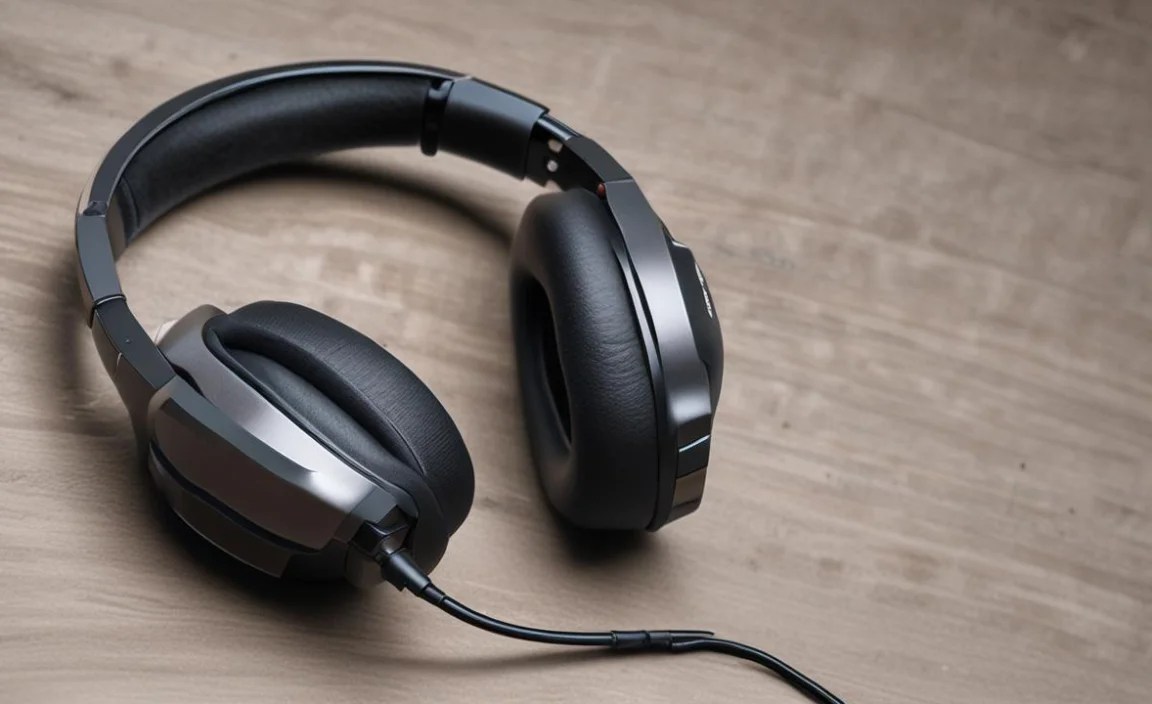
Navigating the world of wireless headphones can feel a bit overwhelming with all the technical specs. But don’t worry, we’ll break down the essentials into simple terms. Think of these as your essential checklist to find the perfect pair for your Android phone.
1. Bluetooth Version and Codecs
This is the backbone of your wireless connection. Bluetooth versions dictate the speed, range, and efficiency of the connection. For Android phones, aim for at least Bluetooth 5.0 or higher. Newer versions mean a more stable connection, lower power consumption, and better audio quality.
Why it matters: A higher Bluetooth version can mean fewer dropouts and a more robust connection, especially important when you’re moving around.
Audio Codecs Explained: These are like languages your headphones and phone use to transmit audio. For Android, you’ll commonly see:
- SBC (Subband Codec): The standard, basic codec. Most devices support it, but it offers the lowest audio quality.
- AAC (Advanced Audio Coding): Common on Apple devices, but Android phones also support it. Offers better quality than SBC.
- aptX (and its variants like aptX HD, aptX Adaptive): Developed by Qualcomm, these generally offer superior audio quality and lower latency (delay). If your Android phone and headphones support aptX or aptX HD, you’re likely in for a treat.
- LDAC: Sony’s high-resolution audio codec, capable of transmitting significantly more data. If both your phone and headphones support LDAC, you’ll get near-lossless audio quality.
Tip: Check your Android phone’s specifications or look for codec support mentioned in the headphone’s product description. For the best experience, aim for headphones that support codecs like aptX HD or LDAC, and ensure your Android phone is also compatible.
2. Battery Life and Charging
This is crucial for any wireless device. How long do you need your headphones to last on a single charge?
- Earbuds: Typically offer around 4-8 hours of playback, with charging cases providing multiple additional charges, extending total listening time to 20-30+ hours.
- Over-ear/On-ear headphones: Can range from 15 to 40+ hours on a single charge, depending on features like active noise cancellation.
Quick Charging: Many headphones now offer quick charging, giving you a couple of hours of playback from just a few minutes of charging. This is a lifesaver when you’re in a rush.
Charging Method: Most use USB-C, which is convenient as it’s the same cable many Android phones use. Some premium earbuds offer wireless charging cases.
3. Sound Quality and Type
This is, of course, subjective, but there are general characteristics to look for:
Sound Signature: Do you prefer bass-heavy sound for workouts, balanced audio for critical listening, or clear highs for podcasts and calls? Brands often have distinct sound profiles. Reading reviews can give you a good idea.
Types of Headphones:
- In-ear/Earbuds: Offer portability and good passive noise isolation. True wireless earbuds (like AirPods, Galaxy Buds) are completely wire-free.
- On-ear: Sit on your ears. They’re more compact than over-ear but can sometimes cause discomfort during long sessions.
- Over-ear: Enclose your ears. These generally offer the best comfort, passive noise isolation, and soundstage (the sense of space in the audio).
4. Comfort and Fit
You’ll be wearing these for extended periods, so comfort is paramount. For earbuds, look for different-sized ear tips. For on-ear and over-ear headphones, consider the padding, clamping force, and weight.
5. Active Noise Cancellation (ANC)
ANC uses microphones to detect ambient noise and generate opposing sound waves to cancel it out. This is fantastic for commuting, noisy offices, or flights. It’s an optional feature, but highly recommended if you often find yourself in loud environments.
6. Water and Sweat Resistance
If you plan to use your headphones for sports or workouts, look for an IPX rating (e.g., IPX4, IPX5). This indicates their resistance to water and sweat. IPX4 is generally sufficient for sweat resistance.
7. Microphone Quality
If you make a lot of calls on your Android phone, pay attention to reviews on microphone performance. Some headphones have multiple microphones and beamforming technology to isolate your voice.
Pairing Your Wireless Headphones with Your Android Phone

Connecting your new wireless headphones to your Android phone is usually a straightforward process. Here’s how:
Step-by-Step Pairing Guide
- Charge Your Headphones: Ensure your wireless headphones have enough battery charge. A low battery can sometimes interfere with the pairing process.
- Enable Bluetooth on Your Android Phone:
- Go to Settings on your Android phone.
- Tap on Connected devices (or similar, wording might vary by manufacturer).
- Tap on Bluetooth.
- Toggle the Bluetooth switch to On.
- Put Your Headphones in Pairing Mode: This is the most crucial step and varies by headphone model.
- For most earbuds: Open the charging case and either press and hold a button on the case or simply take the earbuds out of the case (they often enter pairing mode automatically when first used or when placed back in the case and the lid is opened again).
- For over-ear/on-ear headphones: Look for a dedicated Bluetooth or pairing button. It might be on the earcup or stem. Press and hold this button until an indicator light flashes (often blue or white) or you hear an audio cue like “pairing” or “discoverable.”
Tip: Refer to your headphone’s user manual if you’re unsure how to activate pairing mode. A quick online search for “[Your Headphone Model] pairing mode” can also be very helpful.
- Scan for Devices on Your Android Phone: Once Bluetooth is on, your phone will automatically scan for available devices. If it doesn’t, tap Pair new device or Scan.
- Select Your Headphones: Your headphones should appear in the list of available Bluetooth devices under their name (e.g., “Sony WH-1000XM5,” “Galaxy Buds Pro”). Tap on the name of your headphones.
- Confirm Pairing: Your phone might display a pairing request or a PIN code. If so, confirm the pairing by tapping Pair or OK. Some headphones might automatically pair without a prompt.
- Connection Successful: You should see your headphones listed under “Paired devices” with a “Connected” status. You’ll also likely hear an audio cue from your headphones confirming the connection.
Troubleshooting Pairing: If you encounter issues, try turning Bluetooth off and on again on your phone, restarting your headphones, and forgetting the device from your phone’s Bluetooth list and trying to pair again.
Using Your Wireless Headphones with Your Android Phone

Once paired, your experience is largely plug-and-play. However, there are a few things to optimize.
Managing Connections
Most modern Android phones and headphones support multipoint pairing, allowing you to connect to two devices simultaneously. For example, you could be connected to your phone and your laptop. This is incredibly useful for switching between listening to music on your computer and taking a call on your phone without re-pairing.
Leveraging Companion Apps
Many premium wireless headphones come with companion apps (e.g., Sony Headphones Connect, Sennheiser Smart Control, Bose Music app). These apps download directly from the Google Play Store and unlock a range of features:
- Customizing EQ: Adjust the sound profile to your liking.
- ANC Control: Fine-tune noise cancellation levels or enable adaptive sound features.
- Firmware Updates: Keep your headphones up-to-date with the latest features and bug fixes.
- Button Mapping: Customize what certain buttons or touch controls do.
- Battery Status: Get precise battery life information.
Recommendation: Always download and explore the companion app for your headphones. It’s the best way to get the most out of your investment.
Audio Settings on Android
Your Android phone has its own audio settings that can sometimes be adjusted:
- Developer Options: Though more advanced, you can sometimes find specific Bluetooth audio codec settings here if your phone supports multiple codecs. To access Developer Options, go to Settings > About phone and tap “Build number” seven times. Then, go back to Settings and find Developer Options. (Note: Be cautious when changing settings in Developer Options, as this is an advanced menu.)
- Media Volume: Ensure your media volume on your phone is turned up.
Maintaining Your Wireless Headphones
To ensure your wireless headphones last and perform optimally, a little regular care goes a long way.
Cleaning Your Headphones
Keeping your headphones clean not only maintains their appearance but also ensures that speakers aren’t blocked and that charging contacts on earbuds are clear.
- Earbuds:
- Ear Tips: Remove them and clean with mild soap and water. Ensure they are completely dry before reattaching.
- Earbud Body: Use a dry, soft, microfiber cloth. For stubborn grime, slightly dampen the cloth with water or a gentle cleaning solution (like diluted isopropyl alcohol, but sparingly and avoid getting it into ports).
- Charging Contacts: Use a dry cotton swab or a soft brush to gently clean the metal charging contacts on both the earbuds and inside the charging case.
- Over-ear/On-ear Headphones:
- Ear Pads: Most can be wiped down with a slightly damp microfiber cloth. For leather or pleather pads, consider a specialized cleaner. Avoid soaking them.
- Headband: Wipe with a damp cloth.
- Headphone Body: Use a dry or slightly damp microfiber cloth.
Important: Never submerge your headphones in water unless they are specifically rated as waterproof for submersion. Avoid harsh chemicals, abrasive materials, or getting moisture inside speaker grilles or ports.
Storing Your Headphones
When not in use, store your headphones in their case or a protective pouch. This prevents scratches, dust accumulation, and potential damage to delicate components. For earbuds, always place them back in their charging case.
Battery Care
Lithium-ion batteries in headphones degrade over time. To maximize battery health:
- Avoid extreme temperatures (hot cars, direct sunlight).
- Try not to constantly drain the battery to 0% and then charge it to 100% if possible, though modern charging circuitry manages this well. Occasional full cycles are fine.
- If storing for an extended period (months), aim for a charge level of around 50-60%.
Troubleshooting Common Issues
Even the best tech can sometimes act up. Here are solutions for common problems you might encounter with wireless headphones and your Android phone.
Issue: Headphones Won’t Connect or Pair
- Check Battery: Ensure both your headphones and Android phone have sufficient battery.
- Restart Devices: Turn off Bluetooth on your phone, restart your phone, then turn Bluetooth back on. Also, power cycle your headphones (turn them off and on, or place earbuds in their case and close it for a few seconds).
- Forget Device: On your Android phone, go to Bluetooth settings, find your headphones in the list of paired devices, tap the gear icon or info button, and select “Forget” or “Unpair.” Then, try the pairing process again from scratch.
- Check for Interference: Other Bluetooth devices or Wi-Fi signals can sometimes interfere. Try pairing in a different location with fewer wireless devices.
- Update Firmware: If possible, use the companion app to check for and install any available firmware updates for your headphones.
Issue: Audio Cutting Out or Skipping
- Distance: Ensure your Android phone is within the optimal Bluetooth range (usually around 30 feet or 10 meters, but concrete walls and interference can reduce this).
- Interference: Similar to pairing issues, strong Wi-Fi signals, microwaves, or many other active Bluetooth devices can cause dropouts.
- Device Load: If your Android phone is running many demanding apps or is low on RAM, it might struggle to maintain a stable audio stream. Close unnecessary apps.
- Codec Compatibility: Sometimes, there can be issues with specific Bluetooth codecs. If your headphones and phone support multiple codecs, check if switching them (if possible through a companion app or developer options) helps.
- Update: Ensure both your Android phone’s operating system and your headphone’s firmware are up-to-date.
Issue: One Earbud Not Working (True Wireless)
- Check Battery: Make sure the specific earbud isn’t out of battery.
- Clean Contacts: De-gunk the charging contacts on the earbud and in the charging case.
- Reset Earbuds: Most true wireless earbuds have a reset procedure. This often involves placing both earbuds in the case, leaving the lid open, and pressing and holding a button on the case or repeatedly tapping the earbuds for a set period. Consult your manual for the exact steps.
- Re-pair: After a reset, you’ll need to re-pair them with your phone.
Issue: Headphones Not Charging
- Check Charging Port: Ensure the USB-C port on the headphones or case is clean and free of debris.
- Check Cable/Adapter: Try a different USB-C cable and power adapter.
- Clean Contacts: As mentioned before, clean the charging contacts on the earbuds and inside the case.
- Try Wireless Charging (if applicable): If your case supports wireless charging, try that method to rule out a faulty USB port.
Issue: Reduced Sound Volume
- Check Volume Levels: Ensure both the headphone volume and your Android phone’s media volume are turned up.
- Check EQ Settings: If you’re using a companion app with EQ, ensure it’s not set to drastically cut volume.
- Clean Ear Tips/Grilles: Earwax or debris can muffle sound.
- Reset Headphones: A factory reset can sometimes resolve software glitches affecting performance.
Popular Wireless Headphone Brands for Android Users
While this guide focuses on features, it’s helpful to know some reliable brands offering great wireless options for Android phones. These brands consistently deliver quality and often work well with the Android ecosystem.
| Brand | Typical Strengths | Consider for |
|---|---|---|
| Sony | Exceptional ANC, great sound, LDAC support, robust app | Commuters, audiophiles, those wanting top-tier ANC |
| Samsung (Galaxy Buds) | Seamless integration with Samsung |
