
Enhance your Avaya phone experience with wireless headphones. This guide covers essential features like Bluetooth connectivity, battery life, comfort, microphone quality, and compatibility to help you choose the perfect pair for clear calls and freedom of movement.
Wireless Headphones for Avaya Phone: Essential Features for Seamless Communication

Hello everyone, Edward Cavitt here from headphonehorizon! If you’re looking to untangle your workday and boost your productivity, going wireless with your Avaya phone is a game-changer. Imagine taking calls with crystal-clear audio while still being able to grab a coffee or move freely around your desk.
It’s not just about convenience; it’s about improving call quality and comfort during long workdays. But with so many options out there, how do you pick the right wireless headphones that will play nicely with your Avaya phone?
Don’t worry, I’m here to demystify the process and guide you through the essential features you need to consider. Let’s dive in and find the perfect audio companion for your Avaya setup!
Why Go Wireless with Your Avaya Phone?

The benefits of using wireless headphones with your Avaya phone are numerous, especially in today’s dynamic work environment. For professionals, especially those who are frequently on calls or multitasking, wired headsets can be a significant hindrance. Wireless technology offers:
- Freedom of Movement: No more being tethered to your desk. Move around, stretch, or step away for a moment without missing a beat in your conversation.
- Improved Ergonomics: Reduce neck strain and maintain better posture by not having a headset cord pulling you in a certain direction.
- Enhanced Productivity: Easily transition between tasks. You can answer calls, join meetings, and even move to a quieter space for better call clarity.
- Reduced Clutter: A cleaner workspace contributes to a clearer mind and a more professional appearance.
- Comfort for Extended Use: Many wireless models are designed for long-wearing comfort, which is crucial if you spend hours on calls each day.
Key Features to Look For in Wireless Headphones for Avaya Phones

Choosing the right wireless headphones for your Avaya phone involves understanding a few key specifications. These features ensure compatibility, optimal performance, and a comfortable user experience. Let’s break them down:
1. Connectivity: Bluetooth is King
The most common and crucial feature for wireless headphones is Bluetooth connectivity. For Avaya phones, you’ll typically be looking for headphones that support reliable Bluetooth streaming. Here’s what to know:
- Bluetooth Version: While older versions work, aim for Bluetooth 4.0 or higher. Newer versions like Bluetooth 5.0, 5.1, and 5.2 offer better range, faster pairing, improved power efficiency, and more stable connections. This means fewer dropped calls and a more consistent audio experience.
- Multipoint Connectivity: This is a lifesaver for professionals. Multipoint allows your headphones to be connected to two devices simultaneously – for example, your Avaya phone and your computer. You can seamlessly switch between a call on your phone and an online meeting on your laptop without re-pairing.
- DECT (Digital Enhanced Cordless Telecommunications): Some office headsets, especially those designed for business-grade desk phones like many Avaya models, utilize DECT technology. DECT offers a longer wireless range (often up to 300-500 feet) and less interference than standard Bluetooth, making it ideal for larger offices or environments with a lot of wireless devices. If your Avaya phone has DECT compatibility or a specific port for a DECT base station, this could be a superior option for range and call quality. Always check your phone’s specifications or consult with your IT department.
2. Microphone Quality: Clarity is Non-Negotiable
The quality of the microphone is paramount for business communication. You want to be heard clearly, and you want to hear others without a muffled or distorted sound.
- Noise Cancellation: Look for headphones with microphones that feature noise cancellation technology. This can range from basic passive noise isolation (blocking out ambient sound with earcups) to advanced active noise cancellation (ANC) that uses microphones to detect and neutralize background noise, such as keyboard clicks, office chatter, or air conditioning hum.
- Microphone Placement: A boom microphone that can be positioned close to your mouth generally offers better voice pickup and can more effectively isolate your voice from background distractions compared to integrated microphones.
- Wind Noise Reduction: If you sometimes take calls outdoors or in drafty areas, this feature can be very helpful.
3. Battery Life and Charging
For a full workday, reliable battery life and efficient charging are essential.
- Talk Time: Aim for headphones that offer at least 8-10 hours of talk time on a single charge. Many professional-grade headsets offer 15-20 hours or more, which is great for heavy users.
- Standby Time: This refers to how long the headphones can stay powered on and connected without being used. A good standby time ensures they’re ready when you need them.
- Charging Time: How long does it take to fully charge? Quick charging features, where a few minutes of charging provide an hour or two of talk time, can be a lifesaver.
- Charging Options: Most headphones charge via USB. Some might come with a charging stand or a charging case, which adds convenience.
4. Comfort and Fit
You’ll likely be wearing these headphones for extended periods, so comfort is key to avoiding fatigue and distraction.
- Earcup Material: Look for plush, breathable earcups made from materials like memory foam or soft leatherette.
- Headband Design: An adjustable, padded headband distributes weight evenly and reduces pressure on your head.
- Weight: Lighter headphones are generally more comfortable for long wear.
- Over-Ear vs. On-Ear vs. In-Ear:
- Over-ear: Enclose your ears completely, offering good passive noise isolation and comfort for most.
- On-ear: Rest on your ears. Can be less comfortable for some over long periods and offer less noise isolation.
- In-ear (earbuds): Insert into the ear canal. Can be very discreet and portable but might not offer the comfort or microphone positioning needed for professional calls.
- Adjustability: Ensure the headphones can be adjusted to fit your head size and ear shape comfortably.
5. Compatibility with Avaya Phones
This is where it gets specific. Not all wireless headphones work seamlessly with all Avaya phone models. You need to ensure your chosen headphones are compatible.
- Bluetooth-Enabled Avaya Phones: Many newer Avaya desk phones have built-in Bluetooth. If yours does, you can simply pair standard Bluetooth headphones. Check your phone’s user manual or interface for Bluetooth settings.
- Avaya Phones Requiring a Dongle: Some Avaya phones, or specific setups, might require a USB Bluetooth adapter (dongle). These dongles plug into the USB port of your Avaya phone and transmit the audio wirelessly to compatible headsets. It’s important to ensure the headset and the dongle are designed to work together, and that the dongle is compatible with your specific Avaya phone model.
- DECT-Based Systems: As mentioned earlier, some Avaya systems are designed to work with DECT headsets and base stations. These are often more robust for enterprise use but limit you to proprietary or DECT-certified headsets.
- Consult Your IT Department: For business environments, the best first step is always to check with your IT department or Avaya administrator. They can advise on supported devices and configurations, ensuring your purchase is compatible and meets your organization’s standards. You can often find compatibility lists on Avaya’s official website or from reputable headset manufacturers.
6. Ease of Use and Controls
Intuitive controls make managing calls and audio simple.
- On-Ear Controls: Look for easy-to-access buttons or touch controls for answering/ending calls, adjusting volume, muting the microphone, and activating voice assistants.
- LED Indicators: Simple lights can indicate battery status, connection strength, or if you’re muted.
- Voice Prompts: Helpful notifications about battery life, connection status, and incoming callers can enhance user experience.
Popular Types of Wireless Headphones and Their Relevance

When considering wireless headphones for your Avaya phone, different form factors offer distinct advantages. Understanding these can help you narrow down your choices.
Bluetooth Headsets with Boom Mics
These are often purpose-built for business communication. The prominent boom microphone is designed for optimal voice capture, and many feature advanced noise cancellation. They typically connect via Bluetooth or a dedicated USB dongle.
Pros:
- Excellent microphone clarity and noise cancellation.
- Optimized for voice calls.
- Often designed for all-day comfort.
Cons:
- May be less ideal for extensive music listening.
- Can sometimes be bulkier than lifestyle headphones.
True Wireless Earbuds
Compact and truly wire-free, these earbuds are popular for their portability and discreetness. When choosing for Avaya phones, prioritize models with good microphone quality and reliable Bluetooth connectivity.
Pros:
- Highly portable and discreet.
- Offers excellent freedom of movement.
- Many models offer good ANC for listening.
Cons:
- Microphone quality can vary significantly; some are not ideal for professional calls.
- Battery life per charge might be shorter than over-ear models, though charging cases help.
- Can be easy to misplace.
Bluetooth Over-Ear Headphones
These offer a more immersive audio experience and often superior comfort for long wear. They typically have excellent battery life and can be a good choice if you also use headphones for music, podcasts, or office noise cancellation.
Pros:
- Comfortable for extended wear.
- Often provide excellent sound quality for both calls and media.
- Good passive noise isolation, sometimes with ANC.
Cons:
- Microphone performance can vary; some have less effective boom mics or rely on integrated mics.
- Can be bulkier and less portable than earbuds.
Understanding Wireless Technologies for Business Communication
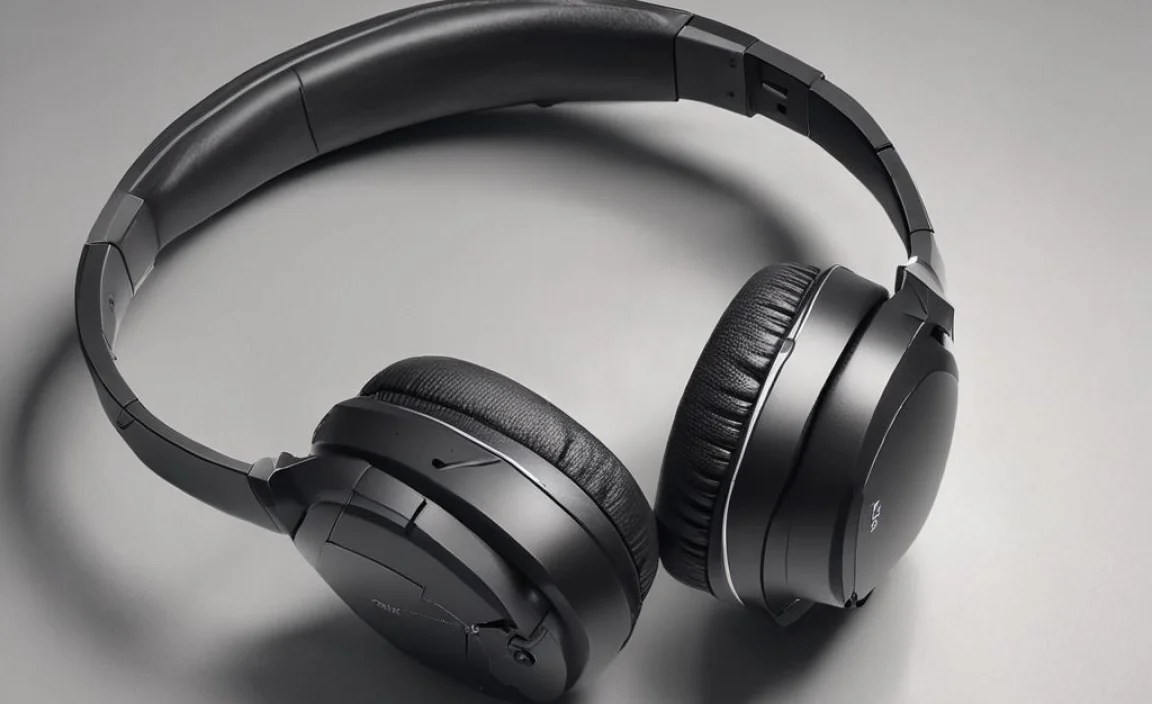
While Bluetooth is the most common, it’s worth understanding other technologies that might be relevant, especially in a corporate setting.
Bluetooth vs. DECT: Which is Right for Your Avaya Setup?
The choice between Bluetooth and DECT often depends on your Avaya phone’s capabilities and your specific office environment.
| Feature | Bluetooth | DECT |
|---|---|---|
| Range | Typically 30-100 feet (9-30 meters) | Typically 300-500 feet (90-150 meters) |
| Interference | Can be susceptible to interference from other 2.4 GHz devices (Wi-Fi, microwaves) | Uses different frequency bands, generally less susceptible to common wireless interference. |
| Device Compatibility | Widely compatible with most smartphones, tablets, and modern computers. | Primarily designed for specific office phone systems and base stations; less universal for mobile devices. |
| Call Quality | Generally excellent with newer versions, but can vary with signal strength. | Often provides very consistent and high-quality audio. |
| Use Case | Excellent for mobile professionals, BYOD environments, and general office use. | Ideal for large offices, warehouses, or environments where extended, reliable wireless coverage is needed from a single base station. |
For many modern Avaya phones with integrated Bluetooth, a good quality Bluetooth headset or earbud set is the most straightforward solution. If your Avaya phone lacks Bluetooth, or if you need superior range and reliability in a noisy RF environment, a DECT headset system with a dedicated base station that connects to your phone might be the better, albeit more specific, choice. Resources like this guide on DECT technology can offer more technical insight.
Ensuring Compatibility: A Practical Guide
Given that compatibility is the lynchpin of a successful wireless headset setup for your Avaya phone, here’s a systematic approach:
- Identify Your Avaya Phone Model: This is the first and most critical step. Look for the model number on the phone itself or check your system’s documentation.
- Check for Built-in Bluetooth: Power on your Avaya phone and navigate through its menus. Look for “Settings,” “Bluetooth,” or “Wireless” options. Consult your phone’s user manual for instructions on how to enable and pair Bluetooth devices.
- Determine if a Dongle is Needed: If your phone doesn’t have built-in Bluetooth, see if it has a USB port. If so, you might need a USB Bluetooth adapter (dongle). Ensure the dongle is specifically listed as compatible with your Avaya phone model. Some headset manufacturers (like Jabra or Plantronics) offer specific dongles for their headsets that are designed for such integrations.
- Consider DECT Systems: If your Avaya system is designed around DECT (perhaps you have older Avaya models or a specific enterprise setup), you’ll likely need a DECT headset and base station. These typically connect to the phone via an RJ or USB cable.
- Consult Manufacturer Websites: Reputable headset brands like Jabra, Poly (formerly Plantronics), Logitech, and Sennheiser often have compatibility checkers on their websites. You can usually input your Avaya phone model, and they will suggest compatible headsets.
- Contact Your IT Department: As mentioned before, this is often the most reliable route in a business setting. They have the most accurate information regarding approved devices and network configurations.
Top Features to Prioritize Based on Your Needs
Not all features are created equal, and your priorities might differ. Here’s a quick breakdown to help you decide:
- For Maximum Freedom & Mobility: Prioritize long battery life, excellent Bluetooth range (consider multipoint), and comfortable, lightweight design. Bluetooth’s widespread adoption makes it versatile.
- For Crystal-Clear Call Quality: Focus on headphones with advanced noise-canceling microphones, boom mic placement, and robust connectivity.
- For All-Day Comfort: Look for plush earcups, ergonomic headbands, and lighter weight designs. Over-ear models are often favored here.
- For Multi-Device Users: Multipoint Bluetooth connectivity is non-negotiable. This allows seamless switching between your Avaya phone and a computer or tablet.
- For Noisy Environments: Active Noise Cancellation (ANC) and strong passive noise isolation (from well-designed earcups) are key.
Frequently Asked Questions (FAQ)
Q1: Can any Bluetooth headset work with my Avaya phone?
Not necessarily. While many modern Avaya phones have built-in Bluetooth, compatibility can vary. Some headsets may not pair, or may not function fully (e.g., call answer/end functions might not work). It’s crucial to check if your specific Avaya phone model supports Bluetooth headsets and to consult the headset manufacturer’s compatibility lists.
Q2: What is a USB Bluetooth dongle and do I need one?
A USB Bluetooth dongle is a small device that plugs into your Avaya phone’s USB port. It provides Bluetooth functionality to phones that don’t have it built-in, allowing them to connect with Bluetooth headsets. You’ll need one if your Avaya phone lacks integrated Bluetooth but has a USB port and is compatible with external Bluetooth adapters.
Q3: How do I know if my Avaya phone supports wireless headsets?
Check your Avaya phone’s model number and consult its user manual. Look for mentions of “Bluetooth,” “Wireless Headset,” or icons indicating wireless connectivity. Many Avaya phones also have specific headset ports (often a modular RJ9 connector) which might support wired headsets, but for wireless, you’ll need to look for Bluetooth or DECT capabilities.
Q4: What’s the difference between Bluetooth and DECT for business headsets?
Bluetooth is a short-range wireless standard ideal for general device connectivity, widely used with smartphones and computers. DECT (Digital Enhanced Cordless Telecommunications) is a technology specifically designed for cordless phones and office environments.
DECT typically offers a longer wireless range (up to 500 ft) and less interference compared to Bluetooth, making it superior for large offices or environments with a lot of wireless
