
Quick Summary: This guide helps you choose and use wireless headphones with your desk phone for better call clarity and freedom. Learn about compatibility, features, setup, and best practices for a seamless, professional communication experience without tangled wires.
Hello there! Edward Cavitt here, your go-to guide for all things audio. If you’re wrestling with curly cords or just craving a bit more freedom during your desk phone calls, you’ve landed in the right place! Having the right wireless headphones for your desk phone can transform your workday, making calls clearer and your movements unrestricted. Gone are the days of being tethered to your handset. We’ll walk through everything you need to know to pick the perfect pair and set them up with ease, ensuring your conversations are always crisp and convenient. Let’s dive in!
Why Wireless Headphones for Your Desk Phone?

The traditional desk phone, while reliable, often comes with a handset that can be cumbersome. Holding it for extended periods can lead to neck strain, and the cord restricts your movement around your workspace. Wireless headphones offer a liberating solution. They provide:
- Improved Comfort: Say goodbye to cradling the phone between your shoulder and ear. Wireless headphones distribute weight evenly and allow for natural posture.
- Enhanced Mobility: Move around your desk, grab a file, or even step away for a moment (within range) without interrupting your call. This is fantastic for productivity.
- Clearer Audio: Many modern wireless headsets feature noise-cancellation and improved microphone technology, ensuring both you and the person you’re speaking with can hear clearly.
- Professionalism: A headset can present a more professional image, especially in busy office environments, allowing you to multitask discreetly.
- Reduced Strain: For those who spend significant time on the phone, switching to a headset can alleviate physical strain on the neck, shoulder, and even wrist.
Types of Wireless Headphones for Desk Phones

When you’re looking for wireless solutions for your desk phone, you’ll primarily encounter a few main types, each with its own advantages:
1. Bluetooth Headsets
Bluetooth headsets are incredibly popular due to their widespread compatibility and ease of use. They connect wirelessly to your desk phone via Bluetooth technology. Many modern desk phones have built-in Bluetooth, but if yours doesn’t, you might need a Bluetooth adapter for your phone or a base station that connects to your phone and then wirelessly to the headset.
Pros of Bluetooth Headsets:
- Ubiquitous Technology: Bluetooth is standard on many devices, making pairing generally straightforward.
- Cordless Freedom: Offers excellent range for moving around your workspace.
- Versatility: Many Bluetooth headsets can connect to multiple devices simultaneously (e.g., your desk phone and your mobile).
- Sleek Design: Often come in discreet, comfortable designs like earbuds or lightweight over-ear models.
Cons of Bluetooth Headsets:
- Compatibility Can Vary: Older or basic desk phones might not have Bluetooth capabilities, requiring additional hardware.
- Connection Stability: While usually good, Bluetooth connections can sometimes be susceptible to interference.
- Battery Dependent: Requires regular charging.
2. DECT (Digital Enhanced Cordless Telecommunications) Headsets
DECT headsets are specifically designed for business and office use. They connect to a base station, which then connects to your desk phone. DECT technology is known for its robust, secure connection and often offers a longer wireless range and superior audio clarity compared to standard Bluetooth connections, especially in busy office environments with many wireless devices.
Pros of DECT Headsets:
- Superior Range and Reliability: Excellent for larger offices or individuals who move farther from their desk.
- High-Quality Audio: Often optimized for voice communication with advanced noise-canceling.
- Security: DECT’s encryption makes it a secure choice for sensitive calls.
- Multi-Device Connection (Base Station): Many DECT base stations can connect to both a desk phone and a PC, or even a mobile via Bluetooth.
Cons of DECT Headsets:
- Requires a Base Station: An extra piece of hardware is needed.
- Less Portable Outside the Office: Primarily designed for use within a certain range of the base.
- Higher Cost: Generally more expensive than basic Bluetooth options.
3. RF (Radio Frequency) Headsets
Less common now for new purchases but still found, RF headsets connect via a wireless transmitter and are typically designed for home use or specific older systems. They often require a dedicated connection to the phone’s headset port or line-out connector. Think of them as an older sibling to DECT, but often with less advanced features and potentially more interference.
Pros of RF Headsets:
- Dedicated Connection: Can offer a stable connection if your phone supports the required output.
- Often Built for Comfort: Larger earcups can be very comfortable for long wear.
Cons of RF Headsets:
- Limited Range: Typically offer a shorter range than DECT.
- Potential for Interference: Can be more prone to interference from other devices.
- Less Common/Supported: Finding new models and ensuring compatibility with modern phones can be challenging.
Key Features to Look For

Once you’ve identified the type of headset that best suits your needs, it’s time to consider the specific features that will enhance your calling experience. Here are some essential features to keep an eye on:
- Noise-Canceling Microphone: This is crucial for reducing background noise so the person on the other end can hear you clearly, even if you’re in a busy environment.
- Comfort and Fit: With long calls, comfort is paramount. Look for adjustable headbands, comfortable earcups (over-ear, on-ear, or even earbuds), and a lightweight design.
- Battery Life: Ensure the battery life meets your daily needs. Many headsets offer 8-10 hours of talk time per charge, with some going much longer. Quick charging capabilities are also a big plus.
- Connectivity Options: Some headsets can connect to both your desk phone and your computer or mobile phone simultaneously. This feature, often called multi-point connectivity, is incredibly convenient for professionals who juggle multiple communication channels.
- Audio Quality: High-definition (HD) voice support ensures crystal-clear conversations.
- Range: Consider how far you might need to move from your desk. DECT headsets generally offer the longest range, often up to 300 feet, while Bluetooth can vary but is often around 30-100 feet, depending on the Bluetooth version and environment.
- Controls: Easy-to-access buttons for answering/ending calls, adjusting volume, and muting the microphone are essential for seamless call management.
- Docks and Charging: A charging dock not only keeps your headset powered up but also provides a convenient storage place.
How to Connect Wireless Headphones to Your Desk Phone: A Step-by-Step Guide

The connection process will vary slightly depending on whether your desk phone has built-in Bluetooth, if you’re using a Bluetooth adapter, or if you’re opting for a DECT headset system. Here’s a general approach:
Scenario 1: Desk Phone with Built-In Bluetooth
This is the most straightforward scenario for Bluetooth users.
Step 1: Ensure Bluetooth is Enabled on Your Phone
Locate the Bluetooth settings on your desk phone. This is usually in the ‘Settings,’ ‘Connectivity,’ or ‘Preferences’ menu. Turn Bluetooth on.
Step 2: Put Your Headset in Pairing Mode
This is usually done by pressing and holding a specific button (often the power or Bluetooth button) on the headset until an indicator light flashes (often blue or red/blue alternately) or you hear an audible prompt like “pairing.” Consult your headset’s manual if you’re unsure.
Step 3: Scan for Devices on Your Phone
On your desk phone’s Bluetooth menu, select the option to ‘Scan for Devices’ or ‘Add Device.’ Your phone will search for nearby Bluetooth devices.
Step 4: Select Your Headset from the List
Once your headset appears on the phone’s screen, select it. You might be prompted to enter a PIN (often “0000” or “1234” for older devices, but check your headset manual) or simply confirm the connection.
Step 5: Confirm Connection and Test
Your phone should indicate that the headset is connected. Make a test call to ensure audio is routing correctly through the headset and that the microphone is working.
Scenario 2: Using a Bluetooth Adapter for Your Desk Phone
If your desk phone lacks built-in Bluetooth, a USB Bluetooth adapter or a dedicated Bluetooth adapter that plugs into the headset port can bridge the gap.
Step 1: Connect the Bluetooth Adapter
For a USB adapter, plug it into an available USB port on your desk phone if it has one. If it’s an adapter that plugs into the headset jack, connect it there.
Step 2: Configure Your Phone to Use the Adapter
Your desk phone may automatically detect the adapter, or you might need to go into settings to select it as the primary audio device for calls. Refer to your phone and adapter manuals.
Step 3: Pair Your Headset with the Adapter
Follow steps 2-5 from Scenario 1, but now you will be pairing your headset with the Bluetooth adapter, not directly with the phone itself. The adapter essentially acts as the phone’s Bluetooth module.
Scenario 3: Connecting a DECT Headset System
DECT systems are designed to be plug-and-play for the most part.
Step 1: Connect the Base Station
Plug the DECT base station into a power outlet. Then, connect the base station to your desk phone. This is usually done using a provided telephone cable that plugs into the ‘headset’ port or ‘external device’ port on your phone and an appropriate port on the base station. Some base stations also connect via USB to a computer if you intend to use them for PC calls as well.
Step 2: Power On the Base Station and Headset
Turn on the base station and the headset. The headset will typically already be paired with its dedicated base station, but if not, there’s usually a ‘DECT pairing’ or ‘register headset’ button on the base station. Follow the instructions in your DECT headset manual to register the headset to the base.
Step 3: Configure Your Phone Settings (If Necessary)
Most phones automatically recognize a connection to a DECT base station. You might need to ensure your phone is set to use its headset if it has multiple audio output options enabled. Some phones may require you to press a specific button to activate the headset connection.
Step 4: Test the Connection
Make a test call to confirm audio is working through the DECT headset and that the microphone is functioning correctly. You should have a clear, stable connection.
Troubleshooting Common Issues
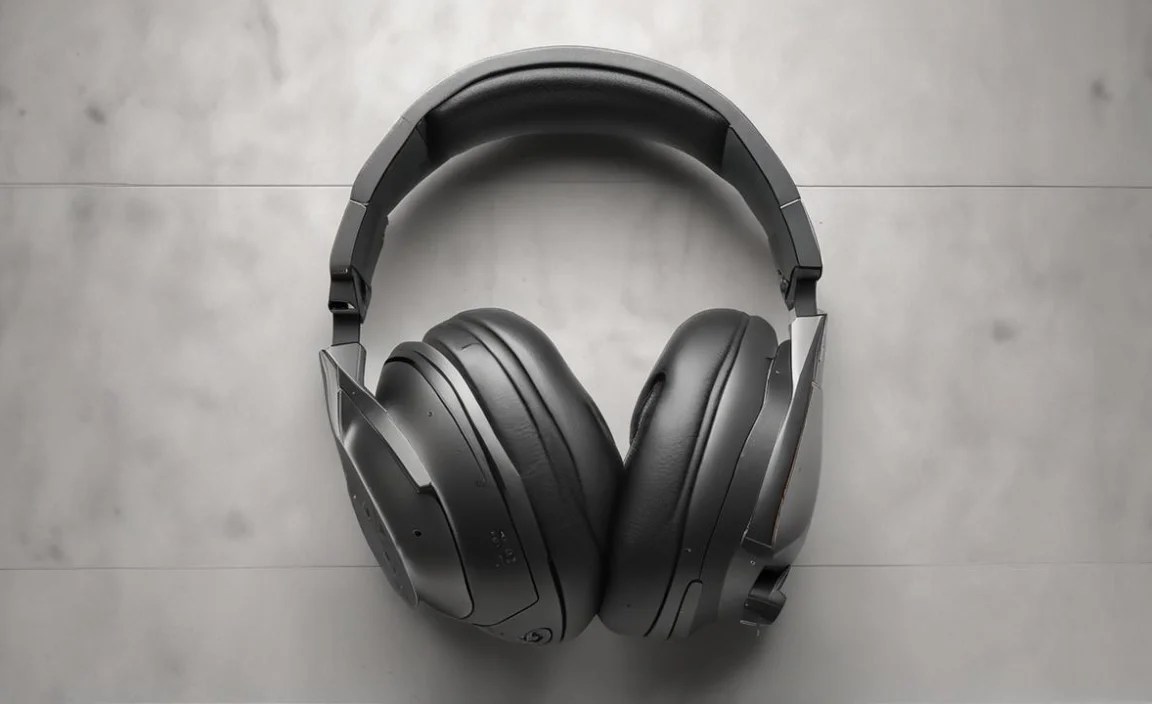
While setting up wireless headphones for your desk phone is usually smooth, here are a few common issues and how to resolve them:
| Problem | Possible Solutions |
|---|---|
| No Audio in Headset |
|
| Microphone Not Working / Echoing |
|
| Intermittent Connection / Dropped Calls |
|
| Headset Not Charging |
|
| Can’t Pair Bluetooth Headset |
|
Best Practices for Using Your Wireless Headset
To get the most out of your wireless headphones for your desk phone, adopt these best practices:
- Keep them Charged: A dead headset is useless. Make it a habit to place your headset on its charging dock at the end of each day.
- Manage Connectivity: If your headset supports multi-point connectivity (connecting to your phone and computer simultaneously), ensure it’s managed properly to avoid call routing conflicts.
- Clean Regularly: Earcups and microphone screens can accumulate debris. Gently clean them with a slightly damp cloth (ensure it’s not wet) or an electronics-safe cleaning wipe. Avoid harsh chemicals.
- Secure Storage: When not in use, store your headset on its charging cradle or in its case to protect it from damage.
- Firmware Updates: For higher-end Bluetooth or DECT headsets, check the manufacturer’s website periodically for firmware updates. These can improve performance, fix bugs, and add new features.
- Understand Range Limitations: Be mindful of the operational range. Moving too far away can lead to dropped calls or poor audio quality.
- Use Mute Function Wisely: Familiarize yourself with your headset’s mute button. It’s helpful for muting background noise when you’re not speaking, but remember to unmute before you start talking!
Are Wireless Headphones Worth It for Desk Phones?
Absolutely! For anyone who spends a significant amount of time on their desk phone, wireless headphones are not just a convenience; they are an investment in comfort, productivity, and professional communication. The freedom from cords, improved call quality, and enhanced ergonomics can make a substantial difference in your daily work experience. While there’s an initial cost, the long-term benefits in efficiency and well-being are well worth it.
When choosing, consider your primary needs: if you work in a noisy environment or need excellent audio, a feature-rich DECT headset might be ideal. If you need flexibility to connect to your mobile phone as well and work in a quieter space, a good quality Bluetooth headset could be perfect. Always check your desk phone’s compatibility first. For more information on audio technologies and best practices, resources like the
