
Quick Summary: Connect wireless headphones with a mic to your laptop for clearer calls and hands-free work. This guide breaks down Bluetooth pairing, USB dongles, and essential features, making it simple to choose and set up the perfect pair for seamless productivity and communication.
Wireless Headphones with Microphone for Laptop: Your Essential Guide

Hey there, audio adventurers! Edward Cavitt here from Headphone Horizon. Ever found yourself wrestling with tangled wires or struggling to be heard clearly on those important video calls? If your laptop and your ears are ready for an upgrade in freedom and clarity, then you’re exactly where you need to be.
Wireless headphones with a microphone are a game-changer for anyone using a laptop – whether you’re crunching through work, acing online classes, or just catching up with loved ones. Forget fumbling with cables; let’s dive into how these amazing gadgets work and how to pick the perfect pair for your needs. We’ll make connecting and using them a breeze, so you can focus on what truly matters: crystal-clear conversations and immersive sound.
Why Wireless Headphones with a Mic are a Laptop Essential

Let’s face it, the modern laptop user juggles a lot. From virtual meetings that demand your full attention to online learning that requires active participation, clear audio input and output are no longer optional – they’re crucial for effective communication and engagement. Wireless headphones with a microphone offer an elegant solution to common frustrations.
They eliminate the tangle of cords, giving you the freedom to move around comfortably, whether you’re pacing during a call or just want to grab a coffee without interrupting your workflow. More importantly, a good built-in microphone ensures your voice is transmitted clearly, putting an end to those awkward “Can you hear me now?” moments. This technology is designed to be user-friendly, making it an ideal upgrade for anyone looking to enhance their laptop experience.
Understanding Wireless Connectivity for Your Laptop
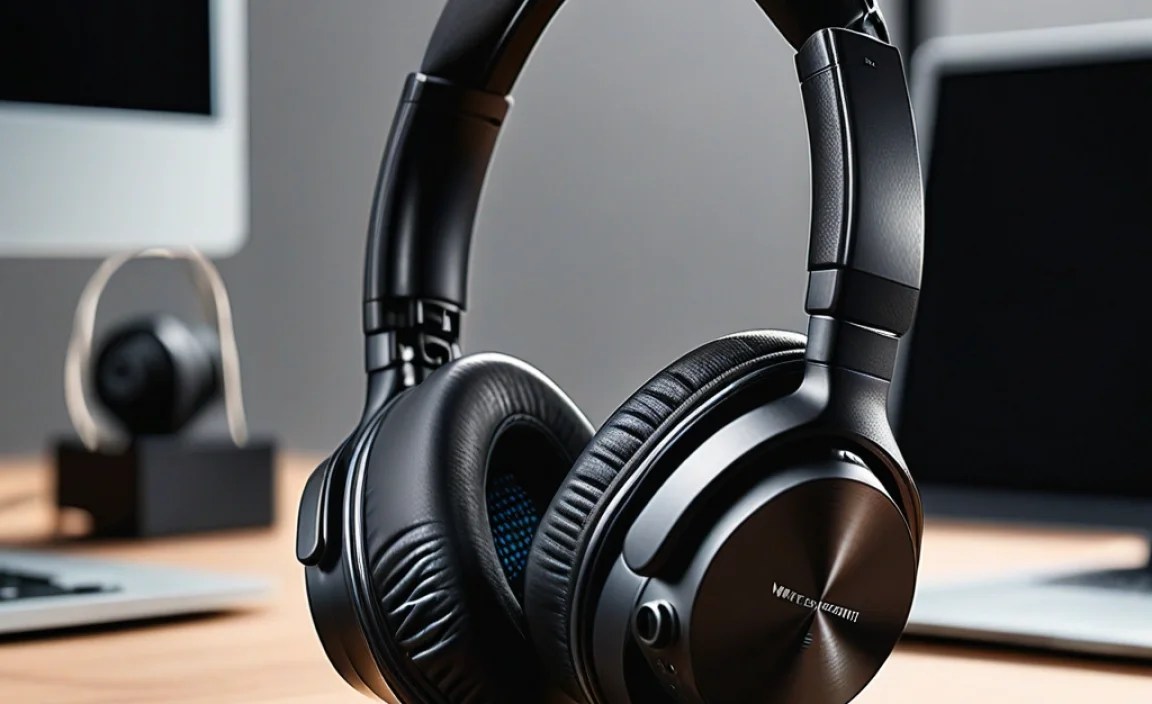
When we talk about wireless headphones, two main technologies dominate: Bluetooth and USB dongles. Understanding these will help you choose the best option for your laptop.
Bluetooth: The Ubiquitous Standard
Bluetooth is the most common way wireless headphones connect to devices, including laptops. It’s a short-range wireless technology that allows devices to communicate with each other. Most modern laptops come equipped with built-in Bluetooth receivers, making the connection process straightforward.
- How it Works: Bluetooth headphones emit a low-energy radio signal. Your laptop, also equipped with a Bluetooth transmitter, scans for and pairs with these signals, creating a wireless link.
- Pros:
- No extra hardware needed if your laptop has Bluetooth.
- Works with a wide range of devices, not just laptops.
- Generally offers good battery efficiency.
- Cons:
- Can sometimes experience minor audio lag (latency), though this is improving with newer Bluetooth versions.
- Pairing can occasionally be finicky if devices don’t “see” each other immediately.
- Sound quality can be dependent on the Bluetooth codecs supported by both the headphones and the laptop.
USB Dongles: The Reliable Connector
Some wireless headphones come with a small USB adapter, often called a dongle. These are typically proprietary to the headphone brand and create a direct, dedicated wireless connection. This is often referred to as 2.4GHz wireless technology.
- How it Works: You plug the USB dongle into an available USB port on your laptop. The dongle and headphones are pre-paired, establishing an immediate and stable connection.
- Pros:
- Often provides lower latency (less lag) and a more stable connection, which is excellent for gaming or professional audio work.
- Setup is usually plug-and-play – no complex pairing steps.
- Can sometimes offer a longer wireless range than Bluetooth.
- Cons:
- Requires a free USB port on your laptop.
- The dongle is specific to the headphones; if you lose it, the headphones might become unusable.
- Less versatile; the dongle is usually meant for one device.
Key Features to Look For in Laptop Wireless Headphones

Beyond just being wireless and having a microphone, several features can significantly enhance your experience. Let’s break down what to consider:
1. Microphone Quality
This is paramount for clear communication. Look for headphones that specify noise-canceling microphones. These are designed to filter out background distractions, ensuring your voice comes through crisp and clear. Some even use multiple microphones to isolate your voice.
2. Comfort and Design
You’ll likely be wearing these for extended periods, so comfort is key. Consider:
- Earcups: Over-ear headphones offer more immersion and comfort for long sessions, while on-ear can be lighter.
- Headband: Padded and adjustable headbands prevent pressure points.
- Weight: Lighter headphones generally mean more comfort over time.
- Materials: Soft, breathable ear cushions wicking away moisture can be a lifesaver.
3. Battery Life
How long do you need them to last on a single charge? Laptops might not always have readily available power outlets. Aim for headphones that offer at least 15-20 hours of playback. Many also feature quick-charge capabilities, giving you hours of use from just a few minutes of charging.
4. Sound Quality
While microphones are crucial for calls, you also want enjoyable audio for music, videos, or podcasts. Read reviews that mention sound profiles. Do you prefer a balanced sound, or one with stronger bass?
5. Connectivity Options
Does the headphone offer both Bluetooth and a USB dongle? This dual connectivity can be a lifesaver, offering flexibility and a reliable fallback option. Also, check if the Bluetooth version is up-to-date (e.g., Bluetooth 5.0 or higher) for better stability and efficiency.
6. Controls and Features
Look for intuitive on-ear controls for adjusting volume, answering calls, and managing playback. Features like voice assistant integration (Siri, Google Assistant) or multi-point connection (connecting to your laptop and phone simultaneously) can also add significant convenience.
How to Connect Wireless Headphones to Your Laptop (Step-by-Step)

Connecting your wireless headphones is usually a simple process. Here’s how to do it for both Bluetooth and USB dongle connections.
A. Connecting via Bluetooth
This is the most common method. Ensure your headphones are charged and in pairing mode (check your headphone’s manual for how to activate this – usually a button hold).
- Open Laptop Settings: On Windows, click the Start button and then Settings (the gear icon). On macOS, click the Apple logo in the top-left corner and select System Preferences.
- Navigate to Bluetooth: In Windows Settings, click “Devices,” then “Bluetooth & other devices.” In macOS System Preferences, click “Bluetooth.”
- Turn on Bluetooth: Make sure Bluetooth is enabled on your laptop.
- Scan for Devices: Your laptop will automatically start scanning for nearby discoverable Bluetooth devices.
- Select Your Headphones: Your headphones should appear in the list of available devices. Click on their name to select them.
- Pair and Connect: Follow any on-screen prompts to complete the pairing process. You might be asked to confirm a code. Once paired, they should show as “Connected.”
- Set as Default (Optional but Recommended): In your laptop’s sound settings, ensure your newly connected headphones are set as the default audio output and input device. This ensures all your sounds and calls go through them automatically. For Windows, this is typically found under “Sound” in Settings. For macOS, it’s under “Sound” in System Preferences.
B. Connecting via USB Dongle
This method is typically even simpler!
- Unpack and Identify: Take your headphones and the accompanying USB dongle out of the box.
- Insert Dongle: Plug the USB dongle into an available USB port on your laptop.
- Power On Headphones: Turn on your wireless headphones.
- Automatic Connection: The headphones and dongle should automatically detect each other and establish a connection. There are usually no pairing steps required.
- Verify Audio Settings: Just like with Bluetooth, it’s a good idea to check your laptop’s sound settings to ensure the headphones are selected as the primary audio device for output and input. The device connected via USB dongle will usually appear with a name related to the headphone model.
Troubleshooting Common Connection Issues
Even with the best technology, occasional hiccups can occur. Here are some common issues and how to fix them.
Issue 1: Headphones Not Discoverable via Bluetooth
Solution:
- Ensure headphones are charged and in pairing mode.
- Toggle Bluetooth off and on again on your laptop.
- Restart your laptop.
- Move headphones closer to the laptop.
- Forget the device on your laptop and re-pair.
Issue 2: Audio Stuttering or Dropping
Solution:
- Check if you’re too far from the laptop.
- Minimize interference from other wireless devices (microwaves, other Bluetooth devices).
- Ensure headphones are fully charged.
- Update your laptop’s Bluetooth drivers. You can usually find these on your laptop manufacturer’s support website. The Microsoft website on Windows compatibility offers insights into driver management for various devices.
- If using a USB dongle, try a different USB port.
Issue 3: Microphone Not Working
Solution:
- Verify the microphone isn’t muted via the headphone controls or software.
- Ensure the headphones are selected as the input device in your laptop’s sound settings and within the specific application you’re using (e.g., Zoom, Teams, Discord).
- Restart your laptop.
- Check for any dedicated software for your headphones, as it might have microphone settings.
Issue 4: USB Dongle Not Recognized
Solution:
- Try a different USB port.
- Ensure the USB port is functional by plugging in another device.
- Restart your laptop with the dongle plugged in.
- Check the headphone manufacturer’s website for potential driver updates for the dongle.
Top Wireless Headphones with Microphones for Laptops (Examples)
While specific models change rapidly, here are types of headphones and features that are consistently highly rated for laptop use. It’s always best to check recent reviews for the latest models.
| Feature Category | What to Look For | Why It Matters for Laptops |
|---|---|---|
| Connectivity | Bluetooth 5.0+ / USB Dongle | Ensures stable, efficient connection with minimal lag. Dual connectivity offers versatility. |
| Microphone | Noise-Canceling, Clear Voice Technology | Crucial for professional communication in any environment. |
| Comfort | Lightweight, Padded Earcups & Headband | Essential for long work sessions or online classes. |
| Battery Life | 20+ Hours, Quick Charge | Prevents interruptions during crucial tasks or travel. |
| Audio Output | Balanced, Clear Sound Profile | Enhances enjoyment of music, videos, and clarity of virtual meetings. |
When researching, look for brands known for their reliability and good customer support. For example, companies like Jabra often excel in headset technology for professional use, while brands like SteelSeries or Logitech offer great options for gamers that also work well for general laptop use due to their low-latency dongles and clear mics. Audiophile brands might focus more on pure sound quality, but their microphone performance can vary, so always check reviews for mic performance specifically.
It’s also worth noting that operating systems and applications receive frequent updates that can impact Bluetooth performance. Staying updated with your OS and application patches can contribute to a smoother experience. For detailed information on various audio technologies, resources like ITU’s standards on audio codecs can provide technical depth, though for everyday use, focusing on well-reviewed consumer products is more practical.
Frequently Asked Questions (FAQ)
Q1: Do I need a special adapter to use wireless headphones with my laptop?
A: Not usually. Most modern laptops have built-in Bluetooth. If your laptop lacks Bluetooth or you require the most stable, lowest-latency connection possible, a pair of wireless headphones that comes with its own USB dongle is a great option. You’ll simply plug the dongle into a USB port on your laptop.
Q2: How do I know if my headphones have a good microphone for calls?
A: Look for terms like “noise-canceling microphone,” “clear voice capture” (CVC), or “beamforming microphone” in the product description. Reading user reviews that specifically mention call quality is also very helpful. Microphones that are omnidirectional or unidirectional also play a role; unidirectional mics tend to pick up your voice better while ignoring background noise.
Q3: Can I use my wireless headphones with both my laptop and my smartphone simultaneously?
A: Many higher-end wireless headphones offer “multi-point connectivity.” This allows them to be paired with two devices at the same time. You can usually connect to your laptop via Bluetooth and your smartphone via Bluetooth simultaneously, and switch between them easily.
Q4: Will there be a noticeable delay (latency) when using wireless headphones for video calls or gaming?
A: Modern Bluetooth versions (like 5.0 and above) have significantly reduced latency, making it less noticeable for general calls and video. For extremely sensitive applications like competitive gaming or professional audio production, headphones that use a dedicated 2.4GHz USB dongle typically offer the lowest latency and most stable connection.
Q5: How do I ensure my wireless headphones are charging correctly?
A: Most wireless headphones charge via a USB cable. Plug the cable into the headphones and then into a powered USB port on your laptop, a USB wall adapter, or a power bank. Many headphones have an indicator light that shows charging status (e.g., red while charging, blue or off when full). Always refer to your headphone’s manual for specific charging instructions.
Q6: What’s the difference between Bluetooth headphones and ANC (Active Noise Cancelling) headphones?
A: Bluetooth refers to the wireless connectivity method. Active Noise Cancelling (ANC) is a feature that uses microphones to detect ambient noise and produce an opposite sound wave to cancel it out, creating a quieter listening environment. You can find wireless headphones that are either just Bluetooth, or Bluetooth with ANC, or even Bluetooth with ANC and a USB dongle.
