
Quick Summary: Upgrade your office calls with wireless headphones designed for telephone use. This guide helps beginners choose the right headset for clear communication, comfort, and mobility, transforming your workday without tangled cords.
Are you tired of being tethered to your desk by a phone cord during important calls? Do you find yourself contorting into awkward positions just to hold your phone and take notes? If so, you’re not alone. Many professionals are discovering the incredible benefits of using wireless headphones specifically designed for office telephone systems. They offer freedom of movement, improved call clarity, and a significant boost in productivity. But navigating the world of wireless headsets can feel a bit overwhelming at first. Don’t worry, this guide is here to break down everything you need to know, making it easy to find the perfect wireless companion for your office calls.
Why Go Wireless for Your Office Telephone?

The benefits of ditching the cord for your office calls are numerous and can genuinely transform your workday. Imagine being able to grab a file from the printer, answer a knock at the door, or even stretch your legs while staying seamlessly connected to your caller. That’s the power of wireless. Beyond just convenience, these headsets are engineered to provide superior audio quality for both you and your callers, ensuring every word is heard loud and clear. This reduces misunderstandings and makes for more efficient conversations. Plus, with many models offering excellent noise-cancellation, you can create your own quiet zone, even in a bustling office environment. This focus can lead to a significant improvement in your concentration and overall work output.
Key Advantages of Wireless Office Headsets:
- Enhanced Mobility: Move freely around your workspace without being restricted by cords.
- Improved Call Quality: Many headsets offer advanced microphones and speakers for crystal-clear audio.
- Reduced Neck Strain: Avoid cradling the phone between your shoulder and ear, which can lead to discomfort.
- Increased Productivity: Hands-free operation allows for multitasking, such as taking notes or using your computer.
- Noise Cancellation: Block out distracting office noise for better focus and clearer conversations.
- Professional Appearance: Modern wireless headsets often look sleeker and more professional than traditional wired options.
Choosing the Right Wireless Headphones: Key Features to Consider

When you’re looking for wireless headphones for office telephone use, not all headsets are created equal. Just like choosing a good pair of headphones for music, you’ll want to consider a few specific features that are crucial for professional communication. Think about what’s most important for your daily tasks and office environment. Are you constantly on back-to-back calls? Do you work in a noisy open-plan office? Answering these questions will help guide you toward the best fit.
Connectivity Options: How Will Your Headset Connect?
This is perhaps the most critical aspect. Office phones vary, and so do their connectivity methods. You need to ensure your chosen wireless headset can actually talk to your phone!
- Bluetooth: This is the most common wireless technology. Many modern office phones have built-in Bluetooth. If yours doesn’t, you might need a Bluetooth adapter or a headset that comes with a USB dongle that creates a Bluetooth connection. Bluetooth offers good range and is versatile.
- DECT (Digital Enhanced Cordless Telecommunications): DECT is a wireless technology commonly used in dedicated office cordless phones and some professional headsets. DECT headsets typically offer a longer range and more robust connection than standard Bluetooth, making them ideal for larger offices or environments where stable connectivity is paramount. They usually connect via a base station that plugs into your phone system.
- Proprietary USB Dongles: Many wireless headsets designed for computers and softphones come with a USB dongle. This dongle creates a dedicated wireless connection to the headset, often offering superior audio quality and range compared to standard Bluetooth, especially for enterprise-grade communication. If your office phone has a USB port that supports headsets, this might be an option, but it’s less common for traditional desk phones than for VoIP or softphone systems. Always check your phone’s compatibility.
Pro Tip: Always check your office phone’s specifications or consult your IT department to understand what type of wireless connectivity your desk phone supports. You don’t want to buy a great headset that won’t work with your current setup!
Comfort and Design: For All-Day Wear
You’ll likely be wearing these for extended periods, so comfort is non-negotiable. Consider the style, weight, and how it fits.
- Earpiece Style:
- over-ear headphones: Enclose the entire ear, offering excellent passive noise isolation and comfort for long durations, often with plush earcups.
- on-ear headphones: Rest on the ear. They are often lighter but may offer less noise isolation and can sometimes cause discomfort on the ears after several hours.
- earbuds: Small and discreet, fitting directly into the ear canal. Some find them very comfortable, while others dislike the feeling of an in-ear fit. True wireless earbuds offer the most freedom but can sometimes be less reliable for business calls than dedicated headsets.
- Over-the-head headset: Features a headband and usually one or two earpieces. These are very secure and common in professional settings.
- Over-the-ear headset: Similar to over-the-head but with a single earpiece that goes over the ear.
- Behind-the-neck headset: Rests on the back of the neck with earpieces that go into each ear.
- Earpiece headset: A small device that clips onto the ear.
- Weight: Lighter is generally better for prolonged wear.
- Earcups: Soft, breathable materials like memory foam or leatherette are ideal.
- Adjustability: Ensure the headband and microphone boom are adjustable for a perfect fit.
Microphone Quality: Speak Clearly, Be Heard Better
The microphone is just as important, if not more so, than the earpiece. You want to ensure your voice comes through clearly and without picking up too much background noise.
- Noise-Canceling Microphone: This is essential for busy offices. It filters out background chatter, keyboard clatter, and other ambient sounds so the person on the other end hears only you.
- Microphone Placement: A boom microphone that can be positioned close to your mouth typically offers the best voice pickup. Some modern headsets have articulating booms that can be rotated out of the way when not in use.
- Microphone Type: Look for clear indicators of advanced mic technology, such as wideband audio support (HD Voice), which delivers richer, more natural sound.
Battery Life: Power Through Your Day
For wireless, battery life is a key consideration. You don’t want to be caught with a dead headset mid-important client call.
- Talk Time: Aim for a headset that offers at least 8-10 hours of talk time on a single charge. Many high-end models offer 12-15+ hours.
- Standby Time: This indicates how long the headset can remain powered on and connected without use.
- Charging Speed and Options: Some headsets offer fast charging (e.g., 30 minutes of use from a 15-minute charge). Look for convenient charging methods like USB or a dedicated charging stand.
Range: How Far Can You Roam?
The wireless range dictates how far you can move from your desk while remaining connected.
- Bluetooth Range: Typically around 30-100 feet (10-30 meters), depending on the Bluetooth version and environmental factors.
- DECT Range: Often significantly greater, sometimes up to 300-500 feet (100-150 meters) in open spaces. This is a major advantage for DECT systems.
Call Management Features: Streamline Your Workflow
Features designed for managing calls can save you time and effort.
- On-ear Controls: Buttons or touch controls on the headset for answering/ending calls, adjusting volume, and muting the microphone without having to touch your phone.
- Multi-device Pairing: The ability to connect to your office phone and your computer or mobile phone simultaneously. This is incredibly useful for seamlessly switching between calls from different devices.
- Voice Prompts and Indicators: Audio cues for battery status, connection strength, and incoming calls.
Types of Wireless Headsets for Your Office Phone

The landscape of wireless headphones for office telephone systems can be broadly categorized by their primary function and how they integrate into your workspace. Understanding these categories will help you narrow down your search.
1. Bluetooth Headsets (General Purpose & Mobile-Focused)
These are the most common type of wireless headset. They connect via Bluetooth and are incredibly versatile. Many are designed with a focus on mobile phone use but work equally well with office phones that have Bluetooth capabilities, or when paired with a Bluetooth adapter.
- Pros: Widely compatible with many devices (phones, computers, tablets), often more affordable, compact and lightweight designs.
- Cons: Range and connection stability can sometimes be less robust than DECT, may require pairing with your phone each time, battery life can vary significantly.
- Best For: Users whose office phone has built-in Bluetooth, hybrid workers moving between office and home, or those who primarily use a softphone/mobile for calls.
2. DECT Headsets (Enterprise-Grade for Desk Phones)
DECT technology is specifically designed for wireless voice communication. DECT headsets connect to a base station, which then connects to your desk phone (usually via an RJ-9 headset port or sometimes USB). They are built for professional environments.
- Pros: Superior range and connection stability, often higher audio quality and better noise cancellation, designed for all-day comfort and durability.
- Cons: Typically more expensive, less portable if you need to roam far from your desk base station, primarily designed for desk phones (though some models offer PC/mobile connectivity too).
- Best For: Large offices, users who need to move around their workspace extensively, or professionals who demand the most reliable and highest-quality connection for their desk phone.
3. Wireless Headsets with USB Dongles (Computer/Softphone Focused)
While often marketed for use with computers and softphones (like Zoom, Teams, etc.), many of these can also be used with office phones if your phone has a compatible USB port. The USB dongle creates a dedicated wireless connection that is often very stable and offers good range and audio quality.
- Pros: Excellent audio quality, often feature advanced noise cancellation, seamless switching between computer and phone calls if supported, reliable connections.
- Cons: May not be directly compatible with all traditional desk phones without a USB headset port.
- Best For: Offices heavily reliant on computer-based communication (VoIP, softphones) where seamless integration is key. Check phone compatibility carefully.
Step-by-Step Guide: Setting Up Your Wireless Office Headset

Once you’ve chosen your wireless headphones for office telephone, setting them up is usually straightforward. While specific instructions will vary by model, here’s a general process to get you started.
Step 1: Unboxing and Charging
When your new headset arrives, carefully unbox everything. You’ll typically find the headset, a charging cable or stand, and sometimes a USB dongle or a base station. The very first thing you should do is fully charge your headset battery. Plug it into a USB port or its charging dock and let it charge until the indicator light shows it’s full. This ensures you have maximum battery life for setup and initial use.
Step 2: Connecting to Your Office Phone
This step depends heavily on the type of headset and your phone:
- For Bluetooth Headsets:
- Enable Bluetooth on your phone: Check your office phone’s menu for Bluetooth settings and turn it on.
- Put your headset in pairing mode: This usually involves pressing and holding a power or Bluetooth button for a few seconds until an indicator light flashes (often blue and red alternately). Refer to your headset manual.
- Scan for devices on your phone: Your phone should display a list of available Bluetooth devices. Select your headset from the list.
- Confirm pairing: You might be asked to confirm a pairing code (usually 0000 or 1234, but check your manual). Once paired, the indicator light on your headset will usually change to a solid or slow-flashing color, and your phone will indicate it’s connected.
- For DECT Headsets:
- Connect the base station: Plug the base station into a power outlet and then connect it to your office phone’s dedicated headset port using the provided cable (often an RJ-9 connector). Some DECT systems also require a USB connection to your computer for certain features.
- Power on the base station and headset: Ensure both are powered on.
- Pair the headset to the base: This is usually done by placing the headset on its charging cradle or pressing a specific button to “link” or “pair” the headset to the base. The manual will detail this process, often involving holding a button on both the headset and base.
- Configure your phone: You might need to enable the headset function on your desk phone itself.
- For USB Dongle Headsets (if connecting to a phone with USB):
- Plug the USB dongle: Insert the USB dongle into a free USB port on your office phone (if available and supported for audio).
- Power on the headset: Ensure the headset is charged and powered on. It should automatically try to connect to the dongle.
- Follow on-screen prompts: Your phone might display a confirmation message.
Important Note: If your office phone does not have native Bluetooth or a dedicated headset port for DECT, you may need to use a headset that connects via a USB dongle to a computer, and then use a softphone application (like Microsoft Teams, Zoom, Skype for Business) for your calls instead of your desk phone. This is a very common setup in modern offices.
Step 3: Testing Your Audio
Make a test call! Call a colleague or a voicemail service to check if both the microphone and speakers are working correctly.
- Microphone Test: Speak normally and ask the person on the other end if they can hear you clearly. Ask them to comment on any background noise they can hear.
- Speaker Test: Listen carefully to the audio quality. Is it clear? Can you adjust the volume easily?
- Volume Adjustment: Use the volume controls on your headset or phone to find a comfortable listening level.
Step 4: Adjusting for Comfort and Microphone Placement
Put the headset on and adjust it for a snug but comfortable fit. If your headset has a boom microphone, position it so it’s about one to two finger-widths away from the corner of your mouth. This optimal placement ensures your voice is captured clearly without picking up breath sounds, which can be distracting. Many boom mics can swivel, so you can move it out of the way when you’re not speaking, or even switch which ear you wear the headset on.
Step 5: Exploring Advanced Features
Spend a few minutes familiarizing yourself with all the buttons and features. Understand how to answer/end calls, adjust volume, mute the microphone, and activate features like noise cancellation if available. Many headsets have accompanying software or apps that unlock further customization options, so check if that’s available for your model.
Maintaining Your Wireless Headset for Longevity
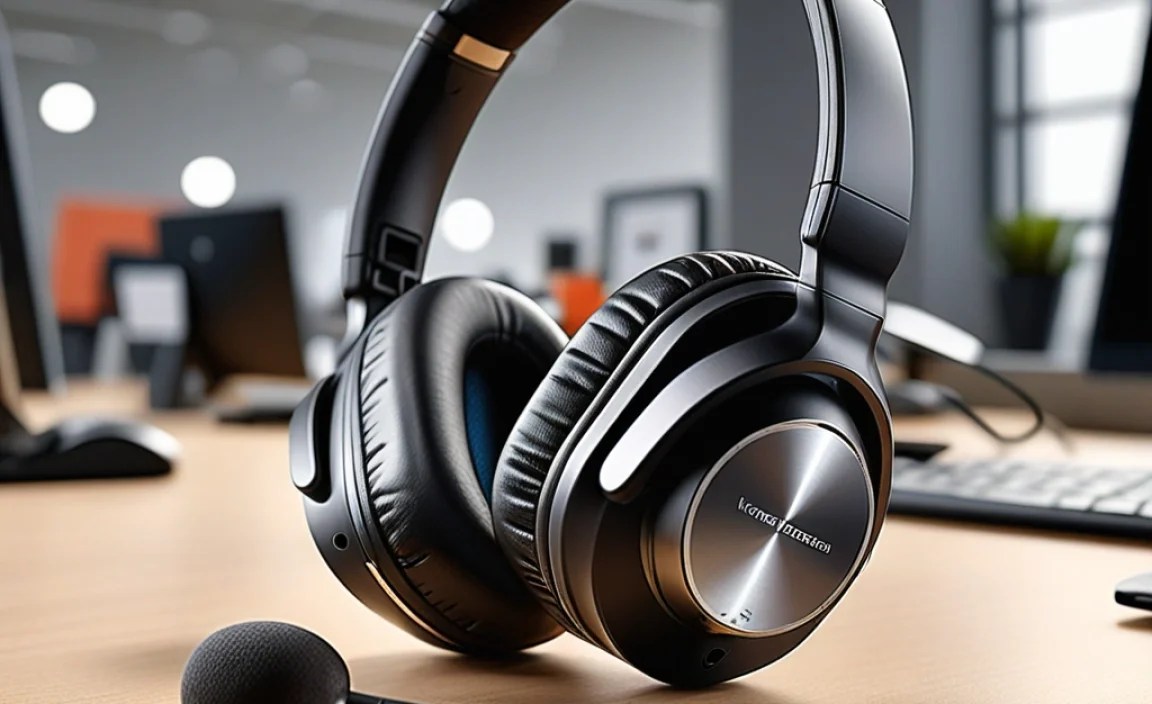
To ensure your wireless headphones for office telephone continue to perform at their best and last for a long time, a little regular maintenance goes a long way. Think of it like taking care of any good tool – a little attention prevents bigger problems down the line.
Regular Cleaning
- Earpads/Earcups: Wipe them down regularly with a slightly damp, soft cloth. For deeper cleaning, use a mild soap solution, but ensure the cloth is not too wet. Avoid harsh chemicals or solvents, which can degrade the material. If your earcups are removable, you can often clean them more thoroughly.
- Microphone Boom: Gently wipe the microphone with a dry, soft cloth to remove dust and debris.
- Headset Body and Controls: Use a dry or very lightly damp microfiber cloth to clean the plastic parts and buttons. Pay attention to crevices where dirt can accumulate.
- Charging Contacts: If your headset uses a charging stand or pins, ensure these contacts are clean and free of lint or corrosion. You can use a cotton swab lightly dampened with rubbing alcohol (once dry) to clean them.
Battery Care Best Practices
- Avoid Extreme Temperatures: Don’t leave your headset in a hot car or a freezing office. Extreme temperatures can degrade the battery’s performance and lifespan.
