
Are you tired of straining to hear the dialogue in your favorite shows or worrying about disturbing others with your TV’s volume? Wireless headphones might just be the perfect solution for your smart TV setup. They open up a world of private listening, crystal-clear audio, and an immersive experience without the tangled mess of wires. But with so many options out there, how do you choose the right ones? Don’t worry! I’m Edward Cavitt from headphonehorizon, and I’m here to break down everything you need to know. We’ll explore the different types of wireless headphones, how they connect to your TV, and what features to look for to get the best sound and a seamless connection. Get ready to elevate your home entertainment!

Why Use Wireless Headphones with Your Smart TV?

Connecting wireless headphones to your smart TV can transform your viewing habits. Here are some of the key benefits:
- Personalized Listening Volume: Enjoy your shows, movies, or games at your preferred volume without bothering family members or housemates. It’s perfect for late-night viewing or when children are sleeping.
- Enhanced Audio Clarity: Headphones often offer superior sound quality compared to TV speakers, delivering richer dialogue, more impactful sound effects, and a more immersive audio experience.
- Reduced Background Noise: Good noise-canceling headphones can block out distracting ambient sounds in your home, allowing you to focus entirely on what’s on screen.
- Freedom of Movement: No more being tethered to your TV. Walk around your house, grab a snack, or even do light chores while staying connected to your program.
- Accessibility for Hearing Impaired: For individuals with hearing difficulties, wireless headphones can provide a significant boost in sound, often with adjustable volume controls that are independent of the TV’s main output, making it easier to follow content.
Understanding Wireless Technologies for Your TV
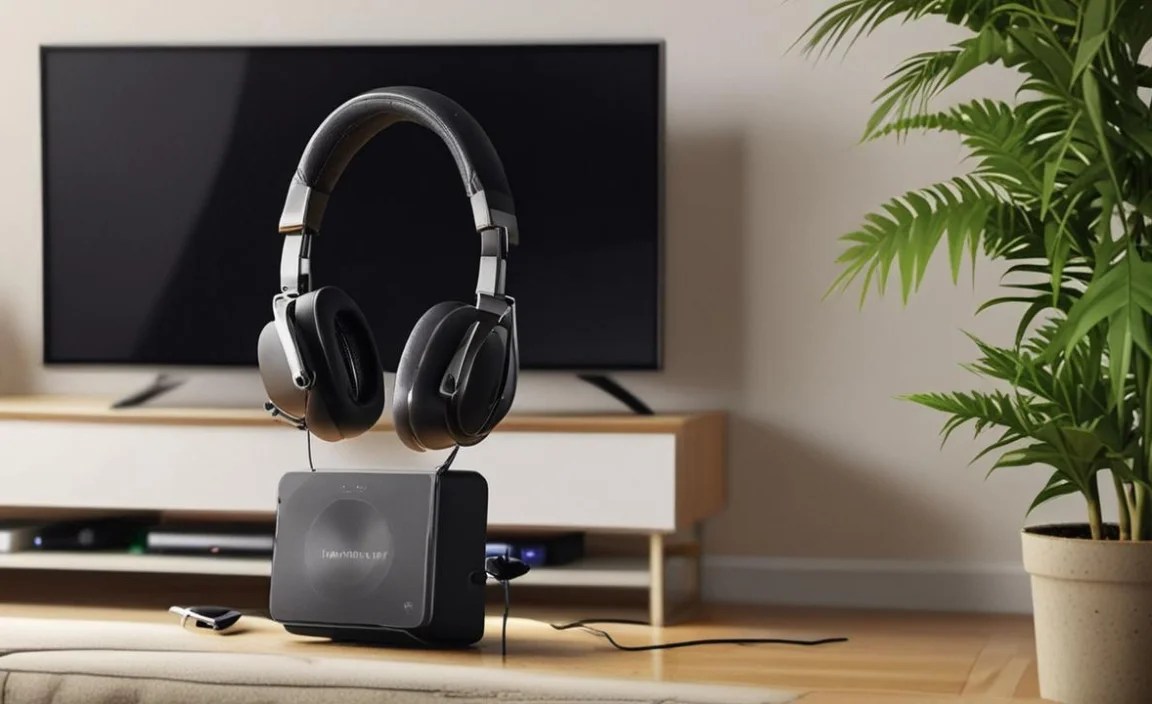
When it comes to transmitting audio wirelessly from your TV to your headphones, there are a few main technologies at play. Each has its own strengths and ideal use cases. Let’s explore them:
1. Bluetooth
Bluetooth is the most common wireless technology found in many modern devices, including smartphones, tablets, and increasingly, smart TVs. It’s a short-range, low-power wireless standard that allows devices to communicate with each other. For TV use, you’ll typically find Bluetooth 4.0 or newer, with Bluetooth 5.0 offering improved range, stability, and faster pairing.
- How it Works with TVs: Your smart TV needs to have built-in Bluetooth capability to connect directly to Bluetooth headphones. If your TV doesn’t have Bluetooth, you can often add it using a small Bluetooth transmitter that plugs into your TV’s audio output (like the headphone jack or optical port).
- Pros:
- Widely compatible with many devices.
- Easy to pair for simple setup.
- Many headphone options available.
- Often has low latency with newer codecs like aptX Low Latency (if both TV and headphones support it).
- Cons:
- Potential for audio delay (latency), especially if not using a low-latency codec. This can be very noticeable in movies and games when lip-sync is off.
- Range can be somewhat limited, typically around 30 feet (10 meters) in open space.
- May not be ideal for multiple simultaneous headphone connections without a specific transmitter.
2. RF (Radio Frequency) Headphones
RF headphones are a classic choice for home theater audio. They consist of a pair of headphones and a dedicated base station or transmitter that plugs into your TV. The transmitter broadcasts the audio signal using radio waves, which the headphones then pick up.
- How it Works with TVs: The transmitter typically connects to your TV via an audio output port, such as a 3.5mm headphone jack, RCA, or optical (Toslink) port. The transmitter then sends the audio wirelessly to the headphones.
- Pros:
- Generally offer excellent range, often up to 100-200 feet (30-60 meters), allowing you to move freely around your home.
- Very low latency, meaning audio sync is usually perfect, making them ideal for movies and gaming.
- Can often support multiple headphones connected to a single transmitter, perfect for sharing.
- Simple to set up, as the pairing is usually automatic between the base and headphones.
- Cons:
- Not as widely available as Bluetooth options.
- Can be more expensive than basic Bluetooth headphones.
- Require a dedicated base station, adding another piece of equipment.
- May be susceptible to interference from other wireless devices or household appliances.
3. IR (Infrared) Headphones
Infrared headphones work similarly to RF, using a transmitter and receiver system. However, they broadcast the audio signal using infrared light. This is a technology you might find in some older TV setups or specific systems designed for home theaters.
- How it Works with TVs: Like RF, the transmitter connects to your TV’s audio output. The headphones then receive the infrared signal.
- Pros:
- Very low latency, ensuring perfect audio synchronization.
- Not affected by other wireless signals, potentially offering clearer reception in cluttered wireless environments.
- Cons:
- Line-of-sight required: The headphones must be within the transmitter’s line of sight. Obstacles like furniture or even your own body can block the signal.
- Limited range compared to RF.
- Not as common in the current market for general consumer TV use.
- Can be sensitive to bright light sources.
Choosing the Right Wireless Headphones: Key Features to Consider

To make the best choice for your smart TV, consider these crucial features:
1. Connectivity Type
As discussed above, decide whether Bluetooth, RF, or IR best suits your needs. For most modern smart TVs, Bluetooth is the simplest starting point if your TV supports it. If latency is a major concern or you need extended range and multiple headphone support, RF is a fantastic alternative.
2. Audio Quality and Codecs
For Bluetooth, look for support for low-latency codecs like:
- aptX Low Latency (aptX LL): This is the gold standard for reducing audio delay with Bluetooth. For it to work, both your TV (or its Bluetooth transmitter) and your headphones must support aptX LL.
- aptX Adaptive: Another good option that can dynamically adjust based on signal strength, offering a balance of low latency and reliability.
If your TV and headphones only support standard Bluetooth codecs like SBC, you might experience noticeable lip-sync issues. If you’re going the RF route, latency is generally not a problem.
3. Range and Battery Life
Range: How far do you typically move from your TV? If you just sit on the couch, most options will suffice. If you like to move around your house, RF headphones are your best bet for longer range.
Battery Life: Most wireless headphones offer between 10-30 hours of playtime on a single charge. For RF headphones with base stations, some models can charge your headphones directly when docked, ensuring they’re always ready to go. For Bluetooth, consider if they use rechargeable built-in batteries or replaceable ones.
4. Comfort and Design
You’ll be wearing these, so comfort is paramount! Consider:
- Over-ear vs. On-ear vs. In-ear: Over-ear headphones cup your entire ear for maximum comfort and sound isolation. On-ear headphones rest on your ears. In-ear (earbuds) fit inside your ear canal and are great for portability.
- Weight: Lighter headphones are generally more comfortable for extended listening sessions.
- Ear pad material: Plush leather or velour ear pads can add to comfort.
5. Noise Cancellation (ANC)
Active Noise Cancellation (ANC) uses microphones to detect and cancel out ambient noise. This can significantly enhance your immersion, especially in noisy environments. While not strictly necessary for TV watching if your home is quiet, it’s a great feature for blocking out distractions like air conditioners, traffic, or noisy neighbors. However, ANC headphones tend to be more expensive.
6. Ease of Use and Setup
For beginners, simple, plug-and-play solutions are best. RF systems are often the easiest – just plug in the transmitter and turn on the headphones. For Bluetooth, make sure your TV has Bluetooth or that the transmitter you buy is user-friendly. Some transmitters connect via optical audio, which is a digital connection that often provides better sound quality than analog (headphone jack) connections. You can find more information on audio output types at the RTINGS.com audio guide.
How to Connect Wireless Headphones to Your Smart TV (Step-by-Step)

The connection process will vary slightly depending on your TV and the type of headphones you choose. Here are the general steps:
Scenario 1: Your Smart TV Has Built-in Bluetooth
This is the most straightforward scenario if your TV supports it.
- Turn on your headphones and put them in pairing mode. Refer to your headphone’s manual for specific instructions, but this usually involves holding down a power or Bluetooth button until a light flashes or you hear an audio cue.
- Access your TV’s Bluetooth settings. Navigate through your TV’s menu. This is usually found under ‘Settings’ > ‘Sound’ > ‘Bluetooth’ or ‘Connections’ > ‘Bluetooth Devices’.
- Scan for devices. Your TV will search for available Bluetooth devices.
- Select your headphones. Once your headphones appear in the list, select them with your TV remote.
- Confirm pairing. Your TV and headphones should confirm they are connected. You might hear a chime in your headphones or see a confirmation message on your TV screen.
- Adjust TV audio output. Some TVs may automatically switch audio to your headphones. If not, you’ll need to go back to the sound settings and select your headphones as the audio output device.
- Test the sound. Play some content to ensure audio is coming through your headphones. Adjust the volume using the controls on your headphones or the TV remote if available.
Tip: If you experience audio delay, check if your TV or headphones support aptX Low Latency. If they do, ensure both are set to use it. If only one supports it, the connection will default to a different codec, potentially causing lag.
Scenario 2: Your Smart TV Does NOT Have Built-in Bluetooth
No built-in Bluetooth? No problem! You can use a Bluetooth transmitter.
- Purchase a Bluetooth Transmitter. Choose one that specifically supports aptX Low Latency if you want to minimize audio delay. Ensure it has the correct audio input ports for your TV.
- Connect the Transmitter to your TV.
- Optical (Toslink) Port: This is often the best option for digital audio quality and compatibility. Connect one end of the optical cable to your TV’s ‘Optical Out’ port and the other to the transmitter’s ‘Optical In’ port.
- 3.5mm Headphone Jack: Connect one end of the 3.5mm audio cable to your TV’s headphone port and the other to the transmitter’s audio input. You may need to disable the TV’s internal speakers in the audio settings when using this method.
- RCA Ports (Red and White): If your TV has RCA audio outputs, use an RCA to 3.5mm cable to connect to the transmitter.
- Power the Transmitter. Most transmitters are powered via a USB cable, which can often be plugged into a USB port on your TV. Alternatively, use a USB power adapter.
- Put your Transmitter into pairing mode. Follow the transmitter’s instructions.
- Put your Headphones into pairing mode. As described in Scenario 1.
- Pair the devices. The transmitter and headphones should find each other. Some transmitters have a button you press to initiate pairing, while others are automatic.
- Select the Transmitter as the TV’s Audio Output: Go into your TV’s sound settings and select the audio output that corresponds to how you connected the transmitter (e.g., ‘Optical Out’, ‘Headphone Out’). You may need to explicitly disable the TV’s internal speakers.
- Test the sound. Play content to confirm audio is working through your headphones.
Scenario 3: Using RF Wireless Headphones
RF systems are designed for simplicity.
- Connect the Base Station to your TV. Use the provided audio cables (often 3.5mm or RCA) to connect the RF base station to your TV’s audio output. Some systems also include an optical input option.
- Power the Base Station. Plug the base station into a power outlet.
- Switch on your RF headphones.
- Select the correct audio output on your TV. Ensure your TV’s audio output setting matches the connection you used for the base station (e.g., ‘Headphone Out’, ‘Audio Out’). You might need to disable the TV’s internal speakers.
- Test the sound. The headphones should automatically connect to the base station. Play content to verify the audio is working.
Important Note: Always refer to the user manuals for both your TV and your headphones/transmitter for precise connection and pairing instructions. You can often find your TV’s manual online by searching for its model number.
Table: Connectivity Comparison for TV Wireless Headphones
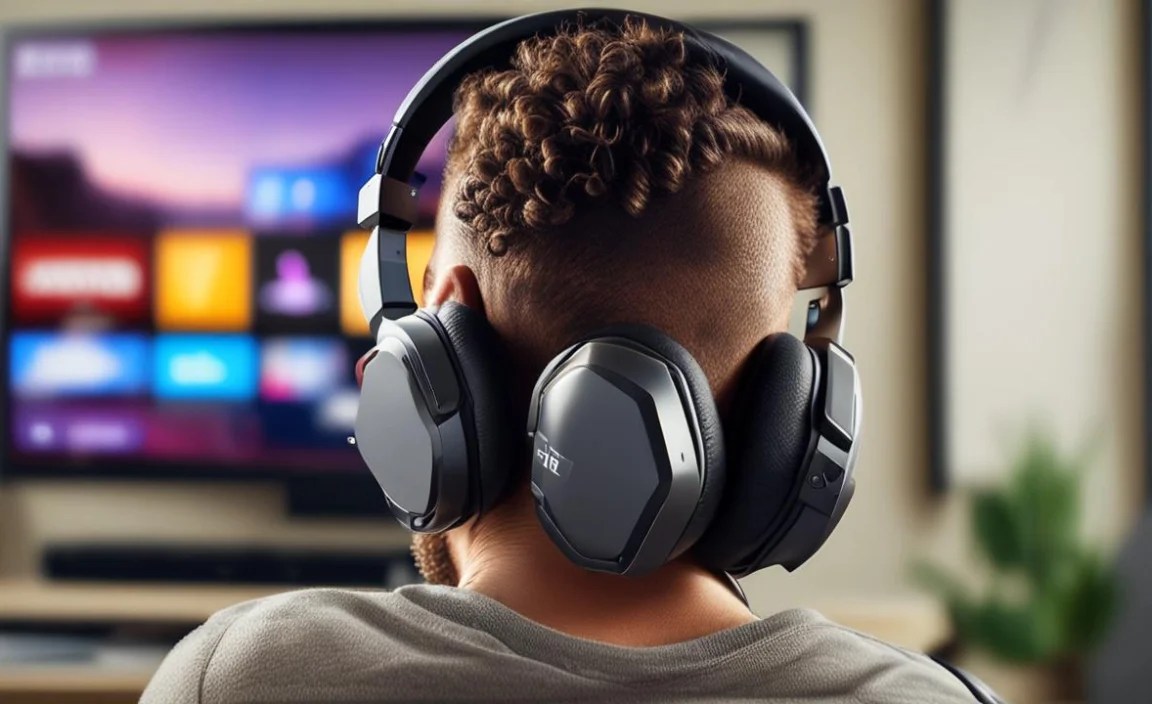
Here’s a quick comparison to help you decide:
| Feature | Bluetooth | RF (Radio Frequency) | IR (Infrared) |
|---|---|---|---|
| Typical Range | ~30 ft (10 m) | ~100-200 ft (30-60 m) | ~20-30 ft (6-10 m) line-of-sight |
| Latency (Audio Delay) | Varies; Low with aptX LL/Adaptive, High with SBC | Very Low | Very Low |
| Interference | Can be affected by other 2.4 GHz devices | Can be affected by other RF devices, but generally robust | Not affected by RF; sensitive to bright light, requires line-of-sight |
| Setup Simplicity | Easy if TV has Bluetooth; requires transmitter otherwise | Very Easy to set up transmitter and headphones | Easy to set up transmitter and headphones |
| Multi-Headphone Support | Limited (some transmitters support 2) | Common | Common |
| Power Source for Headphones | Rechargeable battery | Rechargeable battery (often docks for charging) | Rechargeable battery |
| Best For | Convenience, general use, if TV has Bluetooth | Movies, gaming, long-range, multi-user households | Specific home theater setups where line-of-sight is maintained |
Troubleshooting Common Issues
Even the best tech can sometimes have hiccups. Here are solutions to common problems:
1. No Sound
- Check power: Ensure both your TV and headphones (or Bluetooth transmitter/RF base station) are powered on.
- Volume levels: Verify that the volume is turned up on both your TV and your headphones.
- Correct audio output: Make sure your TV’s audio output is set to the correct source (Bluetooth device, Optical Out, Headphone Out, or the RF base station).
- Pairing status: For Bluetooth, confirm that your headphones are still paired and connected to the TV. Re-pair them if necessary.
- Mute button: Check if any device is muted.
- Physical connections (for transmitters): Ensure all audio cables are securely plugged into the correct ports on both the TV and the transmitter.
