
Discover how wireless headphones can revolutionize your TV watching. This guide helps beginners choose and set up shared listening options, ensuring everyone enjoys the show without disturbing others. Learn about connectivity, comfort, and key features for a better audio experience.
Ever found yourself in a TV-watching dilemma? Maybe you love the drama, but your partner prefers quiet. Or perhaps you’re a night owl catching up on shows while the rest of the house sleeps. The battle for TV volume can be a real household hurdle. But what if there was a way to enjoy your favorite programs at your perfect volume, without disturbing anyone?
Enter wireless headphones for TV! They are a fantastic solution for shared listening, allowing multiple people to tune in simultaneously, each with their own volume control. This guide is here to make choosing and using them as simple as pressing play.
At Headphone Horizon, we believe everyone deserves to enjoy their audio without compromise. That’s why we’re diving deep into the world of wireless TV headphones. We’ll break down what to look for, how to set them up, and answer those burning questions you might have. Forget tangled wires and awkward volume negotiations. It’s time to elevate your home entertainment experience with the magic of shared wireless audio!
Why Wireless Headphones for TV Are a Game-Changer

Imagine this: you’re engrossed in a thrilling movie, the dialogue crisp, the sound effects immersive. Meanwhile, someone else in the room can be reading a book, have a conversation, or even be asleep, completely undisturbed by your audio adventure. This is the power of wireless headphones for TV, specifically those designed for shared listening.
They don’t just offer personal audio; they enable a harmonious coexistence in your living space. No more shouting over the TV or missing crucial plot points because the volume needs to be kept low. It’s about reclaiming your audio space and sharing it intelligently.
The benefits extend beyond just volume control. For individuals with hearing impairments, wireless TV headphones can be life-changing. Many models offer enhanced clarity and volume customization, making it easier to follow dialogue and enjoy content without straining. Furthermore, modern wireless technology means you’re not tethered to your TV.
You can often move around your room or even into an adjacent one, depending on the range of your headphones, without losing the audio feed. This flexibility adds a new dimension to how you consume your favorite shows and movies.
Understanding the Types of Wireless TV Headphones

When you start looking for wireless headphones for TV, you’ll quickly see there are a few main types. Each has its own way of connecting and its own set of pros and cons. Understanding these differences is the first step to finding the perfect pair for your shared listening needs.
The most common technologies you’ll encounter are:
- RF (Radio Frequency) Headphones: These are a long-standing favorite for TV listening. They typically come with a base transmitter that you plug into your TV. The headphones then wirelessly connect to this base. They often offer excellent range and are less prone to interference than older Bluetooth versions. Many RF systems are designed with multi-headset support, making them ideal for shared listening.
- Bluetooth Headphones: While Bluetooth is everywhere, its application for TV can vary. Standard Bluetooth connections might have a slight delay (latency) between the video and audio, which can be distracting. However, many newer TVs and dedicated Bluetooth transmitters offer low-latency codecs (like aptX Low Latency) that significantly reduce this lag. Some Bluetooth systems also support multi-point connections, allowing two headphones to connect to the same source.
- Infrared (IR) Headphones: Less common for home use these days, IR headphones also use a transmitter. However, they require a direct line of sight between the transmitter and the headphones, much like a TV remote. This makes them less practical for moving around the room and generally not the best choice for most modern TV setups.
- Proprietary Wireless Systems (often bundled with TVs): Some TV manufacturers offer their own wireless headphone solutions, often designed to integrate seamlessly with their specific TV models. These can be excellent options if compatibility is a concern, but they might be limited to a single brand.
For shared listening specifically, RF systems often have an edge due to their inherent design for multiple receivers and generally robust connectivity. However, advancements in Bluetooth technology are quickly closing the gap, especially with specialized transmitters.
Key Features to Look For: Shared Listening Essentials
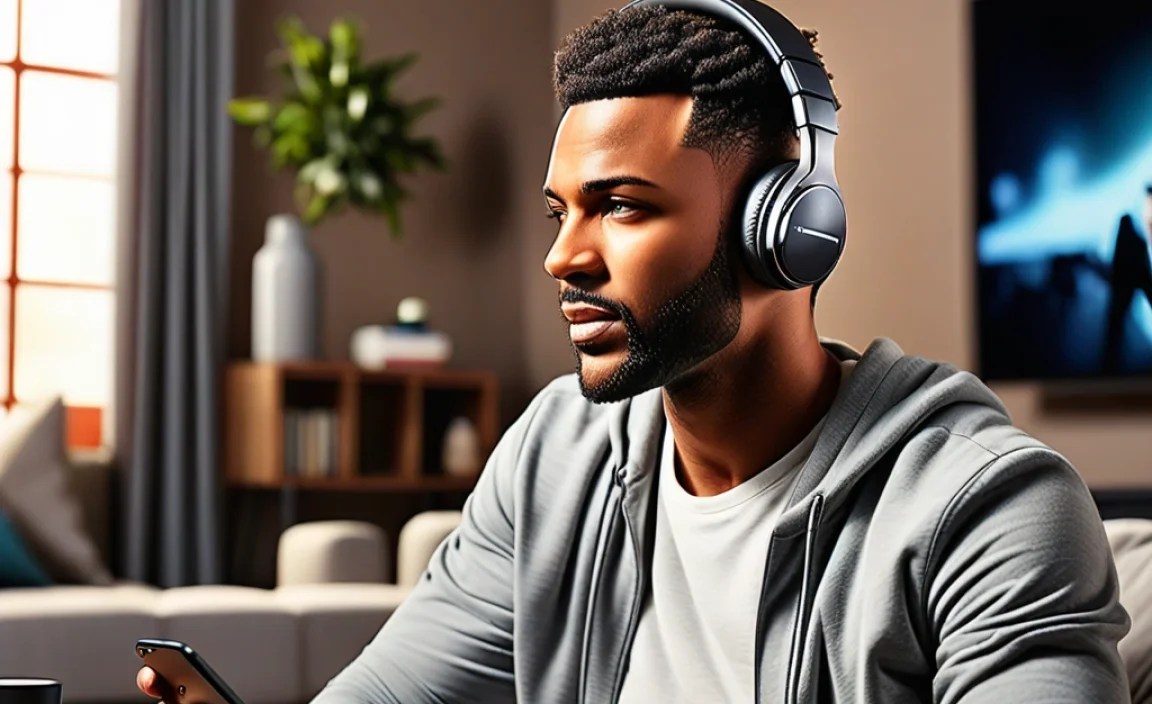
When shopping for wireless headphones for TV that can accommodate multiple listeners, several features are crucial. We’re not just looking for good sound; we’re looking for convenience, compatibility, and a seamless shared experience. Here’s a breakdown of what to prioritize:
Connectivity Options
This is paramount. How does the headphone system connect to your TV, and can it connect to more than one set of headphones?
- Base Station/Transmitter: Most dedicated TV wireless headphone systems use a base station or transmitter. This is usually connected to your TV via an audio output (like a headphone jack, RCA, or optical audio port). The transmitter then broadcasts the audio wirelessly to the headphones.
- Multiple Headphone Support: This is the golden ticket for shared listening. Check the product specifications to see how many headphones can connect to a single transmitter. Some systems are designed to support two, four, or even more pairs simultaneously. Often, you’ll need to purchase additional headphones separately if the system only comes with one.
- Audio Output Compatibility: Ensure the transmitter has the right audio output jacks to connect to your TV. Modern TVs often have optical audio (digital) out, which typically provides the best sound quality. Older TVs might only have RCA (red and white) or a standard headphone jack.
Sound Quality and Latency
You want to be immersed, not distracted.
- Audio Fidelity: Look for headphones that are known for clear dialogue reproduction. Many TV-focused headphones emphasize mid-range frequencies where voices sit, making them easier to understand.
- Latency: This is the delay between the video and audio. High latency can make watching shows feel disjointed. RF systems generally have very low latency. For Bluetooth, look for support of low-latency codecs like aptX Low Latency. You can often check your TV’s audio output settings to see if it supports these codecs, or you might need a Bluetooth transmitter that does. A good resource for understanding audio codecs and latency is the Bluetooth SIG website, which provides technical specifications and news on advancements.
Comfort and Design
You’ll be wearing these for extended periods.
- Over-Ear Design: These are generally the most comfortable for long listening sessions and provide better sound isolation.
- Lightweight: Heavy headphones can become uncomfortable.
- Adjustable Headband & Padded Earpads: Essential for a good fit for different head sizes and shapes.
- Wireless Range: Consider how far you might need to move away from the TV. RF systems often offer a greater range than standard Bluetooth.
Ease of Use
No one wants a complicated setup for relaxation time.
- Simple Pairing: The connection between the transmitter and headphones should be straightforward, ideally automatic or with a single button press.
- Intuitive Controls: Volume controls on the headphones should be easy to find and adjust without looking.
- Long Battery Life & Charging: Look for headphones with several hours of battery life and a convenient charging method (e.g., a charging stand or USB-C).
Setting Up Your Wireless TV Headphones: A Step-by-Step Guide
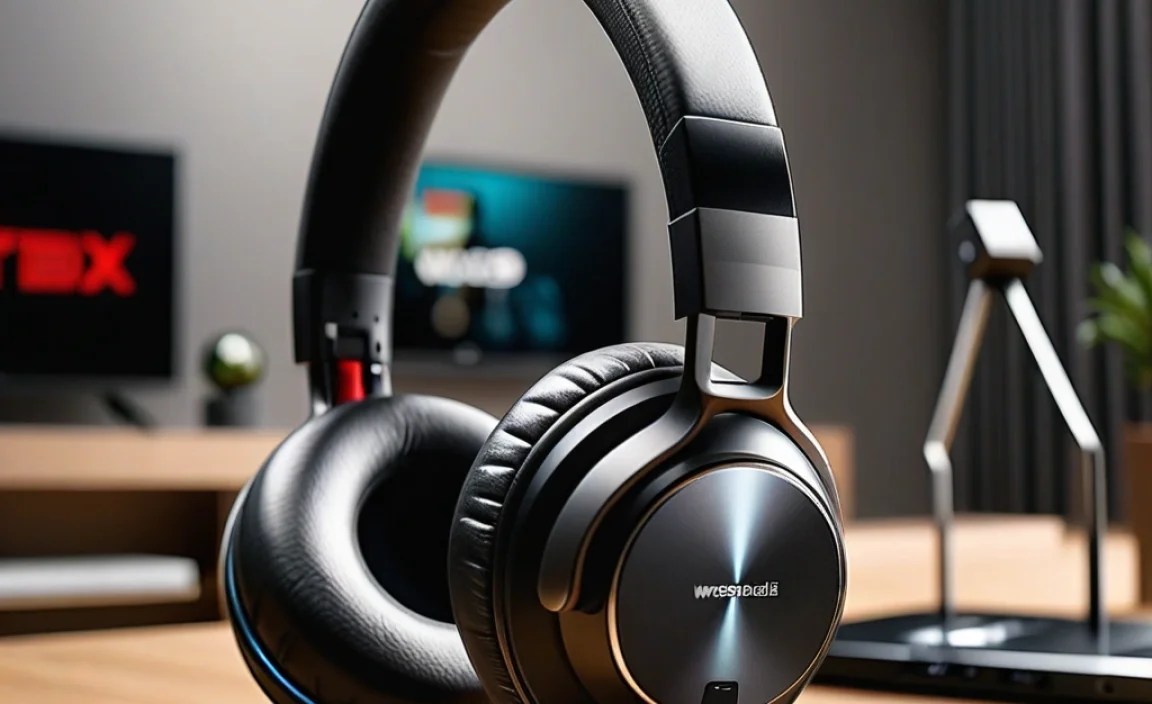
Getting your new wireless TV headphones up and running is usually pretty straightforward. We’ll walk you through the most common setup process. Remember, always refer to your specific headphone and TV manuals for detailed instructions.
Step 1: Unpack and Charge
Carefully unbox your headphones and transmitter. Most wireless headphones and their accompanying transmitters need to be charged before their first use. Connect the transmitter to its power adapter and plug it in. Place the headphones on their charging stand or connect them via their charging cable. Allow them to charge until the indicator lights show they are full, which can take a couple of hours.
Step 2: Connect the Transmitter to Your TV
This is the most crucial step for getting audio to your headphones. Identify the audio output ports on the back or side of your TV.
Here are the common connection methods:
- Optical Audio (TOSLINK): This is usually a small, square port with a flap that glows red. Use the provided optical cable. Plug one end into the TV’s optical out port and the other into the transmitter’s optical in port. This is often the preferred method for sound quality.
- RCA Audio (Red and White): These are analog audio ports. You’ll typically use a cable with red and white connectors on one end and 3.5mm stereo on the other, or separate RCA connectors. Connect the red cable to the red port and the white to the white port on your TV’s audio out, and then to the corresponding input on your transmitter.
- 3.5mm Headphone Jack: Many TVs (and soundbars) have a standard headphone jack. Use the 3.5mm audio cable included with your headphones. Plug one end into the TV’s headphone jack and the other into the transmitter’s audio input.
Important Note: After connecting, you’ll likely need to go into your TV’s audio settings menu. You’ll need to select the correct audio output source (e.g., “Optical,” “External Speakers,” or “Headphone Out”) and sometimes disable the TV’s internal speakers if the option is available.
Step 3: Power On and Pair
Turn on both your TV and the wireless transmitter. If the transmitter has a power switch, turn it on. The indicator light on the transmitter should illuminate.
Now, power on your wireless headphones. For many systems, the headphones will automatically try to connect to the transmitter when powered on. Look for an indicator light on the headphones that signifies a successful connection (often a steady blue or green light).
If they don’t connect automatically, there’s usually a pairing button on both the transmitter and the headphones. Press and hold the pairing button on both devices until they find each other, then release. Refer to your manual for precise pairing instructions.
Step 4: Test the Audio
Play some content on your TV. You should now hear the audio through your wireless headphones. Adjust the volume using the controls on the headphones themselves. If you have a second pair of headphones that support the system, follow the same pairing process for that second pair. Now, multiple people can listen at their preferred volume!
Step 5: Adjust and Optimize
Experiment with the volume. If dialogue is still hard to hear, check if your headphones have a “dialogue boost” or “voice mode” feature. Ensure the earpads are creating a good seal for best sound isolation. If you experience any interference or dropouts, try repositioning the transmitter to have a clearer line of sight or to be away from other potential sources of wireless interference (like Wi-Fi routers).
Troubleshooting Common Issues
Even with the best technology, sometimes things don’t go perfectly. Here are a few common issues and how to fix them:
- No Sound:
- Check that the transmitter is powered on and connected correctly to the TV’s audio output.
- Verify that you’ve selected the correct audio output in your TV’s settings and that it’s not muted.
- Ensure the headphones are powered on, charged, and successfully paired with the transmitter (check indicator lights).
- Try increasing the volume on both the TV (if applicable) and the headphones.
- Audio Lag (Latency):
- If using Bluetooth, ensure both your TV/transmitter and headphones support a low-latency codec like aptX Low Latency.
- If using RF, this is rarely an issue, but try repositioning the transmitter.
- Check your TV’s audio settings for any “lip-sync” adjustments that can manually correct for lag.
- Interference or Static:
- Move the transmitter away from other wireless devices like Wi-Fi routers, microwaves, or cordless phones.
- Ensure there isn’t a physical obstruction between the transmitter and headphones, especially for line-of-sight technologies.
- For RF systems, try a different transmission channel if your system allows for it.
- One Headphone Not Working (Two-Headphone Systems):
- Ensure the second headphone is properly charged and paired with the transmitter, following the same steps as the first.
- Consult your manual to confirm the specific pairing procedure for multiple headphones.
- Comfort Issues:
- Adjust the headband for a snug but not tight fit.
- If the earpads feel too warm or pressure points exist, take a short break. Some headphones have replacement earpads made of different materials (like velour) which might offer more comfort.
Product Recommendations: Top Wireless TV Headphones for Shared Listening
Choosing the right product can feel overwhelming with so many options. Here are a few types of systems that generally serve shared listening well, categorized by their primary technology. Always check the latest models and reviews for the most current information!
Best Overall RF System: Sennheiser RS 5000 or similar
Sennheiser is a well-respected name in audio, and their dedicated RF systems for TV are often a benchmark. The RS 5000 (and similar models in their range) typically offers:
- Excellent wireless range (often up to 100 feet/30 meters).
- Simple docking and charging.
- Exceptional sound clarity, often with voice enhancement features.
- Support for up to two pairs of headphones out of the box, with the option to purchase more.
- Low latency ensuring no distracting audio delay.
These systems are designed from the ground up for TV viewing, making them reliable and user-friendly. You can learn more about Sennheiser’s commitment to audio quality on their official website.
Best Bluetooth with Low Latency: Avantree Audition Pro or similar Bluetooth Transmitter & Headphone Kits
For those who prefer the ubiquity of Bluetooth or have newer TVs that support it well, a dedicated Bluetooth transmitter paired with low-latency headphones is a great choice. Products like the Avantree Audition Pro (often sold as a bundle with a transmitter) offer:
- Support for aptX Low Latency (if both the transmitter and headphones have it) to minimize lag.
- The ability to connect two pairs of headphones to a single transmitter.
- Versatility – Bluetooth headphones can also be used with phones and tablets.
- Often a more compact solution than RF base stations.
When choosing a Bluetooth set, ensure the transmitter and headphones are explicitly stated to support aptX Low Latency for the best experience. You can find more details on Bluetooth audio codecs and their benefits on resources discussing Bluetooth specifications, like those found on the Bluetooth SIG website.
Budget-Friendly RF Option: Philips SHC Series or similar
If you’re on a tighter budget but still need robust shared listening, look for models in Philips’ SHC series or comparable brands. These often provide:
- Decent wireless range suitable for most living rooms.
- Easy setup and charging.
- Typically support for two headphones.
- Clear, though perhaps less audiophile-grade, sound.
These are excellent entry points into the world of wireless TV audio for couples or small families looking for a simple, effective solution.
Table: Comparing Wireless TV Headphone Technologies for Shared Listening
Here’s a quick look at how the main technologies stack up for your shared TV listening needs:
| Feature | RF (Radio Frequency) | Bluetooth (Low Latency) | Infrared (IR) |
|---|---|---|---|
| Typical Latency | Very Low | Low (with aptX LL) to Moderate | Low |
| Range | Up to 100m / 300ft | Up to 10m / 33ft (class 2) | Line of Sight (~10m / 33ft) |
| Penetrates Walls? | Yes | Yes (with signal degradation at range) | No |
| Shared Listening Support | Excellent (designed for multiple receivers) | Good (via dual streaming or multi-point) | Limited (as users must stay in line of sight) |
| Interference Susceptibility | Moderate (from other RF signals) | Moderate (from |
