
Quick Summary: Discover the best wireless headphones for your TV, even if your TV lacks Bluetooth. This guide explores easy-to-use, non-Bluetooth solutions like RF and IR systems, helping you enjoy clear audio wirelessly without complex setup.
Wireless Headphones for TV Without Bluetooth: Your Essential Guide
Are you tired of tangled cords or straining to hear your favorite shows? Many modern TVs come equipped with Bluetooth for wireless audio, but what if yours doesn’t? Don’t worry! You can still enjoy the freedom of wireless sound without a hitch. This guide is here to demystify the world of non-Bluetooth wireless TV headphones, making it super simple to find and set up the perfect system for your needs. We’ll walk you through the most common and beginner-friendly options, ensuring you can finally hear every word and sound effect with crystal clarity.
Why You Might Need Non-Bluetooth Wireless Headphones for TV

It’s a common situation: you’ve just bought a new pair of wireless headphones, ready to immerse yourself in your TV’s audio without disturbing others, only to find your TV doesn’t have Bluetooth. Older television models often lack this modern connectivity. Even some newer, more budget-friendly TVs might omit Bluetooth to keep costs down. In these cases, Bluetooth headphones simply won’t work. This is where specialized wireless headphone systems designed for TV come into play. They bypass the need for Bluetooth by using different transmission technologies, ensuring a seamless audio experience.
Beyond not having Bluetooth, there are other compelling reasons to opt for dedicated TV headphone systems:
- Simpler Setup: Many non-Bluetooth systems are plug-and-play, requiring minimal technical know-how.
- Improved Reliability: Less chance of interference or connection dropouts compared to some Bluetooth setups, especially over longer distances or through walls.
- Dedicated Features: These systems are often designed with TV watching in mind, offering features like voice clarity enhancement and adjustable volume for each earbud.
- Compatibility: They can connect to older TVs or audio equipment that only has analog audio outputs (like headphone jacks or RCA outputs).
- Lower Latency: For movie buffs and gamers, low latency (the delay between the audio and video) is crucial. Many dedicated systems offer near-zero latency, which is often better than standard Bluetooth.
Understanding Non-Bluetooth Wireless Technologies for TV

When your TV doesn’t have Bluetooth, wireless headphones typically rely on other methods to send audio from your TV to your ears. The two most prevalent technologies to look out for are:
1. Radio Frequency (RF) Wireless Headphones
RF headphones are a popular choice for TV watching because they’re known for their range and ability to penetrate walls. Here’s how they work:
- The Transmitter: A base station (or transmitter) connects to your TV via an audio cable. Common connections include the headphone jack (3.5mm), RCA (red and white audio ports), or sometimes optical audio.
- The Signal: The transmitter converts the audio signal from your TV into a radio frequency signal.
- The Receiver: Your headphones contain a receiver that picks up this RF signal.
- The Result: You hear the TV’s audio through your headphones.
RF systems are excellent for moving around. You can often walk to the kitchen for a drink or even go to another room (within a reasonable distance) without losing the audio signal. This makes them incredibly versatile for home use.
Key Features of RF Headphone Systems:
- Range: Typically offer a range of 100-200 feet (30-60 meters), sometimes more, and can often pass through walls.
- Low Latency: Generally have very low audio delay, making them ideal for movies and TV shows where lip-sync is important.
- Ease of Use: Most are designed for simple plug-and-play setup.
- Multi-User Capability: Many RF systems allow multiple headphones to connect to a single transmitter, perfect for couples or families who want to listen at the same time at different volumes.
You can find more information on radio frequency technology and its applications at resources like the Federal Communications Commission (FCC) website, which discusses RF safety and general principles.
2. Infrared (IR) Wireless Headphones
Infrared headphones are less common for general TV use these days but are still available and have their own niche. They operate similarly to your TV remote:
- The Transmitter: A base station connects to your TV’s audio output.
- The Signal: The transmitter sends an infrared light signal, which is invisible to the human eye, carrying the audio.
- The Receiver: The headphones have a receiver that picks up this IR signal.
- The Key Difference: The headphones must have a direct line of sight to the transmitter. If you block the path between the transmitter and the headphones (e.g., by turning your head, or if something obstructs the path), the audio will cut out.
Because of this line-of-sight requirement, IR headphones are best suited for situations where you’ll be sitting directly in front of the TV and the transmitter, without moving around much.
Key Features of IR Headphone Systems:
- No Interference: Infrared signals are not prone to interference from other electronic devices, providing a clean audio signal.
- Privacy: The signal doesn’t travel through walls, so your audio is contained within the room.
- Lower Range: Typically have a shorter range than RF systems and require a clear line of sight.
- Less Common: Not as widely available as RF or Bluetooth options for new purchases.
How to Choose the Right Wireless Headphones for Your TV (Without Bluetooth)
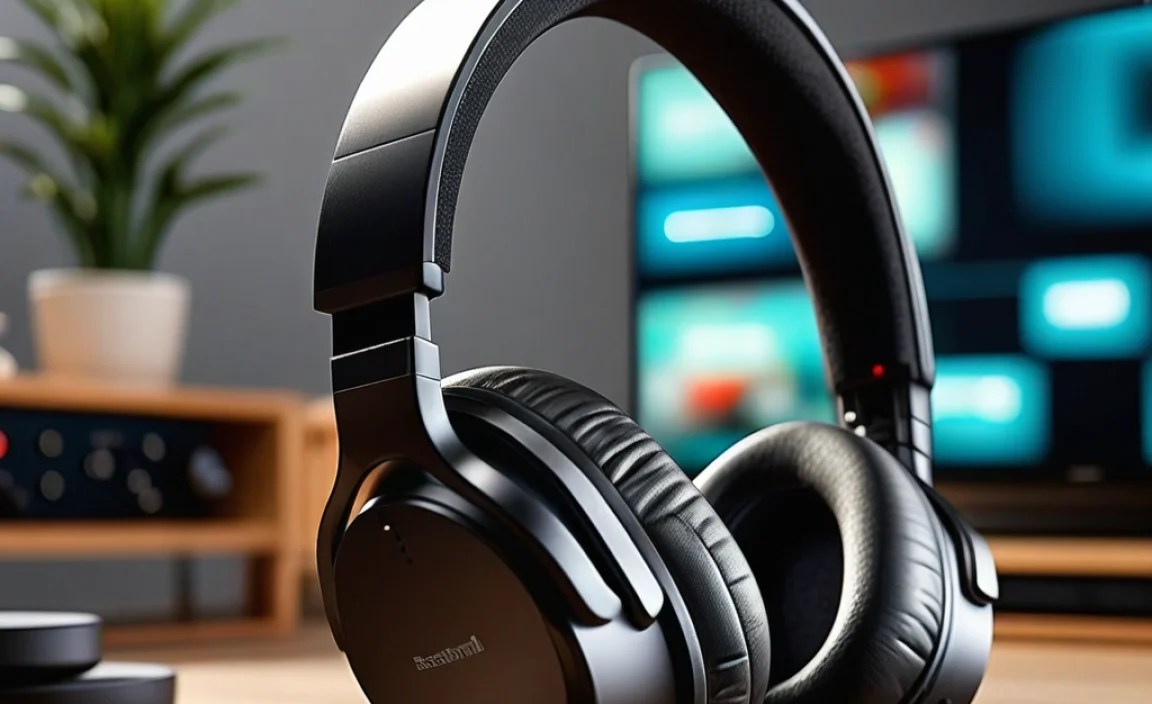
Selecting the best wireless headphones involves considering your TV’s capabilities and your listening habits. Here’s a step-by-step approach:
Step 1: Check Your TV’s Audio Output Ports
This is the most crucial step. Look at the back or side of your TV for available audio outputs. Common ones include:
- 3.5mm Headphone Jack: Looks like a small, circular port, often labeled with a headphone icon.
- RCA Audio Out: Two circular ports, usually colored red and white, labeled “Audio Out.”
- Optical Audio Out (Toslink): A small, often rectangular port with a protective flap, labeled “Optical” or “Digital Audio Out.”
- HDMI ARC (Audio Return Channel): While primarily for video, some soundbars and newer devices can use this for audio. However, for non-Bluetooth headphones, you’ll usually connect directly to analog or optical outputs of the TV or a separate audio device.
Table: Common TV Audio Output Ports and Their Use
| Port Type | Appearance | Typical Use for Headphones | Connection Notes |
|---|---|---|---|
| 3.5mm Headphone Jack | Small, round socket (like a stereo mini-jack) | Direct connection for many headphones/transmitters | Most common, plug-and-play. May share volume with TV speakers. |
| RCA Audio Out | Two larger, round sockets (usually Red & White) | Connects via adapter cable (e.g., 3.5mm to RCA) | Look for ports labeled “Audio Out” or “Line Out.” |
| Optical Audio Out (Toslink) | Small, square-ish port with a flap; often glows red | Connects via optical cable to compatible transmitters | Provides excellent digital audio quality. Requires a transmitter with an optical input. |
Step 2: Decide Between RF and IR Technology
Here’s a quick comparison to help you choose:
- Choose RF if:
- You want to move around your home while listening.
- You need the signal to go through walls or cover a large area.
- Audio delay (latency) is a major concern for you.
- You want multiple people to listen wirelessly.
- Choose IR if:
- You always sit in the same spot directly in front of the TV.
- You prioritize a completely interference-free signal.
- Privacy is key, and you don’t want the signal to go elsewhere.
- Budget is a primary concern, as IR can sometimes be cheaper (though less common now).
For most users looking for a simple, reliable way to watch TV wirelessly without Bluetooth, RF headphones are generally the recommended choice.
Step 3: Consider Audio Quality and Features
What’s important for your listening experience?
- Sound Quality: Look for reviews discussing bass, clarity, and overall audio balance. Some systems offer different EQ presets.
- Volume Control: Can you adjust the volume directly on the headphones, or only via the transmitter/TV? Independent volume control on the headphones is a big plus.
- Comfort: Over-ear headphones offer superior comfort and sound isolation for long listening sessions. On-ear or earbuds are lighter but might compromise comfort over time.
- Voice Clarity: Some specialized TV headphones have features to enhance dialogue, making it easier to catch every word.
- Battery Life: How long do the headphones last on a single charge? Are the batteries rechargeable, or replaceable?
- Number of Headphones Supported: If you need more than one pair of headphones, ensure the system supports it.
Step 4: Read Reviews and Compare Models
Once you have an idea of what you need, start researching specific models. Look for reputable brands known for audio quality and customer support. Pay attention to:
- User Reviews: See what other buyers say about setup, reliability, and sound.
- Professional Reviews: Tech websites often provide in-depth analyses.
- Warranty: A good warranty offers peace of mind.
Brands like Sennheiser, Philips, and Logitech often offer excellent RF wireless headphone systems for TVs.
Setting Up Your Wireless Headphones: A Step-by-Step Guide
Setting up your non-Bluetooth wireless headphones is usually straightforward. While specific instructions may vary by model, the general process is as follows:
Step 1: Unpack and Identify Components
You should have:
- The wireless headphones (earpieces).
- A transmitter base station.
- An audio connection cable (likely 3.5mm, RCA, or optical).
- A power adapter for the transmitter.
- A charging cable or dock for the headphones (if they are rechargeable).
- An instruction manual.
Step 2: Connect the Transmitter to Your TV
Choose the appropriate audio output port on your TV and connect it to the corresponding input on the transmitter base station using the provided cable.
- Using a 3.5mm Headphone Jack: Connect one end of the 3.5mm cable to your TV’s headphone port and the other end to the transmitter’s designated input.
- Using RCA Cables: If your transmitter has RCA inputs and your TV has RCA outputs, connect the red plug to the red port and the white plug to the white port. If your TV only has a headphone jack, you can often use a 3.5mm to RCA adapter cable (one end plugs into the TV, the other splits into red and white RCA plugs for the transmitter).
- Using Optical Cable: Connect one end to your TV’s optical out and the other to the transmitter’s optical in. Make sure to remove the small plastic protective caps from the cable ends and the ports.
Important Note: After connecting, you might need to adjust your TV’s audio settings. Go into your TV’s settings menu and look for “Audio Output” or “Sound Output.” Select the correct output you’ve used (e.g., “Headphone,” “Audio Out,” “Optical Out”). Some TVs may require you to press a button on the transmitter to switch audio output from the TV’s internal speakers to the external/headphone output.
Step 3: Power Up the Transmitter
Plug the transmitter’s power adapter into a wall outlet or surge protector and connect it to the transmitter base. It should power on automatically or require a press of a power button.
Step 4: Prepare Your Headphones
If your headphones are rechargeable, ensure they are charged. Many systems come with the headphones placed on the transmitter dock for charging.
Step 5: Turn On and Pair the Headphones
Turn on your headphones. Most RF systems are pre-paired, meaning they should automatically connect to their base station once powered on. You might see a light on the headphones and the transmitter indicating a successful connection. If they don’t connect, check your manual for a pairing or re-pairing procedure, which often involves pressing a button on both the transmitter and the headphones simultaneously.
Step 6: Adjust Volume and Test
Start with the volume on both the TV (if applicable for your connection type) and the headphones set to a low level. Gradually increase the volume on the headphones until you reach a comfortable listening level. Test with various content (dialogue-heavy scenes, music, action sequences) to ensure the audio is clear and synchronized.
For more advanced setup guidance, consult reputable tech resources that explain audio-visual connections, such as those from Sound & Signals, a site dedicated to explaining AV technology for professionals and enthusiasts.
Troubleshooting Common Issues
Even with simple systems, you might encounter occasional hiccups. Here are some common problems and their solutions:
- No Sound:
- Check all cable connections are secure.
- Ensure the transmitter and headphones are powered on.
- Verify the correct audio output is selected in your TV settings.
- Make sure the TV volume is not muted or set too low.
- Confirm the headphones are properly paired with the transmitter.
- Charge the headphone batteries.
- Interference or Static:
- For RF, try repositioning the transmitter to be more centrally located or away from other wireless devices (like Wi-Fi routers).
- Ensure you are within the recommended range of the transmitter.
- For IR, check for a clear line of sight.
- Some transmitters have selectable RF channels; try switching to a different one.
- Audio Delay (Latency):
- This is less common with RF and IR systems than with standard Bluetooth. However, if it occurs, check if your TV has a “Game Mode” or an “Audio Sync” setting that you can adjust.
- Ensure you are using the most direct headphone system possible, without intermediate devices.
- One Earbud Not Working:
- Check the headphone balance settings on your TV or the device itself.
- Make sure the headphone plug is fully inserted into the receiver (if applicable).
- Clean the headphone jack on the headphones and the transmitter for any debris.
- If the headphones are wireless to each other (e.g., true wireless earbuds with a separate transmitter), check their individual pairing and battery levels.
Frequently Asked Questions (FAQ)
Q1: Can I use my existing Bluetooth headphones with a TV that doesn’t have Bluetooth?
Yes, you can! You’ll need a separate Bluetooth transmitter device that plugs into your TV’s audio output (like a headphone jack or optical port). This transmitter then sends the audio to your Bluetooth headphones. However, this guide focuses on non-Bluetooth dedicated wireless systems.
Q2: How far can these non-Bluetooth wireless TV headphones reach?
Radio Frequency (RF) systems typically offer a range of 100 to 200 feet (30-60 meters), and can often penetrate walls. Infrared (IR) systems require a direct line of sight and have a much shorter range.
Q3: Do I need to connect anything to my TV for these headphones?
Yes, almost always. You will need to connect a transmitter base station to your TV’s audio output port (like the headphone jack, RCA, or optical port). This transmitter then sends the wireless signal to the headphones.
Q4: Can multiple people use the same wireless transmitter system?
Many RF wireless TV headphone systems are designed to support multiple headphones. You can often purchase additional
