
Quick Summary: This guide helps you find and use the best wireless headphones for your vehicle’s DVD player. Learn about compatibility, types of wireless tech, and simple setup steps to enjoy quiet rides and happy passengers, even on long journeys.
Wireless Headphones For Vehicle DVD Player: Your Essential Guide

Planning a road trip or just want to make your daily commute a little more peaceful? Having a vehicle DVD player is fantastic for keeping everyone entertained, especially the little ones. But with that entertainment often comes noise. The solution? Wireless headphones designed specifically for your car’s entertainment system! Connecting wireless headphones to a vehicle DVD player might seem a bit techy, but trust me, it’s far simpler than you think. At headphonehorizon, we believe everyone should enjoy great audio without the hassle. This guide will break down everything you need to know, from understanding compatibility to setting up your new headphones for stress-free listening. Let’s ditch the tangled wires and unlock a new level of in-car tranquility together.
Why Go Wireless for Your Vehicle DVD Player?

The benefits of using wireless headphones with your car’s DVD player are pretty compelling. Imagine this: no more tangled cords getting in the way, no more tripping hazards for kids, and – best of all – different audio sources playing simultaneously if needed, or simply a blessed quiet for the driver. It transforms car rides from a potentially chaotic experience into a more enjoyable journey for everyone.
Benefits at a Glance:
- Freedom of Movement: No wires means kids can move around a bit without yanking the player or headphones.
- Reduced Clutter: A cleaner car interior with fewer messy cables.
- Enhanced Comfort: Especially for long journeys, wireless headphones can feel less restrictive.
- Peace for the Driver: Keep the movie or cartoon audio contained, reducing distractions.
- Multi-User Enjoyment: If your DVD player supports multiple audio channels or pairings, passengers can enjoy different sounds or simply have their own quiet space.
Understanding Wireless Technologies for Your DVD Player
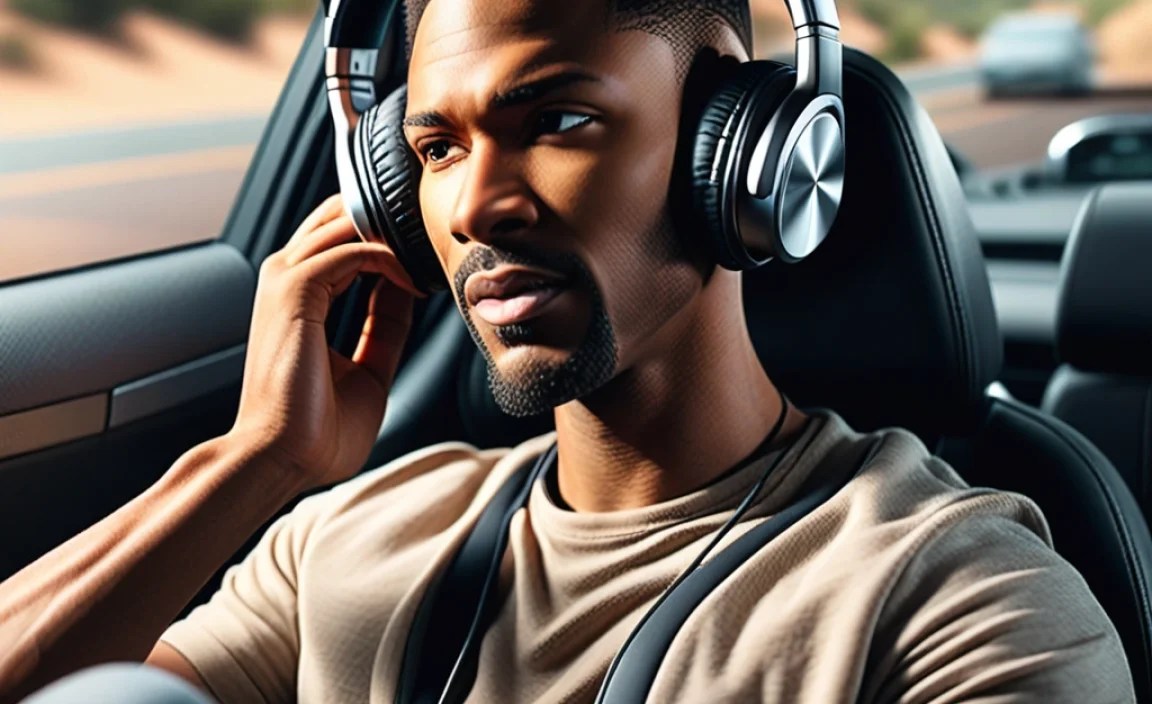
When we talk about wireless headphones for a vehicle DVD player, there are a few main technologies at play. It’s important to know which one your DVD player uses, or which one you’re looking to buy, to ensure they’ll work together seamlessly.
Infrared (IR) Wireless Headphones
Infrared headphones are a classic choice for many car DVD systems. They use an infrared light signal to transmit audio from a transmitter (often built into or connected to the DVD player) to the headphones. You usually need a clear line of sight between the transmitter and the headphones, though this is generally not a major issue within the confines of a car’s interior.
Pros of IR Headphones:
- Easy Pairing: Often as simple as pointing the headphones towards the transmitter.
- Low Interference: Less prone to interference from other electronic devices in the car.
- Often Included with Systems: Many built-in car entertainment systems come with IR headphones.
Cons of IR Headphones:
- Line-of-Sight Required: Can sometimes lose signal if something obstructs the direct path.
- Limited Range: Typically have a shorter effective range compared to RF or Bluetooth.
- Not Universal: Not compatible with most modern standalone Bluetooth devices.
Radio Frequency (RF) Wireless Headphones
RF headphones transmit audio using radio waves. These waves can pass through obstacles like seats, making them a bit more versatile than IR headphones. They usually come with a base station or transmitter that plugs into your DVD player’s audio output.
Pros of RF Headphones:
- Good Range: Generally offer a wider listening range than IR.
- Obstacle Permeable: Signals can pass through car seats and other obstructions more easily.
- Often Rechargeable: Many models come with charging docks.
Cons of RF Headphones:
- Potential for Interference: Can sometimes be affected by other RF signals.
- May Require Separate Transmitter: If your DVD player doesn’t have an RF output, you might need an adapter.
Bluetooth Wireless Headphones
Bluetooth is the most common wireless technology today for headphones and other audio devices. If your vehicle DVD player has Bluetooth capability, you can pair standard Bluetooth headphones directly with it. If it doesn’t, you can often add Bluetooth functionality using a small Bluetooth transmitter adapter that plugs into the DVD player’s audio-out jack.
Pros of Bluetooth Headphones:
- Ubiquitous: Works with most modern smartphones, tablets, and many DVD players.
- No Line-of-Sight Needed: Signals are continuous and don’t require direct alignment.
- Wide Range of Options: Huge variety of models, brands, and price points available.
Cons of Bluetooth Headphones:
- Pairing Process: Can sometimes be fiddly if you’re not familiar with it.
- Potential for Lag: Though less common now, older Bluetooth versions or cheaper models can have audio delay (latency), which is noticeable with video. Look for low-latency codecs like aptX Low Latency if your DVD player supports them.
- Compatibility Check: Ensure your DVD player (or transmitter) supports a modern Bluetooth profile (like A2DP) for audio streaming.
How to Connect Wireless Headphones to Your Vehicle DVD Player: A Step-by-Step Guide

The connection method will depend on the type of wireless technology your DVD player and headphones use. Let’s break down the most common scenarios.
Scenario 1: Your DVD Player Has Built-in IR or RF Wireless
Many standalone vehicle DVD players, especially older models or those designed for kids, come with dedicated IR or RF headphone jacks. Often, these systems are designed to work with specific headphones that came bundled with them or are sold as compatible accessories.
- Locate the Headphone Jack: Look for a small port on your DVD player, often labeled “IR,” “RF,” or with a headphone symbol. Sometimes, the transmitter is a separate unit that plugs into a standard audio-out jack (like a 3.5mm headphone jack) and then emits the IR or RF signal.
- Power On Headphones: Ensure your IR or RF headphones are powered on and have fresh batteries or are charged.
- Pairing (if applicable): For IR headphones, this often happens automatically when they are within range and powered on. For RF, there might be a simple pairing button on the transmitter and headphones. Follow the manufacturer’s instructions.
- Test the Audio: Start a movie or show on your DVD player and check if you can hear sound through the headphones. Adjust the volume on the headphones.
Scenario 2: Your DVD Player Has Bluetooth Capability
This is the most modern and convenient if your DVD player is equipped. If it has built-in Bluetooth, you can pair standard Bluetooth headphones.
- Enable Bluetooth on DVD Player: Navigate through your DVD player’s settings menu to find the Bluetooth options. Turn Bluetooth on and set it to “discoverable” or “pairing mode.” Consult your DVD player’s manual for specific instructions.
- Enable Bluetooth and Pairing Mode on Headphones: Turn on your Bluetooth headphones and put them into pairing mode. This usually involves pressing and holding the power button or a dedicated Bluetooth button until an indicator light flashes in a specific pattern.
- Select Headphones on DVD Player: On your DVD player’s Bluetooth menu, you should see a list of available devices. Select your headphones from the list.
- Confirm Pairing: You might be asked to confirm a pairing code (often 0000 or 1234, but check your manual). Once paired, the devices should connect automatically in the future.
- Test Audio: Play content on your DVD player and verify the sound is coming through your Bluetooth headphones.
Scenario 3: Your DVD Player Does NOT Have Bluetooth (Using a Transmitter)
Don’t despair if your DVD player lacks Bluetooth! A simple Bluetooth transmitter can bridge the gap. These small devices plug into your DVD player’s audio-out port and transmit the audio wirelessly via Bluetooth to your standard Bluetooth headphones.
- Purchase a Bluetooth Transmitter: Ensure it supports aptX Low Latency if possible for minimal audio delay. These are widely available online and at electronics stores.
- Connect Transmitter to DVD Player: Plug the transmitter into your DVD player’s audio-out jack. This is typically a 3.5mm headphone jack. If your DVD player only has RCA outputs (red and white ports), you’ll need an RCA-to-3.5mm adapter cable and then plug the transmitter into that.
- Power On and Pair Transmitter: Many transmitters are powered via USB. Plug it into a USB power source (some DVD players have USB ports for power, or you might need a car USB adapter). Put the transmitter into pairing mode according to its manual.
- Enable Pairing Mode on Headphones: Put your Bluetooth headphones into pairing mode as described in Scenario 2.
- Connect Transmitter and Headphones: The transmitter should automatically detect and pair with your headphones. Some transmitters also have a pairing button. Once connected, the indicator lights on both devices usually show a solid connection.
- Test Audio: Play content on your DVD player. The sound should now be transmitted to your Bluetooth headphones. Adjust volumes on both the DVD player (if adjustable via the audio-out) and your headphones.
Choosing the Right Wireless Headphones

With so many options out there, how do you pick the best wireless headphones for your vehicle DVD player? Here are some key factors to consider:
Compatibility is King
As we’ve discussed, the most important factor is ensuring your headphones are compatible with your DVD player’s output. If your DVD player has Bluetooth, go for Bluetooth headphones. If it uses IR, you’ll need IR. If it has a standard audio jack, a Bluetooth transmitter is your best friend.
Sound Quality and Latency
For watching videos, minimizing audio lag (latency) is crucial. While older Bluetooth versions could be problematic, modern Bluetooth with codecs like aptX Low Latency (supported by both the transmitter/source and headphones) greatly reduces this. IR and RF headphones generally have very little noticeable latency.
Comfort and Durability
Car rides can be long. Look for headphones that are comfortable to wear for extended periods. Padded earcups and an adjustable headband are a plus. For use with kids, durability is paramount. Child-friendly headphones are often designed to be more robust and have volume limiters for ear safety.
Battery Life
Check the battery life of your chosen headphones. Most wireless headphones offer several hours of playback on a single charge. For long road trips, consider models that offer longer battery life or have an option to be used wired as a backup.
Ease of Use
For beginners, straightforward pairing and operation are key. If you’re using a Bluetooth transmitter, choose one that is easy to set up and has clear pairing indicators.
Top Types of Wireless Headphones for Car DVD Players
Here’s a quick rundown of the types you’ll likely encounter, along with what makes them suitable:
| Headphone Type | Best For | Key Features | Consider If |
|---|---|---|---|
| Infrared (IR) Wireless | Older vehicle systems, bundled accessories. | Simple line-of-sight, often basic models. | Your DVD player specifically uses IR or came with IR headphones. |
| Radio Frequency (RF) Wireless | Variety of car systems, good range. | Better than IR with obstacles, often dedicated systems. | You need slightly more range and less sensitivity to obstruction than IR, and your system supports RF. |
| Bluetooth Wireless | Modern DVD players with Bluetooth, or using a Bluetooth transmitter. | Universal compatibility, no line-of-sight needed, wide variety. | Your DVD player has Bluetooth, or you’re willing to add a transmitter for a universal solution. |
| Dedicated Kids’ Wireless Headphones | Children using the DVD player. | Volume limiters, durable, often brightly colored, kid-friendly design. | Prioritizing safety and durability for younger passengers. |
Troubleshooting Common Issues
Even with the best guidance, you might run into a hiccup. Here are some common problems and how to fix them:
No Sound
- Check Power: Ensure headphones and transmitter (if used) are powered on and charged.
- Check Volume: Make sure volume is up on both the headphones and the DVD player (if applicable).
- Check Connection: For IR, ensure a clear line of sight. For Bluetooth, confirm they are paired and connected. For RF, ensure they are within range.
- Test with Another Device: To see if the issue is with the headphones or the DVD player, try pairing the headphones with your phone or the transmitter with a different audio source.
- Restart Devices: Turn both the DVD player and headphones off and then on again.
Intermittent Cutting Out or Static
- Range: You might be too far from the transmitter. Move closer.
- Interference: Other electronic devices, especially in newer cars, can sometimes interfere. Try turning off non-essential electronics. For Bluetooth, try reconnecting and ensuring a stable connection.
- Battery Level: Low battery can cause performance issues. Charge your headphones.
- Obstructions: For IR, ensure clear line-of-sight. For RF, large metal objects or numerous seats can sometimes weaken the signal.
Bluetooth Won’t Pair
- Both Devices in Pairing Mode: Ensure both your DVD player (or transmitter) and headphones are actively in pairing mode.
- Clear Previous Pairings: Sometimes, a device remembers old pairings. Try “forgetting” the device on your DVD player and headphones, then re-pair.
- Distance: Keep the devices close during the pairing process.
- Restart: Reboot both the DVD player and the headphones.
- Check Compatibility: Ensure both devices support the same Bluetooth profiles (e.g., A2DP for audio streaming).
Safety Considerations
When using any audio device in a vehicle, safety is paramount. This is especially true when children are involved. Remember to:
- Volume Limits: Always set the volume to a safe level. For children, using headphones with built-in volume limiters (typically set to 85 decibels or lower) is highly recommended to protect their developing hearing. The National Institute on Deafness and Other Communication Disorders (NIDCD) provides excellent information on noise-induced hearing loss.
- Awareness: Ensure that passengers can still hear important external sounds if necessary, especially in emergency situations. Driver awareness is key – avoid anything that distracts from safe operation.
- Secure Installation: Make sure any transmitters or charging equipment are securely placed and not likely to become projectiles in case of sudden stops.
- Battery Safety: Use only approved chargers and batteries. Avoid leaving devices charging unattended for extended periods, especially in very hot vehicles.
Frequently Asked Questions (FAQ)
Q1: Can I use any Bluetooth headphones with my car DVD player?
A1: You can use most standard Bluetooth headphones if your car DVD player has built-in Bluetooth capability. Ensure your DVD player supports audio streaming profiles like A2DP. If it doesn’t have Bluetooth, you’ll need a Bluetooth transmitter that plugs into the DVD player’s audio-out port.
Q2: My DVD player uses IR headphones. Can I use Bluetooth headphones instead?
A2: Not directly. Infrared (IR) and Bluetooth are different technologies. To use Bluetooth headphones with an IR-compatible DVD player, you would need to find a way to convert the IR signal to an audio output that a Bluetooth transmitter can use, which is usually not practical. The best option is to use IR headphones designed for your DVD player or explore if your DVD player has a standard audio-out jack to use with a Bluetooth transmitter.
Q3: How do I know if my car DVD player has Bluetooth?
A3: Check your DVD player’s manual, look for a Bluetooth logo on the unit itself, or navigate through its settings menu for a Bluetooth option. If you can’t find any indication, it likely doesn’t have Bluetooth built-in, and you’ll need a transmitter.
Q4: What is audio latency, and why is it important for video?
A4: Audio latency is the delay between when the video displays the action and when you hear the sound. For watching videos, high latency is noticeable and distracting, making it seem like the audio is out of sync with
