
Quick Summary: Easily connect wireless headphones to your Vizio TV for private listening and better sound. This guide covers Bluetooth and RF transmitter options, setup steps, troubleshooting, and recommended models, making it simple for anyone to improve their TV audio experience.
Wireless Headphones for Vizio TV: Your Essential Guide
Are you tired of the TV volume being too loud for others in the room, or struggling to catch every word of dialogue? Or maybe you’re just looking to immerse yourself in your favorite shows and movies with superior sound quality without disturbing anyone. Connecting wireless headphones to your Vizio TV is a fantastic solution, and thankfully, it’s simpler than you might think! Whether you’re a tech whiz or just starting, this guide will walk you through everything you need to know to enjoy crystal-clear, private audio from your Vizio television. Let’s dive in and unlock a better way to listen.
Why Connect Wireless Headphones to Your Vizio TV?

The benefits of pairing wireless headphones with your Vizio TV are numerous, especially for enhancing your viewing experience and accommodating different household needs. It’s all about convenience, customization, and comfort.
- Privacy: Enjoy your favorite programs, movies, or games at any volume without disturbing family members, roommates, or sleeping children. This is particularly useful for late-night viewing.
- Improved Audio Clarity: Many wireless headphones offer superior sound quality compared to built-in TV speakers. You can experience richer bass, clearer dialogue, and a more immersive soundstage, making it easier to catch every whisper and explosion.
- Accessibility: For individuals with hearing difficulties, headphones can be a game-changer. Many models allow for volume adjustments independent of the TV’s main volume, and some advanced headphones can even boost dialogue frequencies.
- Freedom of Movement: Wireless technology frees you from being tethered to your TV. You can move around the room or even step into another area of your home while still hearing the program clearly.
- Gaming Immersion: Gamers will especially appreciate the enhanced audio feedback and immersive soundscapes that wireless headphones provide, often with lower latency for a more responsive experience.
Understanding Vizio TV Connectivity Options
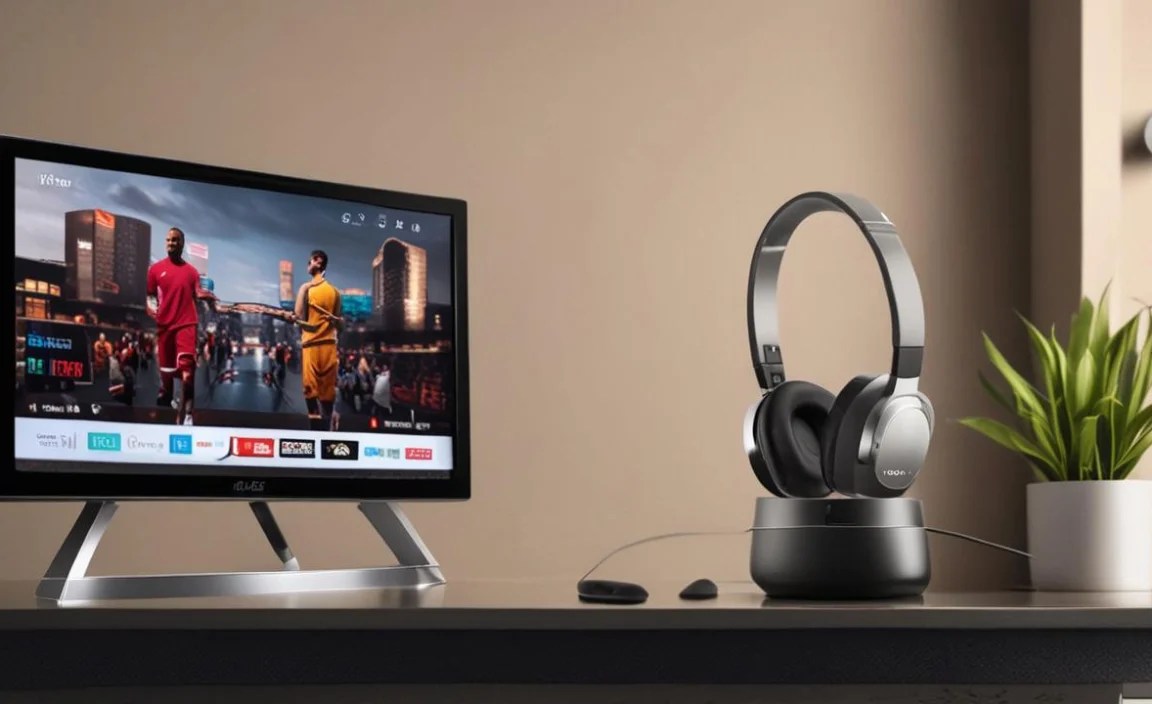
Vizio TVs, like most modern smart TVs, offer several ways to connect wireless headphones. The most common methods involve using your TV’s built-in Bluetooth capabilities or employing an external transmitter.
Option 1: Using Your Vizio TV’s Built-in Bluetooth
Many newer Vizio Smart TVs come equipped with Bluetooth technology. This is the most straightforward method if your TV supports it, as it requires no extra hardware. Bluetooth headphones pair directly with your TV, offering a seamless experience.
How to Tell If Your Vizio TV Has Bluetooth
The easiest way to check is to navigate through your TV’s settings menu. The exact wording might vary slightly depending on your Vizio model and firmware version, but generally, you’ll be looking for options like:
- Settings > Sound > Audio Output > Bluetooth Devices
- Settings > Network > Bluetooth
- Settings > System > Bluetooth
- Settings > General > Bluetooth
If you find a section for Bluetooth devices or pairing, your TV likely has Bluetooth functionality. If you can’t find an obvious Bluetooth setting, consult your Vizio TV’s user manual or search for your specific model number on the Vizio Support website.
Connecting Bluetooth Headphones Directly to Your Vizio TV: Step-by-Step
Once you’ve confirmed your TV has Bluetooth, the pairing process is usually quite simple:
- Put Your Headphones in Pairing Mode: This process differs by headphone brand and model. Typically, you’ll need to press and hold a power or Bluetooth button until an LED indicator flashes (often blue and red, or blue rapidly). Consult your headphone manual if you’re unsure.
- Access Bluetooth Settings on Your Vizio TV: Navigate to your TV’s settings menu as described above (e.g., Settings > Sound > Audio Output > Bluetooth Devices).
- Scan for Devices: Your Vizio TV should have an option to scan or search for available Bluetooth devices. Select this option.
- Select Your Headphones: Your headphones should appear in the list of available devices. Select their name to initiate the pairing process.
- Confirm Pairing: Your TV may ask you to confirm the pairing, or it might connect automatically. Once successfully paired, you should see a confirmation message on your TV screen, and your headphones should connect automatically whenever they are powered on and within range of the TV in the future.
- Select Audio Output: Ensure that Bluetooth is set as the audio output. You might need to go back into the Sound or Audio Output settings and select your paired headphones as the primary audio device.
Pros and Cons of Using Built-in Bluetooth
This method is certainly convenient, but like all technologies, it has its upsides and downsides.
| Pros | Cons |
|---|---|
| No extra hardware needed if your TV has Bluetooth. | Not all Vizio TVs have Bluetooth, especially older models. |
| Simple, direct connection. | Bluetooth can sometimes have audio latency (delay between video and audio), which can be an issue for movies and games. |
| Frees up other ports on your TV. | Audio quality might be limited by Bluetooth codecs supported by both the TV and headphones. |
| Generally good for casual listening. | Range can be limited, typically around 30 feet. |
Option 2: Using an External Bluetooth Transmitter
If your Vizio TV doesn’t have built-in Bluetooth, or if you experience latency issues with it, an external Bluetooth transmitter is an excellent alternative. These devices plug into your TV’s audio output port and broadcast an audio signal that your Bluetooth headphones can connect to.
Types of Audio Outputs for Transmitters
Most Vizio TVs have at least one of the following audio output ports that can be used with a Bluetooth transmitter:
- 3.5mm Headphone Jack: Similar to the jack on your smartphone or portable music player. This is the most common and easiest to use.
- RCA Audio Out (Red and White ports): These are analog audio outputs. You might need an adapter cable to connect a transmitter that uses a 3.5mm input.
- Digital Optical Audio Out (TOSLINK): This port transmits digital audio signals and often provides the best sound quality. Many Bluetooth transmitters have an optical input.
Check the back or side panel of your Vizio TV for these ports. Refer to your TV’s manual for specifics on which ports are audio outputs.
Choosing the Right Bluetooth Transmitter
When selecting a Bluetooth transmitter, consider these factors:
- Bluetooth Version: Look for transmitters that support Bluetooth 5.0 or higher for better range, stability, and lower latency.
- Low Latency Support: This is crucial for watching videos. Look for transmitters and headphones that both support codecs like aptX Low Latency (aptX LL) or similar technologies. This significantly reduces the audio delay.
- Audio Input Options: Ensure the transmitter has an input port that matches your Vizio TV’s audio output (3.5mm, RCA, or Optical).
- Simultaneous Playback (if needed): Some transmitters allow you to connect two pairs of headphones simultaneously, which is great for couples watching together.
- Power Source: Most transmitters are powered via USB. This is convenient as Vizio TVs often have USB ports you can use, or you can use a standard USB wall adapter.
External Link: For more on Bluetooth codecs and latency, the Bluetooth SIG (Special Interest Group) website offers in-depth technical information.
Connecting with a Bluetooth Transmitter: Step-by-Step
- Connect the Transmitter to Your TV:
- Using 3.5mm: Plug the 3.5mm cable from the transmitter into your Vizio TV’s headphone jack.
- Using RCA: Connect the RCA (red and white) cable from the transmitter to your Vizio TV’s RCA audio output ports.
- Using Optical: Connect the optical cable from the transmitter to your Vizio TV’s optical audio output. Ensure any protective plastic caps are removed from the cable ends.
- Power the Transmitter: Connect the transmitter’s USB power cable to a USB port on your Vizio TV or to a USB wall adapter.
- Set Vizio TV’s Audio Output:
- Go to your Vizio TV’s Settings > Sound > Audio Output.
- Select the correct audio output type that matches your connection (e.g., Headphone, Optical, or if your TV has an “External Speaker” option that bypasses internal speakers).
- You may need to disable the TV’s internal speakers to get audio through the selected output.
- Put the Transmitter in Pairing Mode: Press and hold the pairing button on the transmitter until its indicator light flashes, signaling it’s ready to pair.
- Put Your Headphones in Pairing Mode: As described in the direct Bluetooth section.
- Pair the Transmitter and Headphones: Bring your headphones close to the transmitter. They should automatically detect and pair with each other. The indicator lights on both devices should become solid or change color to confirm a successful connection.
- Test the Audio: Play something on your Vizio TV and check if you can hear sound through your headphones. Adjust the volume on your headphones and, if necessary, the TV’s audio output level (if variable) or headphone volume.
Pros and Cons of Using a Bluetooth Transmitter
This method offers a robust solution for most Vizio TVs.
| Pros | Cons |
|---|---|
| Works with virtually any Vizio TV, regardless of built-in Bluetooth. | Requires purchasing an additional device (the transmitter). |
| Significantly reduces audio latency, especially with aptX LL support, for a better viewing experience. | Can add a small amount of clutter with extra cables. |
| Often supports a longer Bluetooth range than older built-in Bluetooth. | Setup involves a few more steps than direct pairing. |
| Can often connect two pairs of headphones simultaneously. | Requires ensuring compatibility between the transmitter and headphones (especially for low latency). |
Option 3: Using RF (Radio Frequency) Wireless Headphones
RF wireless headphones are a different type of wireless technology, typically using a base station that plugs into your TV. They don’t use Bluetooth for the connection between the base and the headphones.
How RF Headphones Work
RF systems consist of a base transmitter and a pair of headphones. The base station plugs into your TV’s audio output (usually RCA or 3.5mm jack) and is plugged into a power source. It then broadcasts an audio signal over radio frequencies. The headphones receive this signal directly from the base station. They are not designed to connect to other Bluetooth devices.
Connecting RF Headphones to Your Vizio TV: Step-by-Step
- Connect the Base Station to Your TV: Plug the audio cable (RCA or 3.5mm) from the RF base station into the appropriate audio output port on your Vizio TV. Make sure to set your TV’s audio output to match the connection type.
- Power the Base Station: Plug the base station’s power adapter into a wall outlet or use a USB power source if available.
- Turn On the Headphones: Power on your RF headphones.
- Automatic Pairing: Most RF systems are pre-paired and should connect automatically once both the base station and headphones are powered on and within range. Some may have a pairing button or channel selector if interference occurs.
- Adjust Volume: The volume is typically controlled directly on the headphones.
Pros and Cons of RF Wireless Headphones
RF headphones offer a dedicated solution with specific advantages.
| Pros | Cons |
|---|---|
| Excellent for eliminating audio latency; very little to no delay. | Requires a dedicated base station and headphones; not as versatile as Bluetooth for other devices. |
| Often have a superior range compared to basic Bluetooth, sometimes up to 100 feet or more. | Can be more expensive than basic Bluetooth headphones. |
| Simple setup, usually plug-and-play with automatic pairing. | Base station takes up an additional space and power outlet. |
| Generally very reliable signal within their intended range. | Cannot be used for other purposes like listening to music from a phone or for calls. Some models can be bulky. |
Top Picks for Wireless Headphones for Vizio TV

Choosing the right headphones depends on your priorities—latency, sound quality, comfort, and budget. Here are a few categories and highly-regarded options:
Best Overall (Bluetooth Transmitter Combo): Avantree Audition Pro
The Avantree Audition Pro is a fantastic choice if you need a reliable Bluetooth transmitter and quality headphones in one package. It supports aptX HD and aptX Low Latency, offering excellent sound and minimal delay. The long battery life is a great bonus.
Best for Low Latency (Transmitter and Headphones): SteelSeries Arctis Nova 1 (with Transmitter) & Compatible Transmitter
While SteelSeries Arctis Nova 1 is a wired headset, SteelSeries also offers wireless gaming headsets like the Arctis 7/9 series that use their own low-latency 2.4GHz wireless dongles. If you’re looking for gaming-first, low-latency audio, consider a gaming-specific wireless headset that uses a USB dongle, and then use a separate Bluetooth transmitter for watching movies if the dongle connection isn’t ideal for your setup.
For general TV viewing with low latency, pairing a good pair of aptX Low Latency-compatible Bluetooth headphones from brands like Sennheiser, Sony, or Bose with a dedicated aptX LL Bluetooth transmitter (like the Avantree Oasis or TaoTronics TT-BA09) is a winning combination.
Best for Simplicity (RF System): Sennheiser RS 5000 / RS 175
Sennheiser is renowned for its audio quality, and their RF systems are top-notch. Models like the RS 5000 or RS 175 offer excellent sound, a comfortable fit, extended range, and very user-friendly operation. They are ideal if you prioritize ease of use and a rock-solid connection with zero lag for your TV viewing.
Best Budget Bluetooth Headphones: Anker Soundcore Life Q30
If your Vizio TV has Bluetooth, or you’re getting a basic Bluetooth transmitter, the Anker Soundcore Life Q30 offers impressive active noise cancellation and good sound quality for its price point. While they might not support aptX LL, they are a solid choice for casual listening and dialogue clarity.
Troubleshooting Common Issues
Even with the best setup, you might encounter a hiccup. Here are some common problems and their solutions:
No Sound from Headphones
- Check Volume: Ensure the volume on both your TV (if applicable) and your headphones is turned up.
- Check Audio Output Settings: Double-check that your Vizio TV is set to the correct audio output (Bluetooth, Optical, Headphone, etc.).
- Verify Connections: Make sure all cables are securely plugged into the correct ports on both the TV and the transmitter.
- Re-pair Devices: Try unpairing your headphones and re-pairing them with your TV or transmitter. For transmitters, try un-pairing the headphones and re-pairing them with the transmitter.
- Test Headphones Separately: Connect your headphones to another audio source (like a phone) to ensure they are working correctly.
- Check Transmitter Power: Ensure the Bluetooth transmitter is powered on and has a stable power source.
Audio Lag or Sync Issues (Lip Sync Problems)
This is the bane of movie watchers! If you experience this:
- Use aptX Low Latency: Ensure both your transmitter and headphones support and are actively using an aptX Low Latency (aptX LL) codec. You might need to manually
