
Quick Summary: Enhance your Xbox gaming experience with a Bluetooth adapter for headphones. This guide breaks down how to connect your wireless headphones to your Xbox console, unlocking immersive audio and greater freedom of movement. Learn about compatibility, setup, and why it’s a game-changer for any gamer.
Hey audio adventurers, Edward Cavitt here from Headphone Horizon! Ever found yourself tangled in wires while trying to achieve that perfect gaming immersion on your Xbox? Or perhaps you’ve got a fantastic pair of wireless headphones that you’d love to pair with your console, only to find out it’s not as straightforward as you’d hoped? You’re not alone!
Many of us love the freedom and superior sound quality that wireless headphones offer, and the idea of bringing that to our Xbox gaming sessions is super appealing. The good news is, it’s definitely achievable. While not all Xbox consoles have built-in Bluetooth for headphones directly, a simple and affordable accessory can bridge that gap, transforming your ordinary setup into a wireless powerhouse. Let’s dive into how an Xbox Bluetooth adapter for headphones can become your must-have essential for a truly unbound gaming experience.
Why You Need an Xbox Bluetooth Adapter for Headphones

Let’s be honest, wires can be a drag. They limit your movement, can get tangled, and sometimes just aren’t long enough for that strategic couch-potato position. Wireless headphones, on the other hand, offer unparalleled freedom. They let you lean back, pace around your room during intense moments, or grab a snack without missing a beat of the action. When it comes to the Xbox, while newer controllers and consoles have embraced Bluetooth, older models and many standard wireless headphones don’t natively connect. This is where an Xbox Bluetooth adapter for headphones steps in.
It’s the key to unlocking your existing wireless audio gear, allowing you to enjoy rich game audio and clear chat without being tethered. Think of it as a translator. Your wireless headphones speak a language (Bluetooth audio codecs), and your Xbox, especially older ones, might speak another. The adapter converts these languages so they can understand each other perfectly. This means:
- Freedom of Movement: Get up, stretch, grab a drink – all without disconnecting.
- Enhanced Immersion: Hear every explosion, whisper, and soundtrack detail with the clarity your favorite headphones provide.
- Reduced Clutter: Say goodbye to that extra cable snaking across your living room.
- Universal Compatibility: Use your favorite Bluetooth headphones, even if they weren’t specifically designed for Xbox.
This small piece of tech can genuinely elevate your gaming sessions from good to absolutely spectacular. For anyone who values comfort, immersion, and a clean setup, an Xbox Bluetooth adapter for headphones is more than just an accessory; it’s an essential upgrade.
Understanding Xbox Bluetooth Connectivity
Before we jump into the adapter itself, it’s helpful to understand how Xbox consoles handle Bluetooth audio. Microsoft has made strides in this area, but it’s not always a direct plug-and-play for all headphones. Here’s a quick rundown:
Xbox Wireless Headsets vs. Bluetooth Headphones
It’s crucial to differentiate between “Xbox Wireless” and standard Bluetooth.
- Xbox Wireless: This is Microsoft’s proprietary wireless technology. Headsets designed specifically for “Xbox Wireless” connect directly to your Xbox console without needing a separate adapter or Bluetooth. They often offer lower latency (less delay between game audio and what you hear) and can sometimes integrate better with console features.
- Standard Bluetooth: These are the wireless headphones and earbuds you use with your phone, tablet, or computer. They use the widely adopted Bluetooth standard. Many gamers want to use these with their Xbox, which is where the adapter becomes necessary.
How Newer Xbox Models Handle Bluetooth
Newer Xbox Series X|S and Xbox One controllers do have Bluetooth capabilities, but this is primarily for connecting the controller itself to devices like PCs or mobile phones, not for directly pairing Bluetooth headphones to the Xbox console for game audio. Some very recent firmware updates may offer limited direct Bluetooth audio support for specific, simpler audio profiles, but it’s not a universal solution for all Bluetooth headphones, especially those requiring higher quality audio or chat functionality simultaneously. Relying on direct Bluetooth audio for headphones with an Xbox console can be inconsistent or simply not supported for game audio. This is why an adapter remains the most reliable and versatile solution.
The Role of the Adapter
An Xbox Bluetooth adapter for headphones acts as a bridge. It plugs into your Xbox (usually via USB) and broadcasts a Bluetooth signal. Your wireless headphones then connect to this adapter, not directly to the Xbox itself. This bypasses any native Bluetooth limitations of the console for audio output.
Types of Xbox Bluetooth Adapters
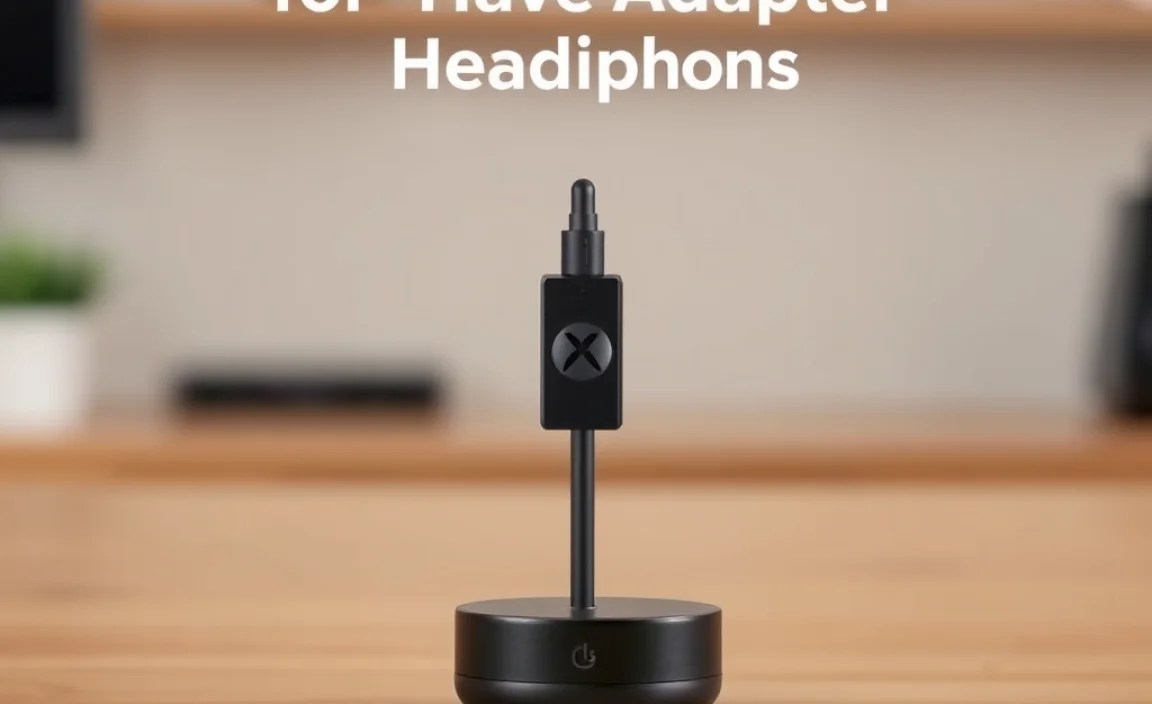
When you start looking for an Xbox Bluetooth adapter for headphones, you’ll notice a few different types. Understanding these will help you pick the best one for your needs.
USB Dongles (Low Latency)
These are the most common and often the most effective. They are small USB devices that you plug directly into one of your Xbox’s USB ports. Many of these are designed with low-latency audio transmission in mind, which is super important for gaming to ensure sound effects and dialogue are in sync with the on-screen action. These adapters essentially create their own Bluetooth connection that your headphones pair with.
3.5mm Jack Adapters (Less Common for Audio Output)
You might also see adapters that plug into the 3.5mm headphone jack on your Xbox controller. While these can transmit audio, they are less common for outputting game audio wirelessly to Bluetooth headphones. Primarily, they are used with wired headsets that also have a Bluetooth module for communication (like a separate mic channel via Bluetooth) while the main game audio comes through the wire. For true wireless game audio, a USB adapter is the way to go.
Brand-Specific Adapters
Some gaming peripheral companies offer their own branded adapters. These often come with guarantees of compatibility and sometimes specific features tailored for their headsets. However, many generic, well-reviewed USB Bluetooth adapters work just as well, often at a lower price point.
How to Connect Your Bluetooth Headphones to Xbox Using an Adapter
This is the part you’ve been waiting for! Connecting your wireless headphones to your Xbox using an adapter is usually straightforward. We’ll cover the general steps, but always refer to your specific adapter’s manual for precise instructions.
Step-by-Step Guide
Let’s get your wireless audio setup running:
- Ensure Your Xbox is On: And that you have access to a free USB port.
- Find Your Adapter: Locate the USB Bluetooth adapter you purchased.
- Plug in the Adapter: Insert the USB Bluetooth adapter into a convenient USB port on your Xbox console. The console should recognize it as an audio device. Some adapters might require drivers, but most plug-and-play ones for Xbox will be automatically detected.
- Put Your Headphones in Pairing Mode: This is the crucial step for your headphones. The method varies by brand and model. Usually, it involves pressing and holding a specific button (often the power button or a dedicated Bluetooth button) until an indicator light starts flashing (often blue and red, or rapidly blue). Consult your headphone’s manual if you’re unsure.
- Initiate Pairing on the Adapter: Many USB Bluetooth adapters have a pairing button. You might need to press and hold this button for a few seconds. Some adapters automatically scan for devices once plugged in. Again, check the adapter’s manual.
- Wait for Connection: Keep your headphones close to the adapter. You’ll usually hear an audible confirmation in your headphones (like “Paired” or “Connected”) or see a steady indicator light on both the adapter and your headphones once they have successfully connected.
- Configure Audio Settings on Xbox:
- Navigate to your Xbox’s Settings menu.
- Go to General > Volume & audio output.
- Under Headset format, you can select your preferred audio output. Often, the adapter will allow for “Stereo uncompressed” or “Windows Sonic for Headphones” (a spatial audio feature). Experiment to see what sounds best.
- Ensure that Headset chat mixer and Headset mic monitoring are set to your preference. These settings are usually managed by the adapter and headphones themselves, but it’s good to check.
- Test the Audio: Play some game audio or a video. Check if you can hear sound, and if your microphone is working (if applicable and supported by your adapter/headphones), try talking to someone or using the mic monitoring feature.
If you encounter issues, unplugging the adapter, restarting your Xbox, and trying again is often the quickest fix. For more in-depth troubleshooting, we’ll cover that later!
Choosing the Right Xbox Bluetooth Adapter
Not all adapters are created equal. Here’s what to look for to make sure you get an Xbox Bluetooth adapter for headphones that’s perfect for you:
Key Features to Consider
- Low Latency: This is paramount for gaming. High latency means a noticeable delay between what you see on screen and what you hear, which can be incredibly distracting and ruin the experience. Look for adapters that specifically advertise low-latency audio transmission (e.g., aptX Low Latency, if supported by your headphones).
- Bluetooth Version: Newer Bluetooth versions (like 5.0 or higher) generally offer better range, stability, and power efficiency. While older versions might work, sticking with modern standards is usually a good idea.
- Codec Support: If your headphones support specific audio codecs like aptX, aptX HD, or LDAC, and the adapter also supports them, you can achieve higher fidelity audio. However, for general gaming, standard SBC will likely suffice, and low-latency codecs are more important than supreme audiophile quality.
- Microphone Support: Do you need to chat with friends? Make sure the adapter supports transmitting microphone audio. Many adapters will use a separate Bluetooth connection for the microphone, or they might rely on your controller’s mic input if it’s still connected. Some advanced adapters can transmit full-duplex audio (both ways) simultaneously.
- Ease of Use: Most adapters are plug-and-play, but double-check reviews to ensure no complicated setup is required.
- Brand Reputation & Reviews: Stick with reputable brands known for quality accessories. Read user reviews specifically for their performance with Xbox consoles.
Adapter vs. Wireless Headsets with Built-in USB Transmitters
It’s worth noting that many gaming headset brands sell their headsets bundled with a dedicated USB transmitter. These transmitters often use proprietary low-latency wireless protocols rather than standard Bluetooth. While very effective, this means the headset is tied to that specific transmitter. If you already have a favorite pair of Bluetooth headphones, an Xbox Bluetooth adapter for headphones gives you the flexibility to use them.
Here’s a quick comparison:
| Feature | Xbox Bluetooth Adapter + Your Headphones | Gaming Headset w/ USB Transmitter |
|---|---|---|
| Flexibility | High – Use any Bluetooth headphones. | Low – Tied to the included headset. |
| Setup | Generally simple USB plug-and-play. May require pairing headphones. | Usually plug-and-play USB transmitter. |
| Audio Quality & Latency | Varies by adapter and headphone codecs. Look for low-latency specific adapters/headphones. | Often optimized for low latency and high-quality game audio. |
| Cost | Adapter cost + headphone cost. Can be very cost-effective if you own headphones. | Often a higher upfront cost for a complete package. |
| Microphone | Depends on adapter and headphone support. Can be inconsistent. | Typically well-integrated and reliable. |
Troubleshooting Common Issues
Even with the best gear, sometimes things don’t connect perfectly the first time. Here are some common issues and how to solve them:
No Sound
- Check Adapter Connection: Ensure the USB adapter is fully seated in the Xbox USB port. Try a different port.
- Check Headphone Pairing: Verify your headphones are still paired to the adapter and not trying to connect to another device (like your phone). Try re-pairing them.
- Check Xbox Audio Settings: Go to Settings > Volume & audio output and ensure the correct output device is selected and volume levels are up.
- Adapter Power: Some adapters draw power from the USB port. Ensure the port is active.
Audio Lag (High Latency)
This is the most frustrating for gamers. If you’re experiencing a delay:
- Adapter & Headphone Codecs: Ensure both your adapter and headphones support low-latency codecs (like aptX LL). Standard Bluetooth codecs (SBC) can be laggy.
- Interference: Other wireless devices in the vicinity can sometimes interfere. Try moving closer to the console or turning off other wireless devices temporarily.
- Adapter Quality: Some cheaper adapters may not offer good low-latency performance. Consider upgrading if this is a persistent issue.
- Wired Connection (Temporary): For critical moments where lag is unbearable, you might temporarily switch to a wired headset or headphones if possible.
Microphone Not Working
- Adapter Microphone Support: Not all Bluetooth adapters support transmitting microphone audio. Check your adapter’s specifications.
- Xbox Chat Mixer Settings: Go to Settings > Volume & audio output > Headset chat mixer. Ensure it’s set appropriately.
- Headphone Microphone Settings: Some headphones have physical buttons to enable/disable the mic.
- Re-pairing: Sometimes, re-pairing the headphones to the adapter can resolve mic issues.
- Controller Mic Input: Some adapters might require your Xbox controller to be plugged in via USB for microphone input if the adapter itself doesn’t support mic transmission.
Connection Drops
- Range: Ensure you are within the optimal range of the Bluetooth adapter. Walls and distance can cause drops.
- Battery Levels: Low battery on your headphones can lead to unstable connections.
- Firmware Updates: Check if either your adapter or headphones have firmware updates available that might improve stability. While not always easy to update for adapters, it’s common for headphones. You can find updates for some headsets on the manufacturer’s support site, potentially requiring connection to a PC.
- Interference: As mentioned for latency, other wireless signals can disrupt Bluetooth connections.
Making the Most of Your Wireless Audio Setup
Once you’ve got your Xbox Bluetooth adapter for headphones up and running, you’re ready to enjoy a new level of gaming freedom. Here are a few tips to enhance your wireless audio experience:
- Experiment with Spatial Audio: Xbox supports technologies like Windows Sonic for Headphones and Dolby Atmos for Headphones. On Windows PCs, it’s part of the core OS. On Xbox, you can often enable these via the “Volume & audio output” settings. Spatial audio can make games feel more immersive by creating a 3D soundscape, letting you pinpoint enemy locations by sound alone. The effectiveness can vary by adapter and headphone combination, so play around with settings to find what works best for you.
- Manage Battery Life: Keep your headphones charged! It’s the most common reason for connection issues or disruptions. Investing in a charging stand can be a convenient way to ensure they’re always ready.
- Keep Firmware Updated: For your headphones, check the manufacturer’s website periodically for firmware updates. These can improve battery life, connection stability, and even audio quality. You’ll typically need to connect them to a PC via USB to perform these updates.
- Optimize Your Listening Environment: While wireless means freedom, consider where you’re gaming. Too much background noise can detract from the immersion. If you have noise-canceling headphones, now is the time to activate them!
- Check Xbox System Updates: Microsoft occasionally releases system updates for the Xbox that can improve overall performance, including audio handling. Ensure your console is set to download updates automatically or check manually. You can find information on Xbox system updates at the official Xbox Support website.
The goal is a seamless, high-quality audio experience that lets you focus entirely on your game. With a good adapter and a decent pair of Bluetooth headphones, you’re well on your way!
