
This guide explains how to set up and use Dolby Atmos for Headphones on your Xbox, enhancing your gaming and entertainment audio. Learn what you need, how to configure it, and why it’s a game-changer for immersive sound.
Hey there, audio adventurers and Xbox enthusiasts! Edward Cavitt here from headphonehorizon, ready to dive deep into a feature that can seriously elevate your gaming and movie nights: Xbox Dolby Atmos for Headphones. Ever wished you could pinpoint exactly where that enemy footstep is coming from, or feel truly surrounded by the epic score of your favorite game?
Dolby Atmos for Headphones aims to deliver just that, creating a three-dimensional soundscape that pulls you right into the action. It’s not as complicated as it sounds, and by the end of this guide, you’ll be well on your way to experiencing your Xbox like never before, all from the comfort of your favorite headphones.
What is Dolby Atmos for Headphones on Xbox?

Dolby Atmos is a revolutionary surround sound technology that goes beyond traditional stereo or 7.1 channel systems. Instead of just assigning sounds to specific channels, Dolby Atmos uses “objects” that can be placed and moved anywhere in a 3D space around you.
This means you’re not just hearing sound from left, right, front, and back, but also from above and below. When you use Dolby Atmos for Headphones on your Xbox, this incredible spatial audio technology is translated specifically for your stereo headphones, creating a remarkably immersive listening experience without the need for a complex home theater setup.
Why Use Dolby Atmos for Headphones on Xbox?

The benefits of using Dolby Atmos for Headphones on your Xbox are pretty significant, especially for gamers and cinephiles. It’s all about enhancing immersion and providing a competitive edge.
Key Advantages:
- Enhanced Immersion: Games feel more alive and movies become more cinematic. You’ll hear the rustle of leaves above you, the roar of an engine passing by, or the subtle whispers in a tense scene with incredible spatial accuracy.
- Competitive Advantage: In multiplayer games, being able to accurately locate enemies by sound alone can be a huge advantage. Dolby Atmos can make it easier to distinguish footsteps, gunfire direction, and other crucial audio queues.
- Universal Headphone Compatibility: Unlike some proprietary spatial audio solutions, Dolby Atmos for Headphones works with virtually any stereo headphones you own.
- No Extra Hardware Needed (for headphones): The processing is done by the Xbox and the software (or sometimes by the headphones themselves, if they have a dedicated Atmos chip), so you don’t need a special receiver or soundbar for this headphone feature.
- Clearer Audio Details: The technology helps to separate and clarify individual sounds within a busy audio mix, making it easier to pick out dialogue or specific sound effects.
What You’ll Need
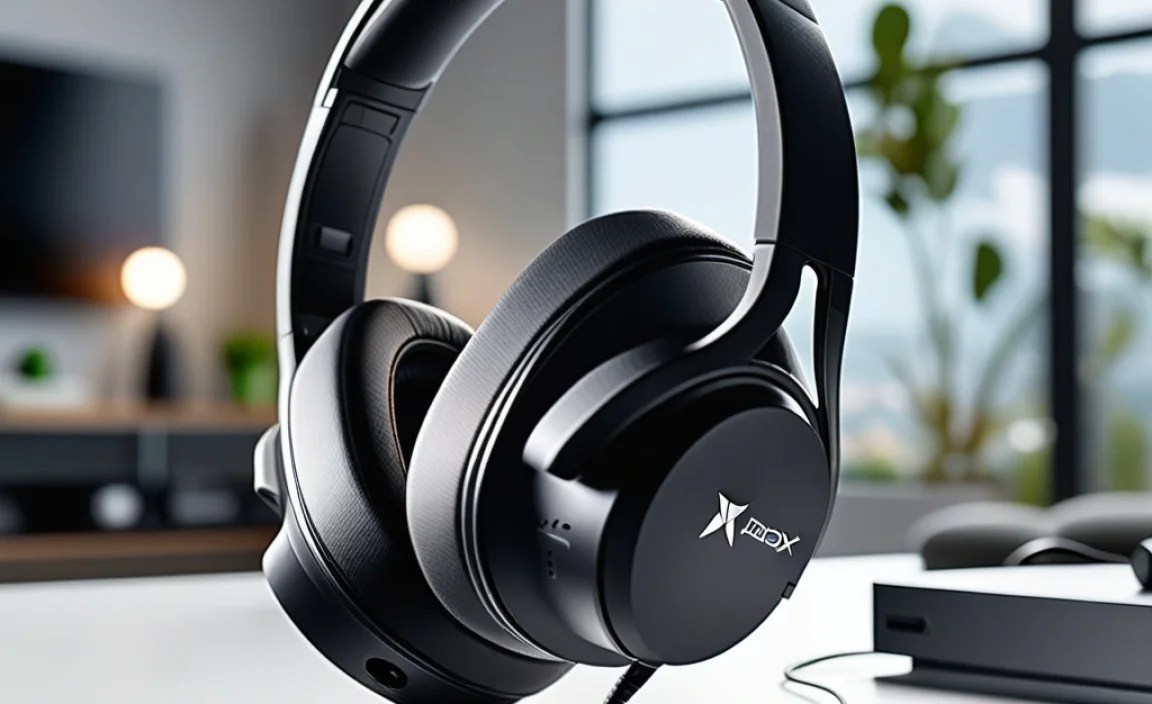
Getting started with Dolby Atmos for Headphones on your Xbox is thankfully quite straightforward. You won’t need a ton of specialized gear, but a few things are essential.
Essential Items:
- An Xbox Console: This guide focuses on Xbox Series X|S and Xbox One consoles.
- A Pair of Stereo Headphones: Any standard wired or wireless stereo headphones will work.
- A Dolby Access Subscription: This is the key piece of software that unlocks Dolby Atmos support. More on this later.
It’s important to note that to get the full Dolby Atmos effect, the audio source (whether it’s a game or a movie app) also needs to support Dolby Atmos. Most modern AAA games and popular streaming services do, but it’s always good to check!
Setting Up Dolby Atmos for Headphones on Your Xbox: A Step-by-Step Guide

Let’s get this spatial audio party started! Follow these steps to enable Dolby Atmos for Headphones on your Xbox console.
Step 1: Get the Dolby Access App
The first and most crucial step is to download and install the official Dolby Access app from the Microsoft Store on your Xbox. This app is your gateway to Dolby Atmos audio for your console.
- Turn on your Xbox console.
- Navigate to the Microsoft Store. You can usually find it pinned on your dashboard or by searching for “Store.”
- In the Store’s search bar, type “Dolby Access” and search.
- Select the Dolby Access app from the search results and choose “Install.”
- Once installed, launch the Dolby Access app.
Step 2: Purchase or Activate Dolby Atmos for Headphones
When you first launch the Dolby Access app, it will guide you through a setup process. For headphones, Dolby Atmos is usually a paid feature. Fortunately, the cost is typically a one-time purchase that unlocks it permanently for your Xbox profile.
- The Dolby Access app will likely prompt you to set up Dolby Atmos.
- You’ll see an option to “Purchase” or “Activate” Dolby Atmos for Headphones.
- Follow the on-screen prompts to complete the purchase using your Microsoft account. The current price is typically around $14.99 USD (pricing may vary by region).
- If you previously purchased it on another Xbox or under a different profile that shares licenses, you might be able to activate it without re-purchasing.
Important Note: There’s also Dolby Atmos for home theater, which is a separate feature for compatible soundbars and AV receivers. This guide focuses only on the headphone version, which is significantly more affordable and accessible.
Step 3: Configure Your Audio Output Settings
Now, you need to tell your Xbox to use Dolby Atmos for your headphones. This is done through the console’s main settings menu.
- Press the Xbox button on your controller to open the guide.
- Navigate to the “Profile & system” tab.
- Select “Settings.”
- Under “General,” choose “Volume & audio output.”
- Look for the “Headset audio” section.
- Under “Headset format,” select “Dolby Atmos for Headphones” from the dropdown menu.
Step 4: Connect Your Headphones
Make sure your headphones are connected to your Xbox. This can be done in a couple of ways:
- Wired: Plug your headphones directly into the 3.5mm audio jack on your controller or the USB port on the console.
- Wireless: If you have a wireless headset that connects via USB or wirelessly to the Xbox, ensure it’s powered on and paired with your console.
Once connected, the Xbox should recognize them. If you’ve set up Dolby Atmos for Headphones in the previous step, your headset audio should now be processed by Dolby Atmos.
Step 5: Test and Enjoy!
With everything configured, it’s time to experience the difference! Launch a game or a movie that you know supports Dolby Atmos.
- Games: Many modern titles are mixed with Dolby Atmos support. Look for mentions in game descriptions or settings menus. Some popular examples include Gears 5, Forza Horizon 5, and Assassin’s Creed Valhalla.
- Apps: Streaming apps like Disney+, Netflix, Apple TV+, and Paramount+ often have Dolby Atmos content. Ensure you have the correct subscription tier if required for premium audio.
Pay attention to the sound. Try playing a section with lots of audio cues – like an action sequence or an environment with distinct sounds. See if you can perceive sounds coming from different directions with greater clarity.
Dolby Atmos for Headphones vs. Other Spatial Audio Technologies

Xbox offers a few different spatial audio options. It’s helpful to understand how Dolby Atmos for Headphones compares to them.
Dolby Atmos for Headphones:
- Pros: Excellent 3D immersion, works with any headphones, often provides a competitive edge in games, widely supported by content.
- Cons: Requires a purchase of the Dolby Access app.
Windows Sonic for Headphones:
This is Microsoft’s own spatial sound technology and it’s free! It’s often the default option on Windows PCs and sometimes on Xbox. It provides a decent spatial effect, but it’s generally considered less immersive and precise than Dolby Atmos.
- Pros: Free, built into Windows and Xbox.
- Cons: Less detailed 3D audio, not as immersive as Atmos, can sometimes sound thinner.
DTS Headphone:X
DTS is another major audio company, and they offer a spatial audio solution called DTS Headphone:X. On Xbox, this is also a paid feature that requires the DTS Sound Unbound app from the Microsoft Store. It’s a direct competitor to Dolby Atmos and offers a similar level of immersion. Some users prefer one over the other based on personal preference and specific audio mixes.
- Pros: Similar immersive 3D audio to Atmos, competitive with Atmos in quality.
- Cons: Requires a paid app (DTS Sound Unbound), also typically around $14.99.
Ultimately, both Dolby Atmos for Headphones and DTS Headphone:X offer a significant upgrade over standard stereo or Windows Sonic. The choice between them often comes down to personal preference and which one feels more impactful for the games and media you consume.
When Does Dolby Atmos For Headphones Make the Biggest Difference?
While Dolby Atmos for Headphones can enhance almost any audio experience, it truly shines in certain scenarios:
- Action-Packed Games: Games with complex sound design, like shooters or open-world adventures, where directional audio cues are critical for gameplay or immersion. Think of discerning the direction of incoming fire, the thundering of a dragon’s wings overhead, or the subtle crackle of a nearby campfire.
- Cinematic Films and TV Shows: Watching movies or shows on services that offer Dolby Atmos soundtracks can transform your living room into a personal cinema. The sense of being enveloped by the movie’s soundscape is palpable.
- Exploration and Atmosphere: Games that focus on atmosphere and environmental sound design, such as horror games or narrative experiences, can draw you in even further with the precise placement of ambient sounds.
You can find a list of Dolby Atmos-enabled content on their official website, which is a great resource to explore what’s available. For example, a recent article from Dolby’s official site highlights many of the advantages and compatible titles.
Troubleshooting Common Issues
Even with straightforward tech, you might run into a snag or two. Here are some common issues and how to fix them:
Issue 1: No Sound or Distorted Sound
- Check Headphone Connection: Ensure your headphones are securely plugged into the controller or console, or that your wireless headset is properly paired and charged.
- Verify Audio Output Settings: Double-check that “Dolby Atmos for Headphones” is still selected under “Volume & audio output” in your Xbox settings.
- Restart Console and App: Sometimes, a simple reboot of your Xbox and closing/reopening the Dolby Access app (or the game/app you’re using) can resolve glitches.
- Update Drivers (for wired connections): If you’re using a headset adapter or a headset that requires USB connection, ensure it’s recognized by the Xbox.
Issue 2: Dolby Atmos Not Activating or Showing as Purchased
- Sign Out and Back In: Log out of your Xbox profile and then log back in. This can often refresh licensing.
- Check Microsoft Account Store Purchases: Go to your Microsoft account online or on your Xbox and verify that the Dolby Atmos for Headphones purchase is listed under your transaction history.
- Contact Dolby Support: If you’re certain you’ve purchased it but it’s not activating, reaching out to Dolby Customer Support might be necessary.
Issue 3: Game/App Audio Not Working with Atmos
- Check In-Game/App Settings: Some games or apps have their own audio settings. Ensure they are set to output to headphones and don’t have conflicting audio enhancements enabled.
- Content Must Be Atmos-Enabled: Not all content is mixed in Dolby Atmos. If the game or movie itself doesn’t support it, you won’t hear the effect.
Xbox Dolby Atmos for Headphones: Quick Reference Table
Here’s a handy table to summarize the key setup components and requirements.
| Component | Requirement | Notes |
|---|---|---|
| Xbox Console | Xbox Series X|S or Xbox One | Must be running the latest system update. |
| Headphones | Any Stereo Headphones (Wired/Wireless) | No special headphone hardware is required for Dolby Atmos processing. |
| Software | Dolby Access App | Download from Microsoft Store. |
| Licensing | Dolby Atmos for Headphones Purchase/Activation | One-time fee (typically ~$14.99 USD). |
| Xbox Audio Settings | Headset Format set to “Dolby Atmos for Headphones” | Found in Volume & audio output settings. |
| Content | Dolby Atmos-enabled Games or Apps | Essential for experiencing the spatial audio – check game/app specs. |
Frequently Asked Questions (FAQ)
We’ve covered a lot, but here are some common questions from beginners:
Q1: Do I need a special pair of headphones for Dolby Atmos on Xbox?
A: No, you don’t! Dolby Atmos for Headphones is designed to work with virtually any standard stereo headphones, wired or wireless. The magic is in the digital processing, not in the headphones themselves.
Q2: Is Dolby Atmos for Headphones free on Xbox?
A: While the Dolby Access app itself is free to download, the “Dolby Atmos for Headphones” feature requires a one-time purchase through the app, usually around $14.99 USD. This fee unlocks the spatial audio for your headset permanently on your Xbox profile.
Q3: How do I know if a game or app actually supports Dolby Atmos?
A: You can usually find out by checking the game’s description in the Microsoft Store, looking in the game’s official website or community forums, or by checking the audio settings within the game or app itself. Streaming services like Netflix and Disney+ will often mark content with Dolby Atmos support.
Q4: Can I use Dolby Atmos for Headphones with my PC and my Xbox?
A: Yes! The Dolby Access app is available on both Windows PCs and Xbox. If you purchase Dolby Atmos for Headphones, it should be usable on both platforms with your Microsoft account, allowing for a consistent audio experience across devices.
Q5: Will Dolby Atmos drain my controller battery faster?
A: When using wired headphones directly plugged into the controller, the Atmos processing is handled by the Xbox, not the controller itself, so battery drain shouldn’t be an issue. If you’re using a wireless headset connected to the Xbox, the increased complexity of spatial audio could theoretically use slightly more power, but the difference is usually negligible and not a significant concern for most users.
Q6: Is Dolby Atmos better than stereo headphones?
A: For immersive gaming and cinematic experiences, yes, it can be significantly better. Stereo headphones provide a left and right sound. Dolby Atmos simulates sound coming from all around you in a 3D space, which adds depth, directionality, and a much more enveloping feel that stereo can’t replicate.
Conclusion
There you have it! Setting up Dolby Atmos for Headphones on your Xbox is a fantastic way to boost your audio immersion without needing a complex setup or expensive new gear. By following these steps – from grabbing the Dolby Access app and configuring your audio settings to understanding what content to look for – you’re well-equipped to discover a new dimension of sound.
Whether you’re a hardcore gamer aiming for that extra competitive edge or a movie buff wanting to feel more connected to the on-screen action, Dolby Atmos for Headphones on Xbox is a worthy upgrade. It’s an accessible technology that truly transforms the way you experience your favorite games and entertainment. So go ahead, dive in, and enjoy the incredible spatial audio that awaits!
