
Have you ever put on your Bluetooth headphones only to find no sound? It’s frustrating, right? You might wonder, “Why did this happen?” Many people face this problem. They expect to enjoy their favorite music or podcasts, but silence greets them instead.
Imagine preparing for a long walk, excited to listen to your tunes. As you press play, you hear nothing. You check your phone, then your headphones, but still no sound. This is more common than you think!
In this article, we will explore how to repair Bluetooth headphones with no sound. We will share easy tips and tricks. You’ll learn why this happens and how to fix it quickly. No need to panic; help is on the way!
How To Repair Bluetooth Headphones No Sound Issues Easily

Repair Bluetooth Headphones No Sound

Are your Bluetooth headphones suddenly silent? It’s frustrating when you can’t enjoy your favorite tunes. First, check if they are connected. Sometimes, a simple reconnection solves the problem.
Next, remember to inspect the volume settings. Low or muted volume might be the culprit. You can also reset your headphones. This often brings them back to life. If these quick fixes don’t work, you may need to look into software updates or battery issues. Don’t give up; your music is waiting!
Common Causes of No Sound in Bluetooth Headphones

Connectivity issues with the paired device. Battery problems or low charge warning.
Sometimes, your Bluetooth headphones may not play sound due to simple issues. Check if your headphones are connected correctly to the device. A weak connection can cause problems.
Also, low battery can stop sound instantly. Make sure to charge your headphones fully before use.
- Ensure Bluetooth is on for both devices.
- Check if your headphones are selected as the audio output.
- Look for battery warnings or signs of low charge.
Basic Troubleshooting Steps
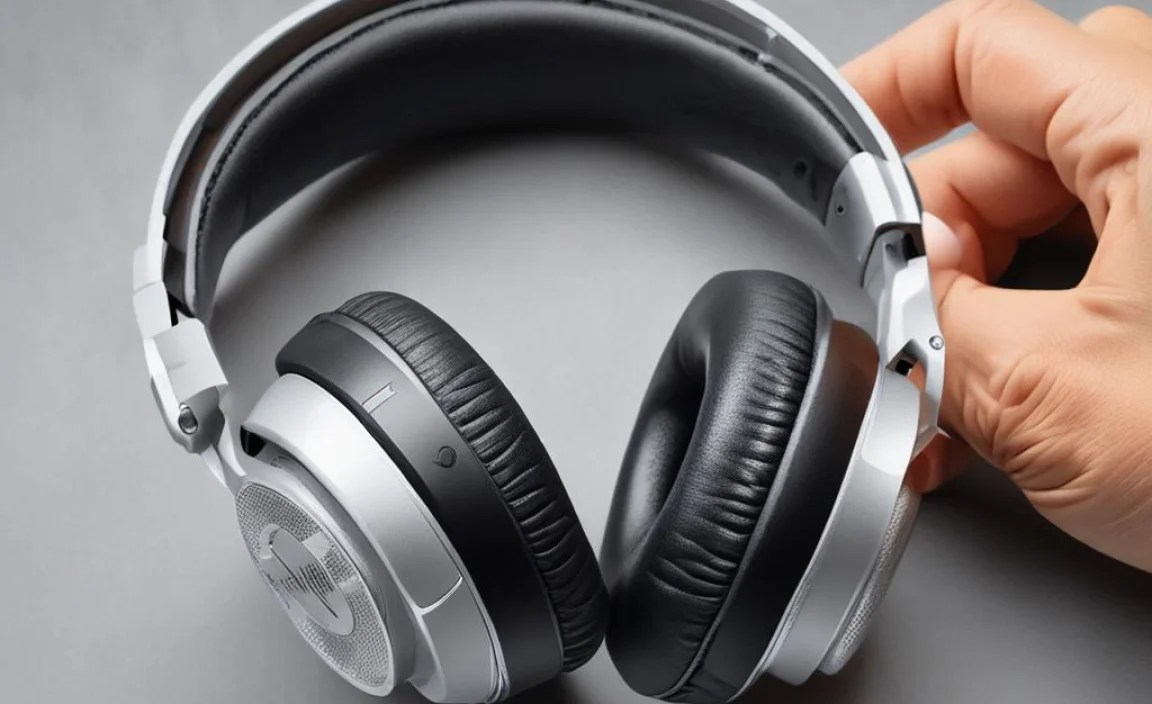
Restarting the headphones and the connected device. Checking volume levels and audio settings.
Fixing sound issues with Bluetooth headphones is simple. Start by restarting both the headphones and your device. This often clears up small glitches. Next, check the volume levels on both devices. Make sure the audio is not muted or too low. Sometimes, the settings can change without you knowing. It’s a quick step that can solve many problems!
What should I do if the sound is low or muted?
First, check the volume settings on your headphones. Then, look at the connected device’s volume. If it’s muted, just turn the sound back up!
- Restart the headphones and device.
- Check headphone volume.
- Adjust the device’s audio settings.
Resetting Your Bluetooth Headphones

Stepbystep guide on how to reset various models. Importance of factory resetting in resolving sound issues.
Resetting your Bluetooth headphones can fix sound problems. Here’s a simple guide to reset different models:
- **Apple AirPods**: Place them in the case and press the button on the back until the light flashes amber.
- **Samsung Galaxy Buds**: Put them in the case, open the lid, and tap on “Reset” in the app.
- **Sony WH-1000XM4**: Press the power and noise-canceling buttons simultaneously until the indicator light flashes.
Factory resetting your headphones helps clear settings that may cause sound errors. It’s a reliable fix for many issues and restores the original settings. This process can often bring back the music you love!
Why is Resetting Important?
Resetting may clear bugs and improve sound quality. It’s a quick step before replacing your headphones.
Updating Software and Drivers
How to check for firmware updates for your headphones. Ensuring Bluetooth drivers on your device are uptodate.
Checking for firmware updates can be as easy as finding the last cookie in the jar! Most headphones have an app that helps you keep things fresh. Just open the app and look for the updates section. It’s like giving your headphones a regular spa day.
Don’t forget your device’s Bluetooth drivers! Keeping them updated is key to good sound. Head to the settings, find the “Update Drivers” option, and click away. It’s like getting your device a new pair of running shoes—faster and always ready to go!
| Step | Action |
|---|---|
| 1 | Open the headphone app |
| 2 | Check for firmware updates |
| 3 | Visit device settings |
| 4 | Update Bluetooth drivers |
Remember, staying updated helps you avoid “no sound” blues. Just like your favorite song, your headphones deserve some love too!
Inspecting Hardware for Damage
How to visually check for signs of damage. Testing with different devices to pinpoint issues.
Check your headphones for any visible damage. Look for cracks or broken parts. Examine the wires too. A frayed wire could cause no sound. Also, try your headphones with different devices. This helps find the problem. If they work on one device but not another, the issue may be with the original device.
How can I tell if my headphones are broken?
Inspect for visible cracks or frayed wires. Test with multiple devices to pinpoint the issue. A problem with just one device might indicate a different fault.
- Check for bends or breaks in the headphone body.
- Look for damage to the connectors.
- Listen for any sound, even faint noises.
Advanced Solutions for Persistent Issues
Using audio troubleshooting tools or apps. Seeking professional repair services.
Sometimes, headphones can be tricky. If you can’t hear sound, try these handy solutions. First, you can use audio troubleshooting tools or apps. These can detect problems and guide you to fix them. Second, if your efforts fail, seeking professional repair services can save the day. Experts know their stuff and can fix what you can’t. Don’t let silence get you down; solutions are out there!
What are audio troubleshooting tools?
Audio troubleshooting tools help find issues with sound. They check settings and connections for you. These can be downloaded easily.
Common tools include:
- Sound Repair Apps
- Bluetooth Diagnostic Software
- Device Settings Checkers
Why seek professional services?
Sometimes, fixing problems is hard. Professionals have the right skills to repair headphones quickly. They can help avoid further damage.
Preventive Measures to Avoid Future Sound Issues
Regular maintenance and cleaning tips. Best practices for using and storing Bluetooth headphones.
Taking care of your Bluetooth headphones can keep them playing sweet tunes. Regularly clean them to remove dust and grime. Use a soft cloth and avoid harsh cleaners—you’re not polishing a trophy! Store them in a case when not in use to avoid tangles. Don’t forget to charge them fully; dead headphones are sad headphones. Also, keep them away from extreme temperatures—no sauna days for your tech!
| Tip | Description |
|---|---|
| Regular Cleaning | Use a soft cloth to wipe off dirt. |
| Proper Storage | Always use a case when not in use. |
| Battery Care | Keep them charged to avoid sound loss. |
| Temperature Control | Avoid hot or cold places. |
Conclusion
In conclusion, if your Bluetooth headphones have no sound, first check the volume and connections. You might also need to reset them or check for software updates. These simple steps can fix the issue. If problems persist, consider seeking help online or from a professional. Keep exploring how to troubleshoot, and soon you’ll enjoy your favorite tunes again!
FAQs
What Are The Common Causes Of No Sound In Bluetooth Headphones?
Sometimes, Bluetooth headphones don’t make sound because they aren’t connected to your device. Make sure Bluetooth is turned on. Also, check the volume on both your headphones and the device. If the battery is dead, the headphones won’t work at all. Finally, there might be a problem with the headphones themselves.
How Can I Troubleshoot My Bluetooth Headphones To Restore Sound?
First, make sure your headphones are charged. If they’re low on battery, they might not work. Next, check if they are connected to your device. You can try turning Bluetooth off and then on again. If they still don’t work, try restarting both your headphones and your device.
Are There Specific Steps To Reset My Bluetooth Headphones If There Is No Sound?
Yes, you can reset your Bluetooth headphones. First, make sure they are charged. Then, turn them off. Hold down the power button for about 10 seconds. This should make the headphones reset. After that, try connecting them again to your device.
Could A Software Update On My Device Affect The Audio Output Of My Bluetooth Headphones?
Yes, a software update on your device can change how your Bluetooth headphones work. Sometimes, updates fix problems, but they can also cause new ones. This means your headphones may sound different or not connect well. If that happens, you can usually try reconnecting or checking settings to fix it.
What Should I Do If My Bluetooth Headphones Have Sound In One Ear But Not The Other?
First, make sure both ear cups of your headphones are clean. Dirt can block the sound. Next, check the Bluetooth connection. You can try turning off your headphones and turning them back on. If that doesn’t help, try to connect them to a different device. If only one ear still works, you might need to look for repair options.
