
Have you ever put on your headphones, ready to enjoy your favorite music, only to find they aren’t working? It can be so frustrating! You might wonder, “What happened to my sound?” or “Why won’t they turn on?”
Imagine settling down for a movie after a long day. You grab your trusty headphones, but silence greets you instead of the sound of action. This is when headphone troubleshooting becomes important.
In this article, we will explore simple steps to fix common headphone problems. From checking connections to testing different devices, we’ll help you get your headphones back in action. Fun fact: Many headphone issues can be solved in just a few minutes! Are you ready to dive in and discover how to troubleshoot your headphones? Let’s get started!
Headphone Not Working Troubleshooting: Tips And Solutions

Headphone Not Working Troubleshooting

Have you ever felt frustrated when your headphones suddenly stop working? It happens to everyone! Knowing a few troubleshooting steps can help. First, check the connections. Sometimes, a loose plug can cause problems. Next, test them on another device. If they work there, the issue might be your original device. Lastly, try a quick reset if you’re using Bluetooth headphones. This simple fix can save you from buying a new pair!
Initial Troubleshooting Steps

Recommended basic checks before deeper diagnosis. Techniques to identify connectivity issues.
Before diving into complex fixes, check the basics! Start by ensuring your headphones are plugged in properly. You’d be surprised how many people forget this simple step! Next, look for any visible damage like frayed wires. Dirty ports can be sneaky culprits too; give them a quick clean. If you’re using Bluetooth, make sure the connection is strong. Sometimes, devices need a little nudge—try turning them off and on again. Oh, and don’t forget to check the volume! It’s the little things that make a big difference.
| Step | What to Check |
|---|---|
| 1 | Check the connection |
| 2 | Inspect for damage |
| 3 | Clean the ports |
| 4 | Verify Bluetooth connection |
| 5 | Restart devices |
| 6 | Check the volume |
Checking Hardware Connections
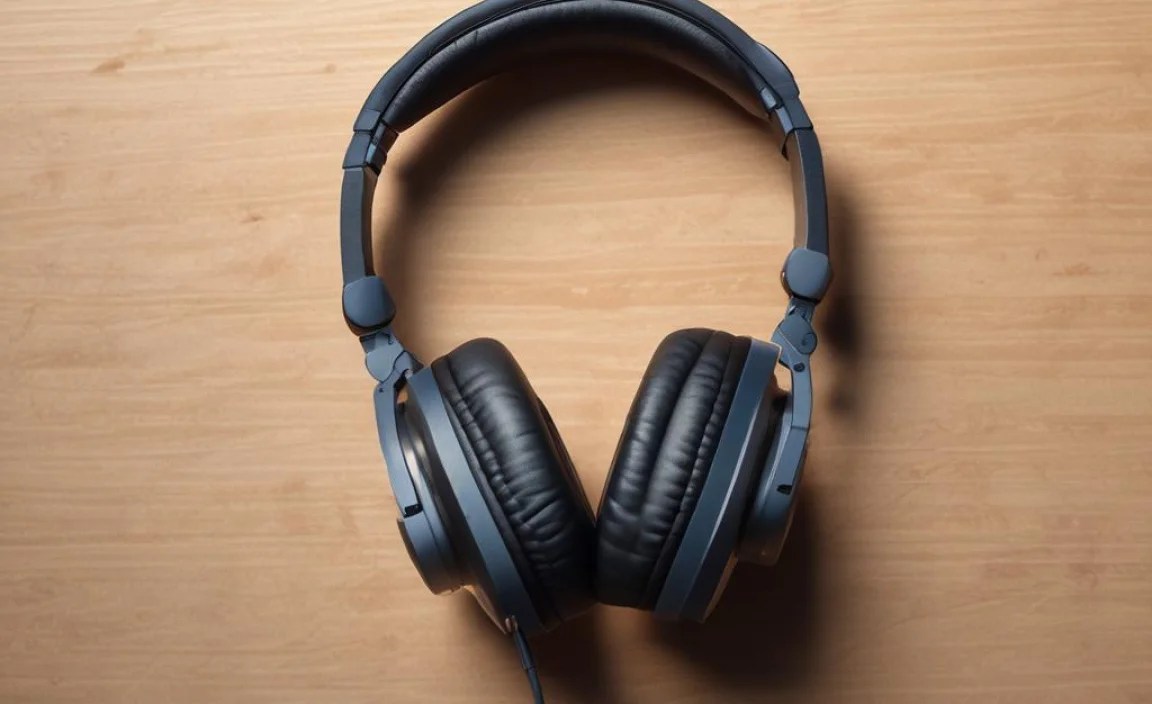
How to inspect headphone jacks for debris and damage. Importance of trying headphones on different devices.
Start by looking closely at the headphone jack. Dust and dirt can sneak in and cause problems. Use a flashlight to see inside. If you see debris, clean it gently with a toothpick or brush. Always check for any damage, too.
Next, try your headphones on different devices. Sometimes, the problem isn’t the headphones but the first device. Test them on a phone, tablet, or computer. This way, you can find out if they work elsewhere.
How can I check for debris in the headphone jack?
Look inside the jack with light. Gently clean it with a toothpick or small brush. This helps brushes off dirt and dust.
What should I test my headphones on?
- Smartphone
- Tablet
- Computer
Software Settings and Configurations
Guidance on audio settings across various operating systems. Steps to check for applicationspecific audio settings.
Sometimes, headphones don’t work because of software settings. Each computer has different options for audio. First, check your sound settings. You may find the problem there.
- For Windows: Right-click the sound icon in the taskbar. Choose “Sounds” to adjust settings.
- For Mac: Go to “System Preferences” then “Sound” to find your audio choices.
- For mobile devices: Check the sound settings in “Settings” or “Control Center.”
Also, some apps have their own sound settings. Make sure they are set right. Always remember, a simple fix can help your headphones. Let’s check each step together!
How do I check application-specific audio settings?
To check these settings, open the app and look for audio settings or preferences. Many apps have options for sound volumes or outputs. Adjust them if needed!
Testing with Different Headphones
Benefits of testing with alternative headphones. How this step can help isolate the problem.
Trying out different headphones can be a fun and effective way to solve sound problems. If your headphones aren’t working, it could be them or your device. By testing alternative pairs, you can quickly find out where the issue lies. If your trusty old headphones turn into silent sidekicks, maybe it’s time for a new buddy! Just remember, if the new ones work, you’ve found the culprit: bad headphones.
| Headphones Status | Next Steps |
|---|---|
| New headphones work | Replace the old ones! |
| New headphones don’t work | Check your device settings! |
Driver and Firmware Updates
Instructions for updating audio drivers on computers. Importance of keeping firmware and software up to date.
Keeping audio drivers updated is very important for clear sound. Your computer needs fresh drivers to work well with headphones. Here’s how to update them:
- Open your computer settings.
- Find the “Device Manager.”
- Look for “Sound, video and game controllers.”
- Right-click your audio device and select “Update driver.”
- Follow the steps on the screen.
Updating your firmware is also key. It fixes problems and helps your headphones work better. Regular updates keep everything running smooth and safe.
How often should I update my drivers?
It’s best to check for updates at least once every month. Regular updates can fix bugs and improve performance.
Wireless Headphones Troubleshooting
Specific issues related to Bluetooth connectivity. Steps to reset or repair wireless headphones.
Got your Bluetooth headphones acting up? Don’t fret! First, make sure they’re charged. Sometimes, they might be as lifeless as a potato. If they still refuse to connect, try resetting them. This can be done by holding down buttons—just like squeezing a stress ball! If they’re linked to your device but still silent, go into your device settings and forget the headphones. Then, reconnect. Easy peasy!
| Issue | Solution |
|---|---|
| Won’t turn on | Check battery charge |
| Cannot connect | Reset headphones and forget device |
| Bad sound quality | Clear paired devices list |
If all else fails, visit the manufacturer’s website. They often have handy tips. Remember, patience is key—just think of your headphones as stubborn cats!
Advanced Troubleshooting Techniques
Utilizing diagnostic tools and software applications. When to consider professional repair or replacement.
If your headphones still don’t work, it might be time for advanced troubleshooting. You can use diagnostic tools or software to help. Many devices come with built-in tools that can fix audio problems. Searching for audio settings can also help.
However, if these methods don’t solve the issue, you may need to think about repair or replacement. Consider what is more cost-effective. A professional can usually diagnose issues faster.
- Check warranty status.
- Think about repair costs.
- Are new headphones more affordable?
Sometimes, when issues arise, it’s best to reach out for expert help. Don’t hesitate if you feel stuck.
What diagnostic tools can help with headphone issues?
Tools like audio test software can reveal problems. They can check if sound plays from your headphones.
When should you consider repair or replacement?
- If repairs cost more than a new pair.
- When your headphones are old or damaged.
Preventive Measures to Avoid Future Issues
Tips on how to properly store and maintain headphones. Recommendations for quality brands and models to consider.
Keeping your headphones safe is important for avoiding future problems. Store them in a case to protect from dust and damage. Avoid tangling by wrapping cords carefully. Choose quality brands for better durability. Some top choices include:
- Sony – Known for great sound quality.
- Bose – Excellent noise cancellation.
- Audio-Technica – Great for studio use.
By taking care of your headphones, they will last longer and work better.
How can I prevent my headphones from breaking?
To prevent damage, always store your headphones in a safe place. Be careful with the cords and avoid pulling them sharply. This will help them last longer.
Conclusion
In summary, if your headphones aren’t working, check the connection first. Make sure they’re plugged in properly and the volume is up. Restarting your device can help too. If problems persist, try another device. For more tips, check out online guides. With a bit of troubleshooting, you can enjoy your music again. Don’t give up!
FAQs
What Are The Common Reasons Why My Headphones Are Not Producing Sound?
Your headphones might not be working for a few reasons. First, check if they’re plugged in correctly. Sometimes, the volume is too low or muted. Also, make sure the batteries are charged if they are wireless. Lastly, there could be a problem with the device you are using.
How Can I Determine If The Issue Is With My Headphones Or The Device They Are Connected To?
To check if your headphones or device are the problem, try a few simple tests. First, use your headphones with another device, like a phone or tablet. If they work, then the problem is with your first device. If they don’t work with other devices, your headphones might be broken. You can also try different headphones with your first device to see if that helps.
What Troubleshooting Steps Should I Take If My Wired Headphones Are Not Working?
First, check if your headphones are plugged in all the way. Sometimes, they might not be connected properly. Next, try using your headphones with a different device, like a phone or tablet. If they still don’t work, check for any visible damage on the cord. If everything looks okay, you might need a new pair.
How Can I Fix Connectivity Issues With My Bluetooth Headphones?
To fix problems with your Bluetooth headphones, start by making sure they’re charged. If they are low on battery, charge them. Next, check that your headphones are connected to the right device, like your phone or tablet. Sometimes, turning Bluetooth off and back on helps. If that doesn’t work, try turning your headphones off and then on again.
Are There Specific Settings On My Device That Could Affect Headphone Functionality?
Yes, some settings can change how your headphones work. You should check the volume levels to make sure they are not too low. Sometimes, Bluetooth can be turned off, so your headphones won’t connect. Also, look at the sound settings to see if they are set right. These simple checks can help your headphones work better!
