
Have you ever been excited to chat online, only to find your headphone mic not working? It can be frustrating, right? You might be in a Zoom meeting or playing your favorite game. Suddenly, everyone looks confused because they can’t hear you.
Many people face this issue. It’s more common than you think. In fact, a lot of gamers and students deal with headphone mic problems. But don’t worry! There are simple repair tips that can help you get back on track.
Imagine you are in the middle of a big game, and your friends can’t hear your amazing strategy. Wouldn’t you want to fix that quickly? In this article, we will explore easy fixes for when your headphone mic doesn’t work. With a few simple steps, you can have smooth conversations again. Let’s dive in and learn how to solve this problem together!
Headphone Mic Not Working: Repair Tips To Fix Issues

Headphone Mic Not Working Repair Tips

Having trouble with your headphone mic? You’re not alone! Many people face this issue. First, check your connections. Ensure everything is plugged in correctly. Sometimes, a simple restart can resolve the problem too.
Did you know that dust can block the mic? Clean it gently to improve sound. If the mic still doesn’t work, try using a different device. This can help figure out if the issue is with your headphones or the device itself. Remember, you can always seek professional help if needed!
Basic Troubleshooting Steps
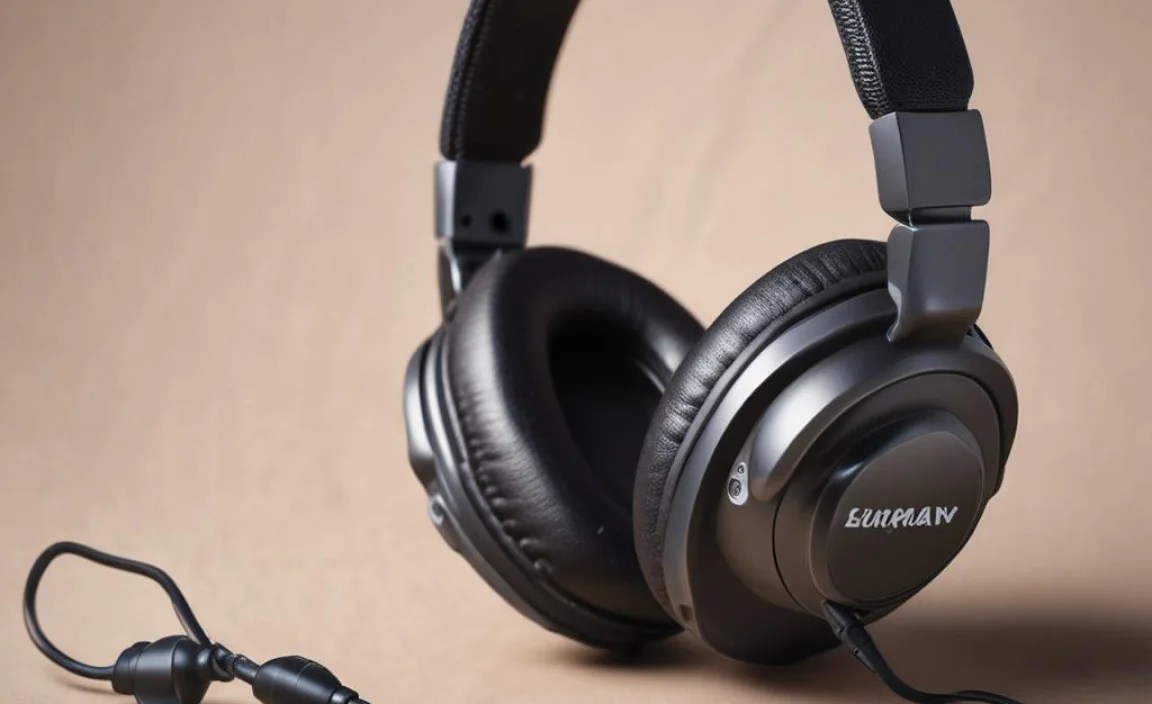
Checking physical connections and ensuring proper fit. Testing the mic on different devices to isolate the issue.
First things first, check those physical connections. Make sure your headphone jack is snug and not just chillin’ out, pretending to be plugged in. A loose fit can be sneakier than a cat in a sock drawer! Next, try testing your mic on different devices to find the problem. If it works on one but not the other, you’ve found your culprit. Sometimes, it’s like playing detective! Here’s a quick table to summarize these steps:
| Step | Action | Notes |
|---|---|---|
| Check Connections | Ensure the headphone jack is secure. | Loose plugs can be sneaky! |
| Test on Other Devices | Plug the mic into different gadgets. | Works on one? You’ve got a clue! |
Software and Settings Adjustments
Instructions for adjusting audio settings on various operating systems. How to update audio drivers and ensure proper software function.
Sometimes, your headphones and microphone play hide and seek, especially if the software isn’t behaving. First, check your audio settings. On Windows, go to the Control Panel, then click on Sound. Make sure your headphones are set as the default device. On Mac, head to System Preferences, then Sound, and do the same. Next, updating audio drivers can work wonders. Just visit your manufacturer’s website and follow their guide. Remember, software bugs can be tricky, like a cat that thinks it’s a dog!
| Operating System | Steps to Adjust Settings |
|---|---|
| Windows | Control Panel > Sound > Set Default Device |
| Mac | System Preferences > Sound > Set Default Device |
Inspecting the Headphones Physically
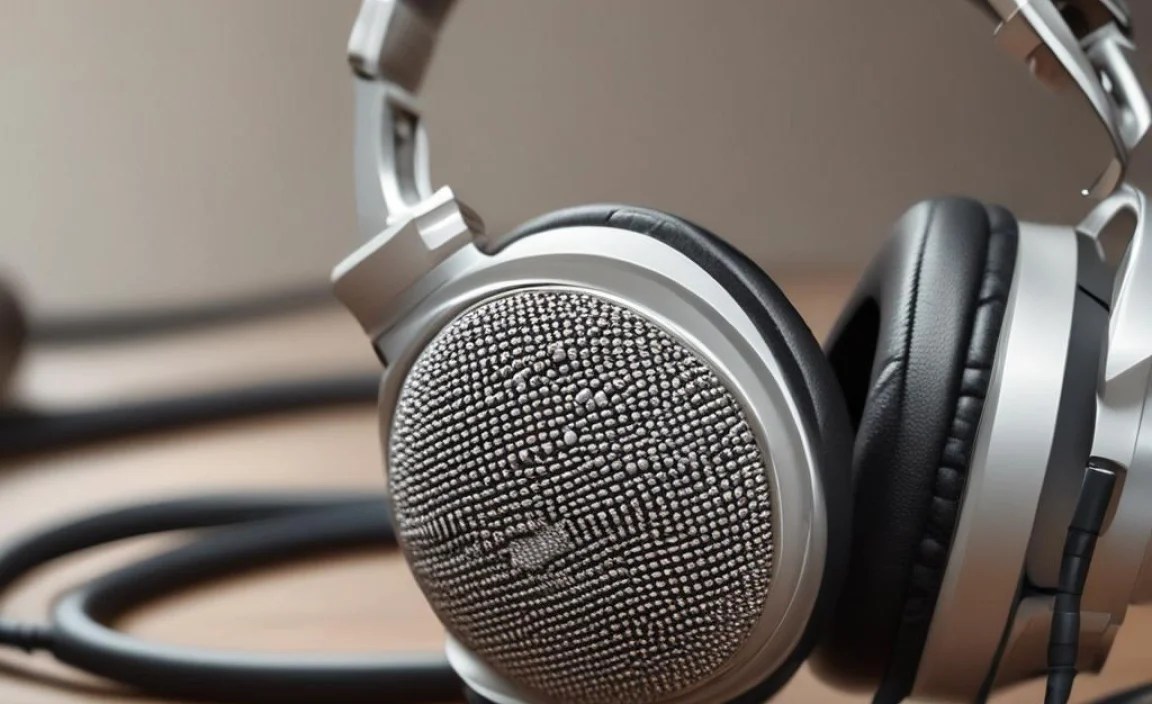
Guidance on checking for visible damage or wear. Using tools to assess internal wiring and connection integrity.
Look closely at your headphones for any signs of damage. Check for frayed wires, cracks, or broken parts. This might be an easy fix! If they look fine, grab a small screwdriver. Open the casing and examine the internal wiring. Ensure all connections are tight and secure. Loose wires can cause problems too!
What should I check for when inspecting headphones?
Look for visible cracks, frayed wires, and loose connections. These issues can cause sound problems. Make sure everything looks secure inside the casing as well.
Preventative Measures to Avoid Future Issues
Tips for proper care and maintenance
of headphones. Best practices for safe storage and handling.
Keeping your headphones in top shape is easier than you might think! Always avoid yanking on the cords like they owe you money. Gently wrap them instead. When you’re not using them, store your headphones in a case. It’s like a spa day for your gear!
Don’t leave them in hot cars or near water. Headphones have feelings too! Dust and dirt can sneak in, so remember to clean them every now and then. A little care goes a long way and saves you from unexpected mic issues later.
| Tip | Best Practice |
|---|---|
| Handle with Care | Avoid pulling the cords |
| Safe Storage | Use a case for protection |
| Keep Clean | Regularly wipe down with a soft cloth |
When to Replace Headphones
Signs that it may be time for a replacement. Evaluating costeffectiveness of repair vs. purchasing new headphones.
Have you noticed crackling sounds or one side of your headphones isn’t working? These are signs that it might be time for a new pair. Also, if your headphones are more than two years old, consider replacing them. The cost of repair can be high. If it costs more than half of a new set, opt for new headphones. Always check if the repair is worth the money.
When should you consider a replacement?
If sounds are dropping out or the mic isn’t clear. If you experience constant trouble, it’s time to explore new options.
Signs that a replacement is needed:
- One ear is silent.
- Sound is muffled or breaks up.
- Headphone wires are damaged.
Conclusion
In summary, if your headphone mic isn’t working, check the connections and settings first. Clean the jack and try different devices. If problems persist, consider replacing the mic or seeking professional help. Don’t hesitate to explore more tips online or ask friends for advice. Taking these steps can help you get your mic back in action!
FAQs
What Are The Common Reasons For A Headphone Mic Not Working, And How Can I Identify The Issue?
There are a few common reasons why your headphone mic might not work. First, check if the mic is plugged in tightly. Sometimes, dirt can block the mic, so keep it clean. You can also see if your device’s settings are set to use the mic. Lastly, try using the mic with another device to see if it works there.
How Can I Troubleshoot And Fix A Headphone Mic That Is Not Picking Up Sound On My Device?
First, check if your headphone mic is plugged in tightly. Sometimes, it can come loose. Next, try using the mic on another device to see if it works there. If it doesn’t, you might need a new mic. You can also check your device’s settings to make sure the microphone is turned on.
Are There Any Specific Cleaning Techniques I Can Use To Improve The Performance Of A Headphone Mic?
Yes, you can clean your headphone mic to make it work better. First, turn off your headphones and unplug them. Use a soft, dry cloth to wipe the mic gently. If it’s still dirty, you can use a small amount of water on the cloth. Make sure the mic dries completely before using it again.
What Are The Best Methods To Check If The Problem Lies With The Headphones, The Device, Or The Connection Port?
To check if the problem is with your headphones, device, or connection port, start with the headphones. Try them on another device. If they work, the problem is not with the headphones. Next, connect different headphones to your device. If those don’t work either, the device might have an issue. Finally, check the connection port by looking for dirt. Clean it gently with a soft cloth. If it still doesn’t work, the port could be the problem.
When Should I Consider Replacing My Headphones If The Mic Is Not Functioning Properly Despite Troubleshooting Efforts?
You should think about replacing your headphones if the mic still doesn’t work after you try fixing it. If you can’t hear anyone or they can’t hear you, that’s a sign. Also, if the mic has been broken for a long time, it might be time for new ones. Sometimes, old headphones just stop working well. New headphones can help you hear and be heard better!
