
Have you ever tried to chat with friends online, only to find your headphone mic not working? It can be so frustrating! You’re all set to join the fun, but your voice turns into silence. You might be asking, “Why isn’t my headphone mic working?”
You’re not alone. Many people face this problem. A surprising number of folks struggle with their headphone mic every day. But don’t worry! Solutions are often simpler than you think.
Imagine you are ready for a big game, and your mic suddenly fails. Panic sets in! But what if I told you there are easy fixes? With the right tips, you’ll be back in the game quickly. Let’s explore these solutions together!
Headphone Mic Not Working Solution: Easy Fixes To Try

Headphone Mic Not Working Solution
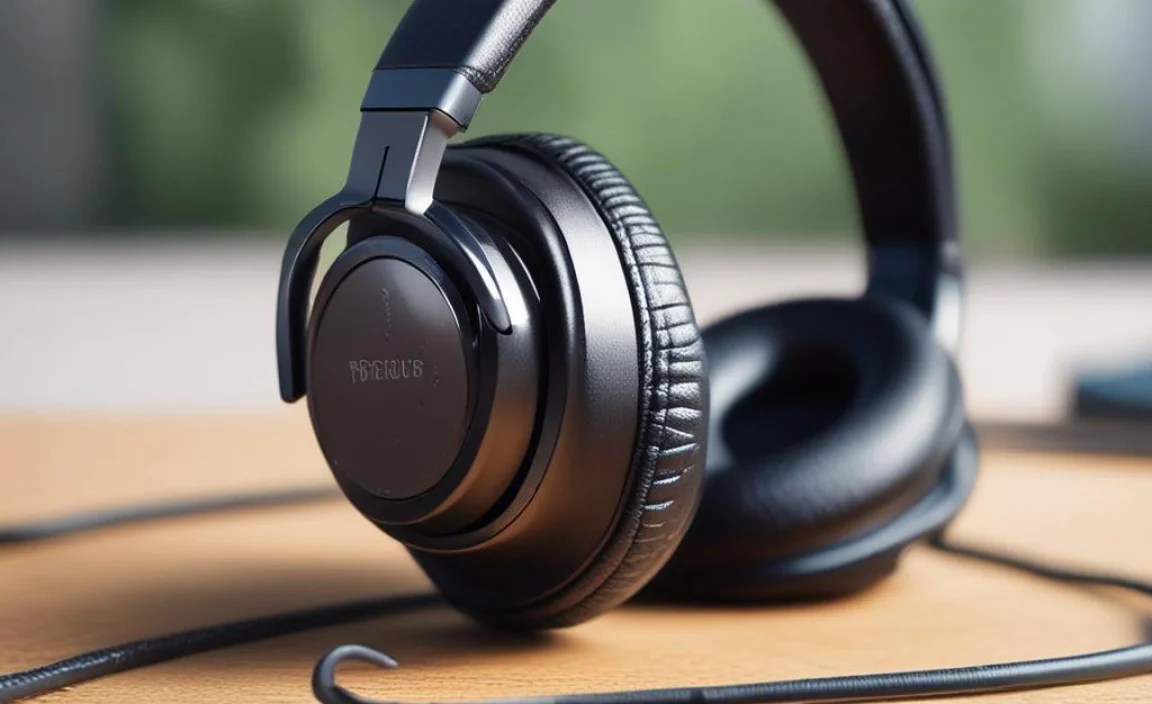
Is your headphone mic giving you trouble? You’re not alone! Many face this issue. Start by checking if the mic is properly connected. Sometimes, it’s a simple plug problem. Next, inspect your device settings. Did you select the right input? If issues continue, try a different pair of headphones to see if that fixes it. A clean jack or adjusting your audio settings might do the trick too. Solving this can take just a few minutes!
Common Reasons Why Headphone Mic Isn’t Working

Hardware issues with the headphone jack or microphone. Software conflicts or outdated drivers.
Having trouble with your headphone mic? You’re not alone! First, check the hardware. Sometimes, dirt gets into the headphone jack like a party crasher and messes things up. A simple clean might do the trick! Also, ensure the mic and headphones are snugly connected. If that doesn’t help, outdated drivers might be lurking. You can easily update them. Remember, technology has feelings too, and sometimes it just needs a little attention!
| Issue | Solution |
|---|---|
| Dirty headphone jack | Clean it gently with a soft cloth. |
| Loose connections | Make sure everything is plugged in tightly. |
| Outdated drivers | Update them through the device manager. |
Basic Troubleshooting Steps
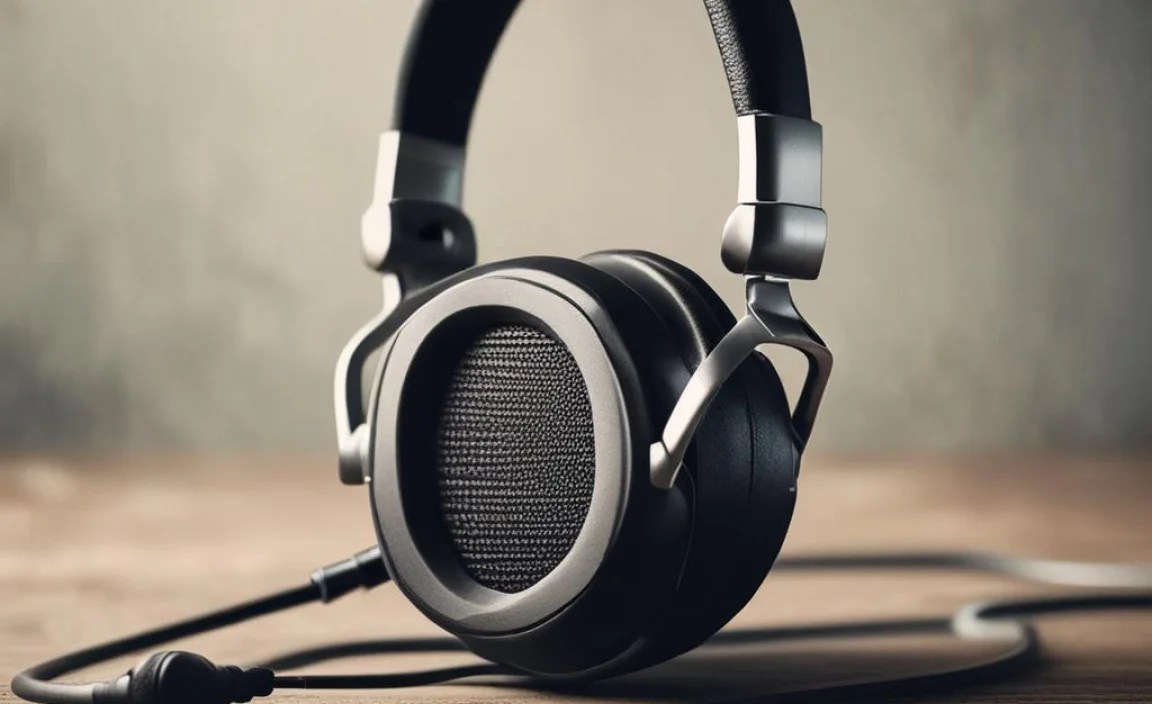
Checking the physical connection of the headphones. Testing the microphone on different devices.
Having trouble with your headphones’ microphone? Let’s dive into some basic fixes that might save the day! First, check if the headphone plug is fully inserted into your device. If it’s slightly unplugged, it’s like trying to water a plant with a hole in the bucket—nothing will grow!
Next, try the microphone on different devices. It’s like a talent show for headphones! If it works on another device, you may need to check your original device’s settings. Now, let’s break it down for you:
| Step | What to Do |
|---|---|
| 1 | Ensure the plug is securely in the jack |
| 2 | Test the mic on another device |
These steps can often solve microphone issues without a high-tech wizard. Remember, even the fanciest gadgets need a little TLC!
Updating Audio Drivers

How to find and install the latest audio drivers. Importance of keeping drivers updated for compatibility.
Keeping your audio drivers updated is like giving your computer a pair of fresh ears. To find the latest drivers, head to the website of your computer’s manufacturer. Search for the “Support” or “Downloads” section and seek out audio drivers. Click, download, and voila! You’ll be and sound as smooth as a buttered banana.
Updating drivers ensures your microphone and headphones play nicely together. It helps with compatibility, so you avoid strange sounds, like a cat meowing on a radio station. And remember, an outdated driver is like an old sock: it just won’t fit well anymore!
| Steps to Update Audio Drivers |
|---|
| 1. Visit the manufacturer’s site. |
| 2. Locate the Support section. |
| 3. Search for audio drivers. |
| 4. Download and install. |
Adjusting Audio Settings in Your Device
Accessing sound settings on various operating systems. Configuring microphone settings for optimal performance.
To fix audio issues, you need to check your sound settings. The steps vary by system. Here’s how to access them:
- Windows: Right-click the speaker icon and choose “Sound.”
- Mac: Open “System Preferences” and select “Sound.”
- Mobile: Go to “Settings,” then “Sounds.”
After accessing the settings, check your microphone options. Make sure it’s set as the default device. Adjust the volume and sensitivity for a better experience. Sometimes, these small changes can help make your headphone mic work perfectly!
How do I change sound settings in Windows?
Follow these steps: Right-click on the speaker icon in the bottom right, select “Sound,” then go to the “Recording” tab. Here, you can adjust your microphone settings and set it as default.
How can I check the mic settings on a Mac?
Go to “System Preferences” and click “Sound.” In the “Input” tab, you can see your microphone options. Make adjustments to improve performance.
Testing the Microphone in Different Applications
Ensuring the microphone is recognized in communication apps. Using audio recording software to check functionality.
To check if your microphone works, try it in different apps. Communication apps, like Zoom or Skype, can help you see if your mic is recognized. Open the app settings and find microphone settings. Next, use audio recording software like Windows Voice Recorder or Audacity. Speak into the mic and play it back. If you hear your voice, it’s working!
What should I do if my microphone is not recognized?
Check the app settings to ensure the microphone is selected. Restart the app if needed.
Quick Tips:
- Update your device software.
- Plug the mic into a different port.
- Test on another device to rule out issues.
Using USB or Bluetooth Headphones as an Alternative
Benefits of switching to USB or Bluetooth connections. Stepbystep on connecting and configuring these devices.
Switching to USB or Bluetooth headphones can improve your sound experience. These connections are often faster and more reliable. You won’t need extra cords, making your setup cleaner. Plus, Bluetooth headphones let you move around freely without getting tangled! Here’s how to connect them:
- For USB:
- Plug your USB headphones into the computer.
- Go to sound settings and select them.
- For Bluetooth:
- Turn on your headphones and put them in pairing mode.
- Open Bluetooth settings on your device.
- Select your headphones from the list.
What are the benefits of USB or Bluetooth headphones?
Using USB or Bluetooth headphones gives clear sound, less clutter, and easy mobility.
Where can I find help if my headphones still don’t work?
If your headphones don’t work, check the connections, restart your device, or consult online support forums for additional tips.
Advanced Solutions for Persistent Issues
Checking for malware or software that might interfere. System restore or reset options for OSlevel fixes.
Sometimes, pesky malware or strange software can ruin our headphone mic fun. Start by scanning your device with a good security tool. You wouldn’t let a gremlin crash your party, right? If that doesn’t work, consider using System Restore. This option can take your device back to a happier time. Also, resetting your operating system can help. Think of it as a fresh start, like a spring cleaning for your tech!
| Solution | Steps |
|---|---|
| Check for Malware | Run a security scan on your device. |
| System Restore | Access the restore option and select a previous date. |
| Reset Operating System | Backup files and follow the reset instructions. |
When to Seek Professional Help
Identifying signs that indicate hardware failure. Finding repair services or warranty information for headphones.
You may need to get professional help if your headphones stop working. Watch for these signs of hardware failure:
- Strange sounds or buzzing.
- No sound at all when plugged in.
- The mic is silent even when you speak.
- One earbud is louder than the other.
If you notice any of these problems, look for repair services. Check your warranty too. Many brands offer free repairs if they are still covered. This can save you money!
What to do if there’s a hardware issue?
If there’s a hardware issue, contact the manufacturer or retailer. They can guide you on getting repairs or a replacement.
Conclusion
In conclusion, if your headphone mic isn’t working, check the connections, settings, and drivers first. Restarting your device can also help. If those steps don’t fix the problem, consider trying another headset. We hope these tips guide you to a solution. For more help, you can explore online resources or ask someone who knows about tech!
FAQs
What Should I Check If My Headphone Mic Isn’T Recognizing My Voice On My Pc Or Laptop?
First, check if you plugged the headphones into the right spot. Then, make sure your headphones are set as the sound input device in your computer’s settings. You can also check the microphone volume; it might be too low. Finally, try using the headphones with another device to see if they work there. If they don’t, your microphone might be broken.
How Can I Troubleshoot Audio Settings To Fix A Non-Functioning Headphone Microphone On My Smartphone?
To fix your headphone microphone, start by checking the connections. Make sure your headphones are plugged in tightly. Next, go to your phone’s settings and find the sound or audio options. Look for a setting for the microphone and turn it on if it’s off. You can also try using a different pair of headphones to see if that works. If it still doesn’t work, restarting your phone might help!
Are There Any Common Hardware Issues That Could Cause My Headphone Mic To Stop Working?
Yes, there are some common hardware issues that can make your headphone mic stop working. First, the mic might be unplugged or loose. Check if the wire is damaged or frayed. Sometimes, the headphone jack can be dirty or broken. Finally, using the wrong type of headphones can also cause problems.
What Drivers Or Software Updates Might I Need To Install To Ensure My Headphone Mic Functions Properly?
To make your headphone mic work well, you might need to update your sound drivers. Drivers are special programs that help your computer talk to your headphones. You can check for updates in the settings of your computer. If you use an app for calls, make sure it is up to date too. After that, your mic should work better!
How Can I Determine Whether The Issue Lies With The Headphones Or The Device They Are Connected To?
To find out if the problem is with your headphones or the device, you can try a few things. First, plug your headphones into another device, like a phone or tablet. If they work there, the problem is with your original device. If they don’t work anywhere, the issue is likely with the headphones. You can also try using different headphones with your original device to see if that helps.
