
The Turtle Beach PLa headset is widely popular among Play Station users. It provides exceptional audio and voice chat quality. However, this headset users around the world with a common issue which is, the mic of the headset stopped working properly.
Well, unless there is any physical damage in the headset, this mic not working issue of Turtle Beach PLa is caused by either audio settings or you have turned off the mic. In today’s article, we have shared the reasons and fixes that you can follow to solve this issue.

Reasons Why Turtle Beach Pla Headset Mic Isn’t Working

When playing with friends in Play Station, the mic is a mandatory thing. Because without it you can’t communicate with others while gaming. However, encountering the mic not working issue with your headset is very annoying. Here we have shared the possible reasons that are to blame for this issue.
- The mic is physically damaged.
- Mic mute switch on the headset is turned on.
- Microphone level is set at 0 in the Play Station chat settings.
Now, we have the reasons, it will help us to solve this issue more quickly.
How To Solve Turtle Beach Pla Headset Mic Not Working Issue

Whenever you are encountering this mic not working issue, first you should check with the cable connection. Make sure, all the cables of your headset are connected properly to the PS3. Then check with the HDMI connection. If still you are facing this issue, then follow the fixes below.
Fix 1: Turn Off The Mic Mute Button On Turtle Beach Pla Headset
On your Turtle Beach PLa headset, you will get a Mic mute switch. If the switch is turned on then the mic of your PLa headset won’t work. That’s why check whether the mic mute switch is turned on or not. You can find it on the left ear cup.
Fix 2: Increase The Microphone Level From The Chat Settings On Your Play Station
Another fix is, you will need to increase the microphone level from the Chat settings. To adjust the microphone level, follow the steps below –
- First, go to Settings of your Play Station.
- Next go to Accessory Settings and then navigate to Audio Device Settings.
- There you will find Microphone Level. Now, click on it to navigate inside. Here you can adjust the Microphone Level. Set it to according your need and then save the settings by pressing the X button on your controller.
While adjusting the microphone level, you can also check whether the Turtle Beach PLa is selected as the Output device or not. If it is not then you will need to select it and save the settings. Or otherwise, the mic won’t work.
Bonus Tips: What To Do If Turtle Beach Pla Headset Is Not Working While Using It With PC
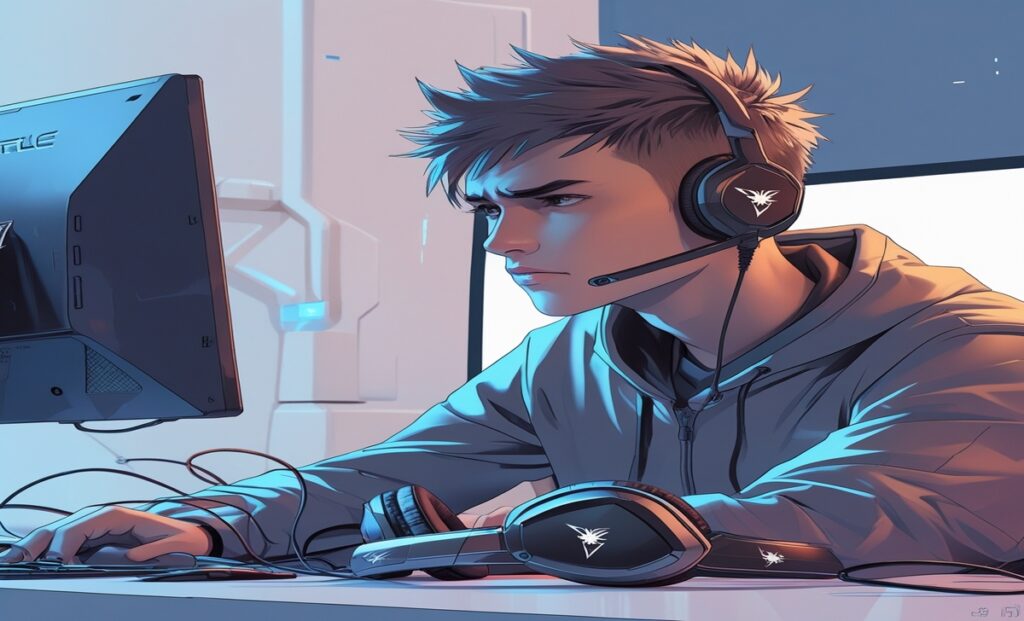
If you are facing this issue while using the PLa headset on your PC then follow fix 1 and check whether the issue is solved or not. If not then, unplug the headset and plug it in again. Now you will need to update the driver of this PLa headset. On Google, you can find the driver easily. Download the driver and update it.
Also, check the device output from the Sound settings. Another possible reason is if you just connect the USB of the headset to your PC then the mic won’t work. You will need to connect the rest two jacks of the headset with an RCA to 3.5 mm adapter cable.
Frequently Asked Questions And Answers (Faqs)
1.Why Is My Mic Not Working On My Turtle Beach Headset Xbox One?
The reason behind the mic of PLa not working in Xbox One is, you have turned on the Mic mute switch or it’s happening due to improper game sound settings.
2.Why I Am Hearing An Echo While Using Turtle Beach Pla With My PC?
You are getting an echo due to the Mic Monitor feature of the PLa headset. To get rid of this issue, you will need to adjust it from the sound settings.
Conclusion
To sum up, by following the aforementioned fixes you can fix the issue very easily. If still you are facing this issue then the mic is physically damaged. You will need to replace it with a new one.
