
Have you ever put on your headphones, only to hear nothing? It’s frustrating when your headphones stop working. You may wonder if it’s broken or if you did something wrong. Many people face this problem, and it can ruin your day.
Imagine this: you’re getting ready to enjoy your favorite song. You plug in your headphones, but silence greets you instead. What do you do next? This common issue can happen to anyone, no matter how careful you are. Luckily, there are simple ways to fix it.
In this article, we’ll explore tips and tricks to help you when your headphone is not working. From checking connections to troubleshooting, we’ve got you covered. Let’s dive in and get your headphones back to making music!
Headphone Not Working? How To Troubleshoot Issues Easily

Headphone Not Working? Here’s What to Do

Is your headphones issue leaving you frustrated? It’s a common problem! Start by checking the connection. Sometimes, it’s just a loose plug. Then, ensure your device’s audio settings are correct.
A quick restart can work wonders. Did you know that dirt in the headphone jack can also cause issues? Cleaning it might fix the problem! If all else fails, consider testing your headphones with another device. These simple steps can help you get back to your favorite tunes.
Troubleshooting Common Headphone Issues

Identifying the type of headphone problem (wired vs. wireless). Checking for physical damage or connection issues.
Headphone issues can be tricky. First, check if your headphones are wired or wireless. Wired headphones might have a broken wire. Wireless ones may lose connection. Here are simple steps to find the problem:
- Look for frayed wires or loose plugs.
- For wireless, ensure Bluetooth is on and your device is connected.
- Try using a different device to see if the problem is with the headphones or device.
These checks can help you solve most headphone troubles quickly!
What can cause headphone problems?
Common issues include broken wires, low battery, or connection errors. Identifying the type of problem is key to fixing it!
Testing Your Headphones on Different Devices

on various devices. Signs that indicate devicerelated issues.
Got your headphones acting up? Time to play detective! First, try them out on a different device, like your phone or tablet. If they work, your original device might need a little TLC. Look for signs like no sound or weird noises. These could hint at issues with your device instead. To make things easy, check out the table below for troubleshooting tips!
| Device | Action | Signs of Device Issues |
|---|---|---|
| Smartphone | Plug in your headphones | No sound or crackling |
| Computer | Test in audio settings | Sound plays through speakers only |
| Tablet | Try different audio apps | Headphones not detected |
By testing on various devices, you can pinpoint whether your headphones or device needs a little help. Happy listening!
Checking Audio Settings and Controls
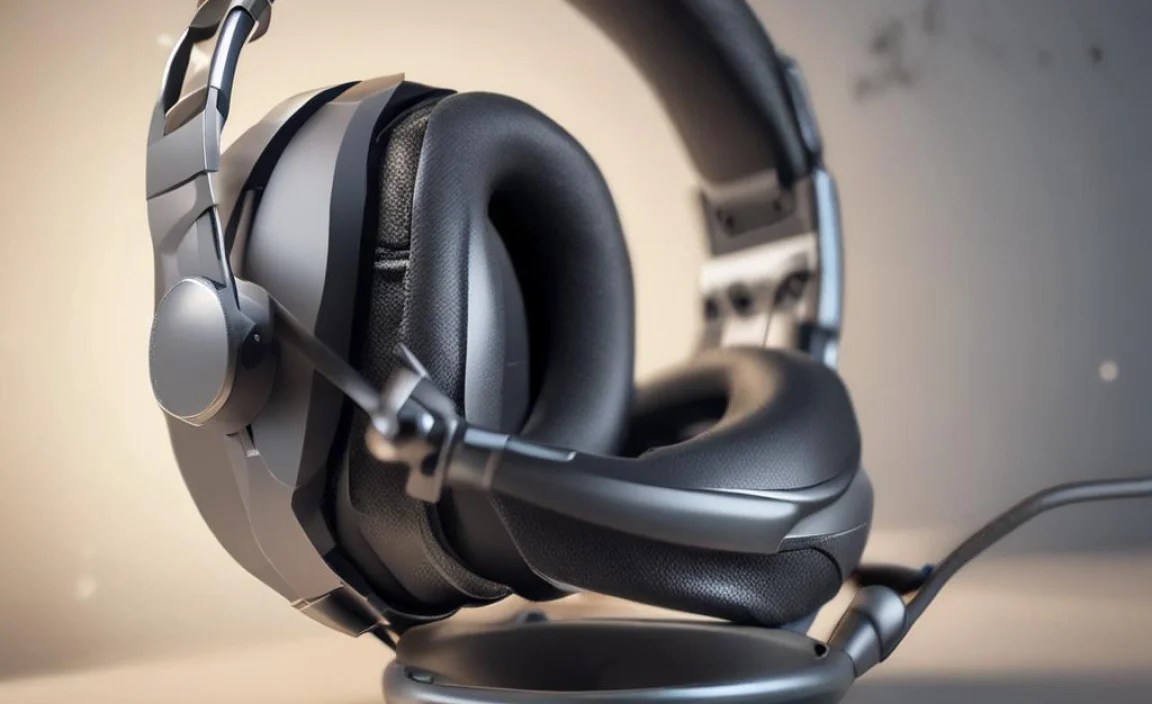
Exploring volume levels and mute settings. Navigating the audio settings on different devices.
Before your headphones will work, check the sound settings on your device. Look at the volume level first. Is it too low or muted? Sometimes, just turning the sound up helps! Next, explore your device’s audio settings. Each device is a bit different. On some devices, you can even find settings for different apps.
- For computers: Look in the Control Panel or System Preferences.
- For phones: Check under Sound or Audio settings.
- For tablets: Explore the Settings app and find Sounds.
Taking a moment to check these settings can solve many problems quickly!
How to adjust audio settings on different devices?
To adjust audio settings: Open the sound settings menu on your device. Increase the volume and disable any mute options. Each device differs, so check your user guide for specific steps.
Updating Drivers and Software
How to check for audio driver updates on your computer. Importance of ensuring mobile device software is uptodate.
Keeping your audio drivers and software fresh is very important. If you want to hear your tunes or that hilarious cat video, check for updates regularly! To see if your audio drivers need a little love, open your computer settings. Click on “Device Manager,” find “Sound, video and game controllers,” and see if an update is available. Remember, a healthy device is a happy device!
For mobile devices, keeping your software updated is also crucial. Updates can fix bugs and improve your listening experience. Simply go to your device settings, look for “Software Update,” and check for updates. After all, nobody wants to miss out on the latest music because their phone is stuck in the past!
| Device Type | How to Check for Updates |
|---|---|
| Computer | Open Device Manager, locate sound settings, and check for updates. |
| Mobile | Go to device settings, find Software Update, and check for updates. |
Resetting Bluetooth Connections for Wireless Headphones
Stepbystep guide to unpair and repair headphones. Tips for troubleshooting Bluetooth connectivity issues.
To fix wireless headphones, start by unpairing and repairing them. Follow these steps:
- Go to your device’s Bluetooth settings.
- Find your headphones on the list.
- Select “Forget” or “Unpair.”
- Turn off your headphones, then turn them back on.
- Put them in pairing mode. This varies by model, so check the manual.
- Reconnect from your device’s Bluetooth settings.
If you still have problems, try these troubleshooting tips:
- Ensure your headphones and device are charged.
- Move closer to your device.
- Reset your device’s Bluetooth.
How do I fix Bluetooth connection issues?
If Bluetooth isn’t working, restart your device and try reconnecting. Ensure no other devices are interfering.
Inspecting Audio Jack and Port Issues
plugs and audio ports. Understanding the impact of dirt or debris on sound connection.
Dirty plugs and audio ports can ruin sound. Dust and debris build up over time, blocking connection. To fix this, start by cleaning the headphone plug using a soft cloth. For your audio port, gently use a toothpick or a dry brush to remove dirt. Always be careful not to damage the port. Regular cleaning keeps your music clear and your calls crisp!
How can I clean my headphone plugs and audio ports?
Use a soft cloth for the plug and a toothpick for the audio port.
Tips to Remember:
- Always turn off your device before cleaning.
- Be gentle to avoid damaging parts.
- Clean regularly for the best sound quality.
When to Seek Professional Help
Signs that indicate a need for professional repair or replacement. Cost considerations for headphone repairs versus buying new ones.
If your headphones are silent or only play in one ear, it might be time for help. Look out for signs like strange cracking sounds or a wire that seems frayed. If you have to jiggle the plug to hear sound, that’s a red flag!
Now, let’s talk money. Professional repairs usually cost around $20-$50. New headphones can start at just $30. So, are you willing to fix the old ones or upgrade your sound?
| Option | Cost |
|---|---|
| Professional Repair | $20 – $50 |
| New Headphones | Starting at $30 |
Remember, it’s cheaper to buy new ones in most cases. The choice is yours, but don’t let silence drive you crazy!
Conclusion
If your headphone isn’t working, check the connection first. Make sure they’re plugged in correctly. Next, try them with another device. Restart your device to fix small glitches. If issues continue, update your audio drivers. For more tips, visit trusted tech sites. Remember, troubleshooting can solve many problems. Don’t be afraid to explore and learn!
FAQs
What Are The Common Reasons Why My Headphones Are Not Working Properly?
Your headphones might not be working for a few reasons. First, check if they are plugged in all the way. Sometimes the cable can get damaged too. Also, make sure the volume is up and not muted. Finally, try them with another device to see if they work there.
How Can I Troubleshoot Headphone Issues On My Smartphone Or Computer?
To fix headphone issues on your smartphone or computer, first, check the connection. Make sure your headphones are plugged in properly. If they are wireless, ensure they are charged and connected via Bluetooth. You can also try restarting your device. If that doesn’t work, try using a different pair of headphones to see if the problem is with your original ones.
Are There Any Specific Settings I Should Check If My Headphones Are Not Producing Sound?
First, check if your headphones are plugged in properly. Next, look at the volume settings on your device. Make sure the sound is turned up and not muted. You can also check if the correct audio output is selected. Lastly, try using your headphones with another device to see if they work.
What Steps Can I Take To Identify If The Problem Is With The Headphones Or The Audio Device?
To find out if the problem is your headphones or the device, try these steps. First, plug your headphones into another device, like a phone or tablet. If they work there, your headphones are fine. Next, try different headphones with the same device. If those headphones don’t work, the problem is with the device.
How Can I Fix A Loose Connection Or A Frayed Headphone Cable?
To fix a loose connection, try unplugging the headphones and plugging them back in tightly. If the cable is frayed, you can use electrical tape to cover the damaged area. Wrap the tape carefully to keep it safe. For a better solution, you might consider asking a grown-up to help or getting new headphones.
