
Have you ever been excited to chat with friends, only to find your headphone mic not working? It can be so frustrating, right? You’re all set up for a gaming session or a video call, and suddenly, no one can hear you. This common problem happens to many people.
Imagine you’ve just bought a cool new headset. You wear it with pride, but when you speak, silence greets you. What do you do? Don’t worry! There are simple and clear steps to help you get your headphone mic working again.
Did you know that sometimes the solution is as easy as checking a small setting? Or maybe it’s a loose cable giving you trouble? With just a little patience, you can solve the mystery of the silent mic!
Let’s dive into the steps to fix your headphone mic. You’ll be back to chatting and gaming in no time!
Headphone Mic Not Working Steps: Quick Fix Guide

Headphone Mic Not Working Steps

Have you ever struggled with a headphone mic that just won’t cooperate? You’re not alone! First, check if your headphones are plugged in correctly. A loose connection might be the culprit. Next, inspect the settings on your device; sometimes, it’s a simple software issue. Did you know that dirt can block your mic? Cleaning it carefully might save the day. By following these steps, you can quickly troubleshoot the problem and get back to chatting or gaming!
Check Physical Connections

Ensure the headphone jack is fully inserted into the port.. Inspect the cable for any visible damage or wear..
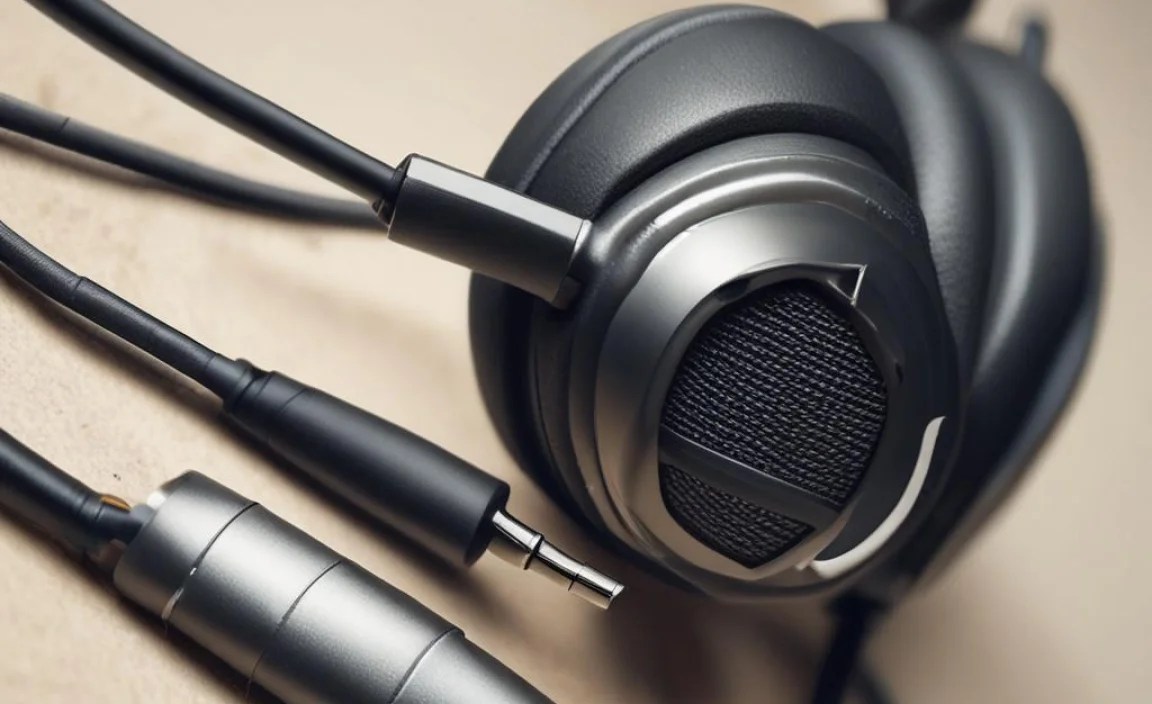
Check the headphone jack first. Make sure it is pushed all the way into the port. Sometimes, a loose connection causes problems. Next, look at the cable. If you see any cuts, frays, or bends, the cable may be damaged. This can also stop the mic from working.
How can I tell if my headphones are damaged?
Inspect the cable closely for cracks or frays. Check if the jack is clean and dust-free. If you see any damage, it might need to be replaced.
Test the Headphones on Different Devices

Connect the headphones to another smartphone or computer.. Determine if the issue persists across multiple devices..
Sometimes, your headphones might feel a bit moody. To figure out if they need a break or if it’s a bigger issue, try using them on a different gadget. Connect them to another smartphone or computer. If they work perfectly there, phew! It’s not them, it’s your first device. If the problem stays, well, now we know. Maybe they just wanted to go on a little vacation!
| Device | Status |
|---|---|
| Original Device | Not Working |
| New Device 1 | Working! |
| New Device 2 | Still Not Working |
Update Audio Drivers
Check for any available updates for your device’s audio drivers.. Follow the installation steps to update the drivers accordingly..
Your device may sometimes need a little help to work perfectly. One way to ensure your sound is clear is by updating the audio drivers. This is how you do it:
- Check your settings for any updates.
- If there’s an update available, follow the prompts to install it.
- Restart your device after the installation.
New drivers can fix problems and improve sound quality. Regular updates help keep your device running smoothly.
Why should I update my audio drivers?
Updating your audio drivers can fix bugs and improve performance. It helps ensure your headphone mic works correctly, providing better sound quality.
Adjust Audio Settings
Navigate to the sound settings on your device and verify input options.. Ensure the correct recording device is selected for the microphone..
Sometimes, your mic can feel ignored, like that one sock you can never find. To help it out, check your device’s sound settings first. Go to the audio settings and find the input options. Make sure the right recording device is picked like choosing your favorite ice cream flavor! If the wrong mic is selected, it’s like asking a cat to bark – it won’t work!
| Device | Correct Mic |
|---|---|
| Laptop | Built-in Microphone |
| Desktop | USB Microphone |
| Phone | Headset Mic |
After selecting the right mic, test it by recording a silly message. If it works, you’re ready to rock and roll! If not, check the volume. Sometimes, it’s as simple as turning it up. Remember, a happy mic is a working mic!
Check Sound Preferences
Visit the audio control panel and examine the microphone settings.. Test the microphone levels and ensure that it is unmuted..
To fix a microphone issue, visit the audio control panel. Check the microphone settings closely. Ensure that the correct mic is selected. Look at the levels and make sure they are not muted. You can test the sound by speaking into the mic. If the levels change, it’s working! Here are some key checks:
- Open the audio control panel.
- Look for the microphone settings.
- Test the mic levels carefully.
- Make sure it is unmuted.
Why is my microphone not working?
Your microphone might not be set up properly or it is muted. Check the audio settings to be sure the right device is selected. Sometimes, a simple adjustment fixes the problem!
Inspect for Software Conflicts
Identify any applications that may be using the microphone.. Close unnecessary programs that might interfere with mic functionality..
Sometimes software can mess with your microphone. First, check for any apps using it. These can slow things down. If your mic isn’t working, close programs you don’t need. This will help your mic function better. Here’s how:
- Look for voice or video apps.
- Check if games are running.
- Close any music or recording apps.
What apps can affect my microphone?
Apps like Zoom, Skype, or any recording software can use your mic and cause issues. Close these programs if you’re not using them. This small step can fix many problems!
Perform a System Restart
Restart the device to clear temporary glitches affecting connectivity.. Test the microphone after rebooting to assess functionality..
Sometimes, our devices just need a little nap. Restarting your device can fix many silly glitches that mess with your headphone mic. Think of it as giving your gadget a spa day! After the restart, don’t forget to check if the microphone is back to life. Give it a test! You might even hear it whisper, “Thanks for the break!”
| Step | Description |
|---|---|
| 1. Restart | Turn off your device completely and turn it back on. |
| 2. Test | Try using the microphone again to see if it works. |
Check for Physical Damage
Inspect the microphone element for any obvious signs of damage.. Consider professional repair or replacement if damage is found..
Before you panic about your microphone, have a good look at it. Check for any scratches, dents, or loose wires. If your mic looks like it went through a mini demolition derby, it might be time for a repair. Consider getting it checked by a pro. If it’s still noisy even though it looks good, maybe it’s time to break up with it and look for a new one. Remember, a working mic is much better than one that crackles like popcorn!
| Signs of Damage | Next Steps |
|---|---|
| Visible scratches or dents | Consider a professional repair |
| Loose or exposed wires | Replacement might be necessary |
| Intermittent sound issues | Check connections and test with other devices |
Try a Different Pair of Headphones
Use an alternative headphone set to identify if the original is defective.. Narrow down whether the issue lies with the headphones or the device..
If your mic isn’t picking up your smooth singing voice, try using a different pair of headphones. Sometimes, the original might be on the fritz. Switching to another set can help you find out what’s causing the trouble. Is it the headphones or your device? If the new pair works like a charm, your old ones might need a retirement party. Remember, there’s no shame in tossing out a pair of faulty headphones – it’s less dramatic than a soap opera!
| Steps | Results |
|---|---|
| Try different headphones | Identifies if the issue is with the original pair |
| Check the connection | Confirms if the device is working |
Conclusion
In conclusion, if your headphone mic isn’t working, check the connections first. Make sure it’s plugged in securely. Then, adjust your audio settings and test on different devices. You can also try updating your drivers. Don’t forget to read more guides or watch tutorials for extra help. With these steps, you can solve the problem quickly!
FAQs
Sure! Here Are Five Related Questions On The Topic Of Troubleshooting Headphone Microphones That Are Not Working:
Sure! Here are five questions about fixing headphone microphones that aren’t working:
1. **Why can’t people hear me when I talk?**
Sometimes, your mic might be off or not plugged in. Check the volume settings too!
2. **What can I do if my headphones are not recognized?**
Try unplugging them and plugging them back in. You can also check your device settings.
3. **How do I know if my microphone is broken?**
You can test it with another device. If it still doesn’t work, it might be broken.
4. **What if the microphone is too quiet?**
Check the volume levels on your device and make sure the mic isn’t covered.
5. **Can I use my headset microphone for video calls?**
Yes, but make sure it’s connected properly, and your app is set to use it.
Sure! Please provide the question you’d like me to answer.
What Are The Common Reasons Why A Headphone Microphone Might Not Be Detected By A Device?
Sometimes, your headphone microphone might not work because it’s not plugged in all the way. Check if the plug is clean and fits well. The microphone may also be broken or damaged. Sometimes, the device needs a setting changed to use the microphone. Lastly, make sure there are no other connected microphones that could confuse the device.
How Can I Check If The Headphone Microphone Is Functioning Properly On A Different Device?
To check if your headphone microphone works on a different device, plug them in and open a voice app. You can use something like a recording app or a call app. Then, speak into the microphone. If you hear your voice or see the sound moving, it’s working! If not, try a different device or check the headphone plug.
What Settings Should I Adjust In My Operating System To Ensure My Headphone Microphone Is Enabled?
First, plug in your headphones. Then, click on the speaker icon at the bottom of your screen. Go to “Sound settings.” Look for “Input” and make sure your headphone microphone is selected. You can also test it by speaking and checking if the sound bar moves!
Are There Any Specific Troubleshooting Steps For Wired Versus Wireless Headphone Microphones Not Working?
Yes, there are different steps for wired and wireless headphone microphones.
For wired headphones, check if they are plugged in properly. Make sure the volume is up and not muted. You can also try them on another device to see if they work there.
For wireless headphones, check if they are charged and turned on. Try reconnecting them to your device via Bluetooth. If they still don’t work, reset them and try again.
What Can I Do If My Headphone Microphone Is Working Intermittently Or Producing Low Audio Quality?
If your headphone microphone is not working well, try a few things. First, check the plug to make sure it’s fully connected. Next, clean the microphone to remove dust. You can also test the mic on another device to see if it’s the mic or the device. If it still fails, consider asking an adult for help or getting a new pair.
