
Quick Summary: This guide helps Xbox One gamers find and connect wireless headphones for an immersive audio experience. We cover compatibility, setup for common wireless types, and tips for choosing the best sound and comfort, making your gaming sessions more enjoyable and distraction-free.
Wireless Headphones for Xbox One: Your Essential Gaming Audio Guide
Welcome, gamers! Are you ready to dive deeper into your favorite Xbox One worlds without the tangle of wires? Wireless headphones can revolutionize your gaming experience, offering freedom of movement and crystal-clear audio that pulls you right into the action. From subtle enemy footsteps to booming explosions, great wireless sound makes all the difference. But with so many options out there, how do you pick the perfect pair for your Xbox One? Don’t worry! As your guide at Headphone Horizon, I’m here to demystify the process, helping you find, connect, and enjoy wireless audio that truly enhances your gameplay. Let’s get started on building your ultimate gaming setup!
Why Go Wireless with Your Xbox One Headphones?

The allure of wireless headphones for Xbox One is undeniable. It’s not just about convenience; it’s about upgrading your entire gaming experience. Imagine leaning back on your couch, fully immersed in the game, with no cord pulling you back or limiting your movement during intense moments. Wireless audio removes physical constraints, allowing for greater freedom during those marathon gaming sessions or when you need to step away for a moment without missing a beat.
Beyond freedom, wireless headphones often come with advanced features. Many boast superior sound quality, with improved bass and clearer highs that can help you pinpoint in-game audio cues more accurately. Noise-canceling capabilities can further enhance immersion by blocking out distracting background noise, letting you focus solely on the game. Plus, the simplicity of connecting without fiddling with cables is a welcome bonus for many gamers.
Understanding Wireless Technologies for Xbox One
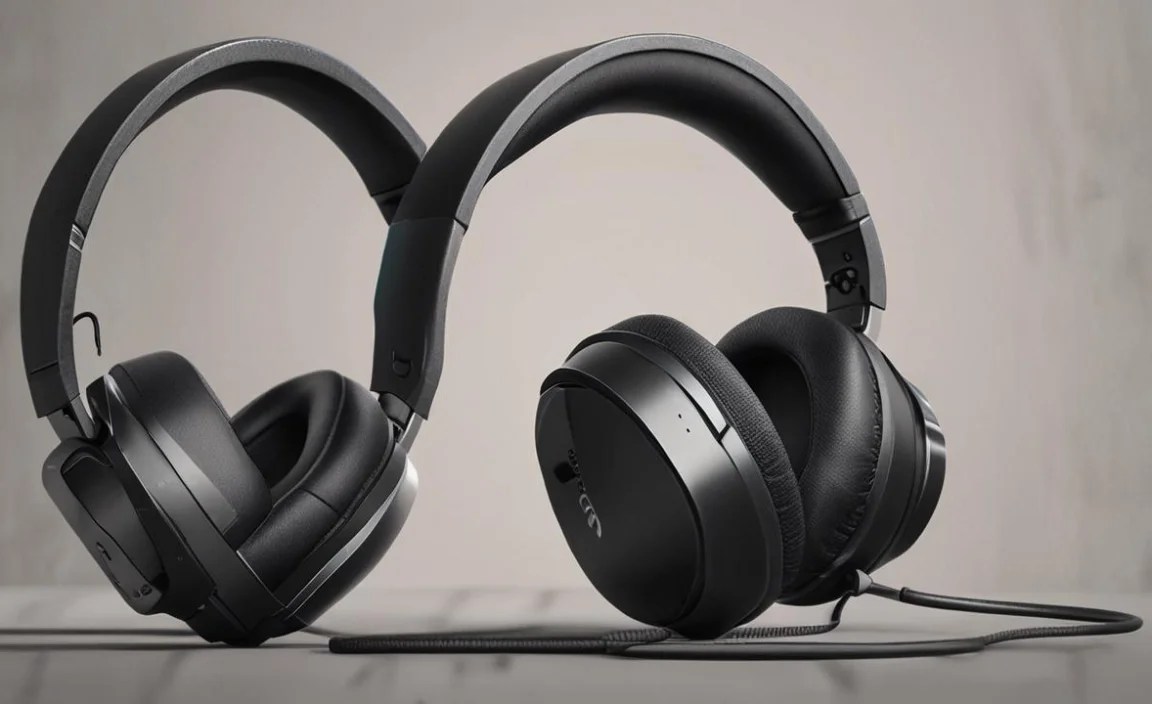
When it comes to connecting wireless headphones to your Xbox One, there are a few primary methods. Understanding these will help you choose the right headset and set it up correctly. The Xbox One generally supports two main types of wireless connectivity for headphones:
1. Xbox Wireless (Proprietary)
This is Microsoft’s own wireless technology specifically designed for their consoles. Headsets that use Xbox Wireless can connect directly to your Xbox One without any extra dongles or adapters. It’s a streamlined process that offers a stable connection and often includes features like easy volume control via the headset itself.
- How it Works: These headsets communicate directly with an integrated wireless receiver in the Xbox One console.
- Connectivity: You’ll need to “pair” the headset to your console, much like you pair a controller.
- Pros: Plug-and-play convenience, no extra hardware needed, generally stable connection, often allows for simultaneous chat and game audio.
- Cons: Can be more expensive, limited to headsets specifically designed for Xbox Wireless.
2. Bluetooth
While many modern devices use Bluetooth, the Xbox One’s Bluetooth implementation for audio is a bit more nuanced. Older Xbox One models had very limited Bluetooth audio support. However, later models, and especially with firmware updates, can support Bluetooth headphones. It’s crucial to check your specific console’s capabilities and the headphone’s Bluetooth profile compatibility.
- How it Works: Standard Bluetooth pairing process between the headset and the Xbox One console.
- Connectivity: Requires the Xbox One to have Bluetooth functionality enabled for audio devices (check your console model and settings).
- Pros: Wide range of compatible headphones, can often use the same headphones for other devices (phone, PC).
- Cons: Not all Xbox One models support Bluetooth audio, can sometimes have latency (delay) issues, may not support simultaneous chat and game audio on all setups, connection can sometimes be less stable than Xbox Wireless.
3. Wireless Dongles (USB/Optical)
Some wireless headsets come with their own USB dongle or require an adapter that plugs into the Xbox One’s controller or optical audio port. These dongles act as a transmitter and receiver, creating a dedicated wireless link between the headset and your console.
- How it Works: The USB dongle plugs into the Xbox One, and the headset wirelessly connects to this dongle. Some older setups might utilize an optical audio port.
- Connectivity: Dongle plugs into USB port on the Xbox One. The headset automatically connects to the dongle once powered on.
- Pros: Often provides a very stable and low-latency connection, can work with consoles that don’t have built-in Xbox Wireless or robust Bluetooth audio support, wide variety of headset options.
- Cons: Requires an occupied USB port, the dongle can be lost, can take up a USB slot needed for other peripherals.
Choosing the Right Wireless Headphones for Your Xbox One

With the technology understood, let’s dive into what makes a great pair of wireless gaming headphones. Consider these key features:
Comfort and Fit
You’ll be wearing these for hours, so comfort is paramount. Look for features like:
- Ear Cup Material: Plush memory foam or breathable fabric can prevent ear fatigue.
- Adjustable Headband: Ensures a snug but not tight fit for different head sizes.
- Weight: Lighter headsets are generally more comfortable for long sessions.
- Over-Ear vs. On-Ear: Over-ear cups fully enclose your ears, offering better immersion and noise isolation. On-ear cups sit directly on your ears, which can be less comfortable for some but cooler.
Sound Quality
This is where the magic happens. For gaming, you’ll want headphones that offer:
- Clear Audio: Crisp dialogue, distinct sound effects, and impactful explosions.
- Good Bass Response: Adds depth and immersion to gameplay.
- Directional Audio: Crucial for pinpointing enemy locations. Look for support for technologies like Windows Sonic or Dolby Atmos for Headphones (which you can enable on your Xbox One).
Microphone Quality
If you play multiplayer games, a clear microphone is essential for communication with your teammates. Look for:
- Noise Cancellation: Helps filter out background noise so your voice is clear.
- Adjustable Boom Mic: Allows you to position the mic optimally and can often be flipped up to mute.
- Detachable Mic: Offers flexibility if you only use the headphones for single-player games or listening to music.
Battery Life and Charging
No one wants their headset to die mid-game. Consider:
- Playtime: Aim for at least 15-20 hours of battery life.
- Charging Method: Most headsets charge via USB. Some may offer quick charging features.
- Wired Option: Some wireless headsets can also be used wired via a 3.5mm jack, so you can keep playing if the battery runs out.
Durability and Build Quality
Gaming headsets can take a beating. Look for sturdy materials and a solid build that can withstand regular use.
Features and Controls
Convenience features can make a big difference:
- On-Ear Controls: For adjusting volume, muting the mic, and controlling playback without needing to navigate console menus.
- Surround Sound Support: As mentioned, check for compatibility with spatial audio technologies.
- Companion Apps: Some headsets offer software or apps for customizing EQ settings, mic monitoring, and more.
Popular Brands and Models for Xbox One Wireless Headphones

Here are a few highly-regarded brands and types of wireless headsets that often work well with the Xbox One. Remember to always double-check specific model compatibility with your Xbox One version!
| Brand/Series | Connection Type | Key Features | X1 Compatibility Notes |
|---|---|---|---|
| Astro A50 Wireless | Xbox Wireless (Base Station) / USB | Premium build, excellent audio, customizable EQ, long battery life. | Requires base station that connects to Xbox One via USB and optical/USB audio. |
| SteelSeries Arctis Series (e.g., 7X, 7P+, 9X) | Xbox Wireless (7X) / USB Dongle (7P+, 9X) / Bluetooth | Comfortable ski-goggle headband, clear retractable mic, good audio. | The 7X uses Xbox Wireless natively. Other models use their own dongle (check compatibility for Xbox Series X|S and Xbox One) or Bluetooth. |
| Razer Nari Ultimate / BlackShark V2 Pro | Xbox Wireless / USB Dongle / Bluetooth | Haptic feedback (Nari), THX Spatial Audio, comfortable earcups. | Models specifically marked for Xbox Wireless or with a compatible USB dongle will work best. |
| Turtle Beach Stealth Series (e.g., Stealth 700, Stealth 600) | Xbox Wireless / USB Dongle | Feature-rich, good value, often lightweight. | Models with “for Xbox” in their name and using Xbox Wireless are ideal. Some may use a dongle. |
| Beyerdynamic MMX 300 (Wired option, but popular as a base for wireless mods) | (Primarily Wired, but can be adapted with separate wireless transmitters) | Studio-quality sound, exceptional microphone, robust build. | Not a native wireless solution, but often a benchmark for audio quality. For wireless, an external transmitter is needed. |
Note: This table provides general guidance. Always verify the specific model’s compatibility with your Xbox One model before purchasing.
Setting Up Your Wireless Headphones on Xbox One

The setup process can vary slightly depending on the type of wireless connection your headset uses. Here’s a general guide for each:
Connecting Xbox Wireless Headsets
This is usually the most straightforward method for compatible headsets.
- Power On Your Xbox One: Ensure your console is turned on and you’re logged into your profile.
- Put Headset in Pairing Mode: On your wireless headset, find the pairing button (often a small button near the power switch or on the earcup) and press and hold it until the indicator light flashes, signaling it’s in pairing mode. Refer to your headset’s manual for specific instructions.
- Put Xbox One in Pairing Mode: Press and hold the pairing button on your Xbox One controller. This syncs controllers to the console. Then, press and hold the small pairing button on the front of the Xbox One console (usually near the USB ports) for a few seconds until its light flashes.
- Wait for Connection: The headset and console will search for each other. Once connected, the indicator light on both the headset and the console’s pairing button should turn solid.
- Check Audio Output: Go to your Xbox One’s Settings > General > Volume & audio output. Ensure that “Headset format” is set to “Stereo uncompressed” or “Windows Sonic for Headphones” (or Dolby Atmos if you have it enabled and your headset supports it). Your headset should appear as an output device.
Connecting Bluetooth Headphones
This method requires your Xbox One to have Bluetooth audio support enabled. Not all Xbox One models do.
- Enable Bluetooth on Console (if available): Go to Settings > Devices & accessories > Controller settings > Wireless audio. This option might not be present on all Xbox One models. If you don’t see this, your console likely doesn’t support Bluetooth audio.
- Put Headset in Pairing Mode: On your Bluetooth headphones, typically press and hold the power button or a dedicated pairing button until the indicator light flashes, indicating it’s discoverable. Consult your headset’s manual.
- Pair Headset on Xbox One: If your console supports Bluetooth audio, navigate to the Wireless pairing screen (as per step 1) and select “Pair audio device.” Your Xbox One will scan for nearby Bluetooth devices.
- Select Your Headset: Once your headset appears in the list, select it to initiate the pairing process.
- Confirm Connection: The headset should connect. You may need to go back to Volume & audio output to ensure the headset is selected as the audio device.
Important Note on Bluetooth: While some Bluetooth headphones connect, they may not always support game chat and game audio simultaneously. You might need a separate solution for chat, or the headphones might only output game audio. Xbox Wireless is generally the most seamless for full chat/game audio integration.
Connecting Headsets with USB Dongles
This is a common method for many third-party wireless gaming headsets.
- Plug in the USB Dongle: Insert the USB dongle that came with your headset into one of the USB ports on your Xbox One.
- Power On Your Headset: Turn on your wireless headset. It should automatically attempt to connect to the USB dongle.
- Wait for Connection: The headset and dongle usually have indicator lights that will turn solid once a connection is established.
- Check Audio Settings: Go to Settings > General > Volume & audio output. Ensure your headset is recognized as the audio device. You might be able to select specific chat mixer settings here.
Optimizing Your Audio Experience
Once your wireless headphones are connected, you can further refine your listening experience.
Xbox Audio Settings
Navigate to Settings > General > Volume & audio output on your Xbox One. Here you can:
- Headset Volume: Adjust the primary volume for your headphones.
- Headset Chat Mixer: Control the balance between game audio and voice chat. If you want to hear game audio louder, push it towards “Game audio.” For clearer comms, push it towards “Voice chat.”
- Headset Format: Experiment with “Stereo uncompressed,” “Windows Sonic for Headphones” (free spatial sound), or “Dolby Atmos for Headphones” (requires purchase of the Dolby Access app from the Microsoft Store). Spatial audio can significantly improve immersion and directional awareness.
In-Game Audio Settings
Many games offer their own audio settings. Look for options to:
- Adjust Master Volume, Music Volume, Sound Effects Volume, and Voice Volume: Tailor the soundscape to your preference.
- Choose Audio Presets: Some games have presets like “Cinematic,” “Headphones,” or “Super Crunch” (for competitive players who want to hear footsteps loudest).
Essential Maintenance for Your Wireless Headphones
To keep your wireless headphones sounding great and lasting long, a little care goes a long way. Here’s how to maintain them:
Cleaning
- Earcups: Gently wipe the earcups with a slightly damp, soft cloth. For stubborn grime, a mild soap diluted in water can be used, but ensure the cloth is only slightly damp and never soak the earcups. Avoid harsh chemicals.
- Headband: Wipe with a soft, dry cloth. If it’s fabric, follow the same procedure as earcups if necessary.
- Microphone: Keep the mic grille clean. A soft, dry brush or a can of compressed air can gently remove dust.
- Charging Port: Use a dry cotton swab to carefully clean any dust or debris from the charging port to ensure a good connection.
Storage
- Proper Placement: When not in use, store your headphones in a safe place, ideally on a stand or in a protective case to avoid damage.
- Avoid Extreme Temperatures: Don’t leave your headphones in direct sunlight or in very cold environments, as extreme temperatures can damage the battery and internal components.
Battery Care
- Avoid Full Discharge: For most modern lithium-ion batteries (common in wireless headphones), it’s best to avoid letting them drain completely to zero very often.
- Charge Appropriately: Use the charger that came with your headphones or a reputable equivalent. Avoid overcharging if the headset doesn’t have built-in battery protection.
Firmware Updates
Many wireless headsets, especially those using USB dongles or Xbox Wireless, can receive firmware updates. These updates often fix bugs, improve performance, and sometimes add new features. Check the manufacturer’s website or companion app for instructions on updating your headset’s firmware.
Troubleshooting Common Issues
Even the best tech can have hiccups. Here are some common issues and how to fix them:
Headset Won’t Connect
- Restart Everything: Turn off your headset and unplug your Xbox One from the power for about 30 seconds, then plug it back in and turn it all on again.
- Re-Pair: Forget the device on your Xbox (if Bluetooth) or perform the pairing process again (for Xbox Wireless or dongles).
- Check Dongle Port: If using a USB dongle, try a different USB port on your Xbox. Sometimes a port can become faulty.
- Firmware Update: Ensure both your headset and console (if applicable) have the latest firmware.
- Interference: Other wireless devices (microwaves, other wireless peripherals) can sometimes cause interference. Try moving closer to the console or minimizing other wireless devices.
Audio Cutting Out or Static
- Check Battery: Low battery can cause audio issues. Charge your headset.
- Reduce Distance: Move closer to the Xbox One console or the proprietary dongle.
- Minimize Interference: As mentioned above, move away from potential sources of wireless interference.
- Adjust Volume Levels: Sometimes maxing out volume can cause distortion. Try reducing it slightly on the headset and Xbox.
Microphone Not Working (or Not Working for Chat)
- Check Mute: Ensure the microphone isn’t muted (look for a physical mute button or flip the boom mic up).
- Check Pairing: Make sure the headset is properly paired and recognized by the Xbox.
- Volume & Audio Output Settings: Go to Settings > General > Volume & audio output. Ensure your headset is selected and that the “Headset mic” is set to “On.”
- Check Game/Party Settings: In the party chat or game chat settings, confirm that your headset microphone is selected as the input device.
- Restart: A simple restart of the headset and console can often resolve mic issues.
Audio Latency (Delay)
This is most common with standard Bluetooth connections. Xbox Wireless and proprietary dongles generally offer very low latency.
- Use Xbox Wireless or Dongle: If latency is a problem, consider a headset that uses Xbox Wireless or a dedicated USB dongle.
- Check Console Settings: Ensure you are not using any advanced audio processing that could add delay.
- Update Firmware: Sometimes firmware updates can improve Bluetooth performance.
For more in-depth troubleshooting and information on ensuring your Xbox One’s audio output is optimized, Microsoft provides excellent resources. You can find official guides on audio settings and troubleshooting by searching the Xbox Support website.
Frequently Asked Questions (FAQ)
Q1: Can I use any Bluetooth headphones with my Xbox One?
A: Not all Xbox One models support Bluetooth audio devices for gameplay. While you can often pair Bluetooth headphones, they might only work for media playback, not for game or chat audio. Some later models and Series X/S consoles have better Bluetooth support. It’s best to check your console’s specifications or try pairing to see if it works for you. For reliable game and chat audio, Xbox Wireless or a headset with a USB dongle is usually recommended.
Q2: Do I need a special adapter for wireless headphones?
A: It depends on the headset. Xbox Wireless headsets connect directly. Headsets with their own USB dongles plug into the Xbox One’s USB port. If you’re trying to use standard Bluetooth headphones on an older Xbox One model without Bluetooth audio support, you might need a third-party Bluetooth transmitter that connects to the Xbox’s controller headphone jack or optical audio port, but this can sometimes lead to latency issues.
Q3: When I plug in my wireless headset, I only get game audio, not chat. What’s wrong?
A: This is a common issue. First, check your Xbox’s “Headset Chat Mixer” setting (Settings > General > Volume & audio output). Move the slider towards “Voice chat” to prioritize chat audio. Also, ensure that in “Party settings” or “Game chat” options, your headset is selected as the input/output device and that you haven’t accidentally muted your mic or your party.
Q4: How do I enable Dolby Atmos for Headphones on my Xbox One with my wireless headset?
A: To use Dolby Atmos for Headphones, you first need to purchase and download the “Dolby Access” app from the Microsoft Store on your Xbox. Once installed, open the app and follow the on-screen instructions to enable the “Dolby Atmos for Headphones” feature. Make sure your headset is connected and set to “Dolby Atmos for Headphones” in your Xbox’s audio output settings. Note that this feature is a paid upgrade and requires a compatible headset.
Q5: My wireless headset battery seems to drain very quickly. What can I do?
A: Several factors can affect battery life. Ensure your headset is fully charged. High volume levels, active noise cancellation, and features like Haptic Feedback (if your headset has it) consume more battery. Also, check if the headset has an “auto-off” feature that might be set too long, or if it’s not properly powering down. If the battery life has significantly decreased over time, the battery itself might be degrading, and you may need to consider a replacement headset.
Q6: Can I use my Xbox Wireless headset with my PC?
A: Some Xbox Wireless headsets can connect to a PC, but you’ll often need the official Xbox Wireless Adapter for Windows. Some newer PCs have built-in Xbox Wireless support, or the headset might support Bluetooth as a secondary connection. Always check the manufacturer’s specifications for your specific headset model to confirm PC compatibility.
Level Up Your Audio, Level Up Your Game
Choosing and setting up wireless headphones for your Xbox One might seem a bit daunting at first, but as you’ve seen, it’s entirely manageable. By understanding the different connection types—Xbox Wireless, Bluetooth, and USB dongles—you can make an informed decision about which headsets will integrate seamlessly with your console. Prioritizing comfort, sound quality, microphone clarity, and battery life will ensure you get a product that truly enhances your gaming sessions for hours on end.
Remember to explore the audio settings on your Xbox One and within your favorite games to fine-tune your experience. Whether it’s enabling spatial audio for better immersion or adjusting the chat mixer for clearer communication with your squad, these tweaks can make a significant difference. And with a little bit of care and regular maintenance, your new wireless headset will be a reliable companion for countless gaming adventures. So go forth, explore the vast worlds of your Xbox One with unparalleled audio freedom, and enjoy every moment!
